
You already have the basics of your Facebook page under control? Then things are about to get exciting, because the page settings hide numerous options that determine reach, advertising, and customer contact. This guide walks you step by step through the most important advanced settings, from country restrictions and Messenger to roles and payments.
The video is only loaded from YouTube when you play it – data (including your IP address) is then transmitted to YouTube/Google. More in the privacy policy
Introduction
Many page owners spend hours designing posts and neglect the settings in the background. But that is exactly where it is decided who sees your page at all, how quickly you respond to inquiries, and who has access to your page. You open the page settings via the button at the bottom left in the page management. After that, you will find a list of all the areas that you will go through one after another in this guide. You don't have to adjust every item immediately, but you should know what is behind it.
Key Takeaways
Key Takeaways
- The country restriction should be turned off if you want to run ads worldwide or in several countries.
- Quick replies in Messenger can improve your reach, because Facebook distributes active pages more widely.
- Automated messages, FAQs, and buttons help you answer inquiries and trigger sales at the same time.
- Through roles, you control who can access your page and what that person is allowed to do there.
- The away message and the appointment reminder ensure that no contact falls through the cracks.
Step-by-Step Guide
Step 1: Check and turn off the country restriction
The first point is particularly important. If a country restriction is active on your page, your page will not be shown to users outside the selected countries. This also affects ads. If you run an ad for Germany, the Netherlands, and the USA, it will still only appear in Germany as long as the restriction is active. There is one exception, if you deliberately want to reach only a specific audience, for example because all posts are written in German. Then you can deliberately keep the restriction, but you should be aware that this excludes many potential customers.

Also pay attention to the age restriction. If you sell products that are only permitted from a certain age, such as financial products or alcohol, you can set an age limit here. Otherwise, leave this option turned off.
Step 2: Configure messages and Messenger settings
Now switch to the Messages section. Here you don't see the inbox itself, but all the options for automated replies. The most important principle is: respond as quickly as possible. Facebook rates pages that respond promptly to messages as active and attentive. As a result, your posts often get more reach. With a Messenger conversation that replies automatically, you bridge times when you are not reachable.

To do this, set up a reply assistant. Click on "Set up" for this. The Messenger area then opens, where you can save various replies. The instant reply is the most important of them, because every user who writes to you for the first time receives it. There you can write a short greeting, for example: "Hello, thank you for getting in touch. We have received your message and are happy that you contacted us."

A particularly useful trick is personalization. Via "Add personalization" you can specify that the sender's first name is inserted automatically. "Hello" then becomes, for example, "Hello Sophie" or "Hello Max". This feels much more personal than a standardized message.

Also use the reply for a small sales promotion. You could, for example, add that users can visit your website in the meantime and receive a discount with a code. This way you generate sales without having to become active yourself. If you get a lot of traffic in Messenger, this small addition can noticeably affect your sales volume. At the end, click on "Save" so that the message is applied.

Step 3: Set up the away message and frequently asked questions
Besides the greeting, there is an away message. It appears when you are currently unavailable. To set it up, click "Edit" and state when users can expect a reply. This prevents customers from waiting unnecessarily long and eventually giving up.

Below that, you will find the section for frequently asked questions. Here you define questions that users can select with a single click. A typical example would be the question "What do you sell?". The answer could be: "We sell shoes, clothing, and jewelry." As soon as a user taps this question, they automatically receive the stored answer. This greatly relieves you of recurring inquiries.

Step 4: Adding buttons to messages
The answers can also be supplemented with buttons. This is particularly effective when you want to point directly to an offer or your website. For example, you can create a button with the text "Save 20% now" and store the appropriate destination address. The user then only has to click to get to your offer. Make sure the link is spelled correctly, as faulty addresses quickly lead to frustration.
Appointment reminders and follow-up messages can also be set up here. When customers book an appointment via Facebook, they automatically receive a notification, for example one hour beforehand. After an appointment, you can also send a follow-up message, for example asking for a review.

Also possible are messages that are sent a few minutes, an hour, or a week after a page recommendation. This is well suited to motivating satisfied customers to interact further.
Step 5: Setting page information and username
Now switch to the page information. There you can set a unique username, for example "Unternehmen XYZ". The name must be unique on Facebook. It makes it easier for users to find your page and ensures higher recognition value. Make sure the name matches your brand name.

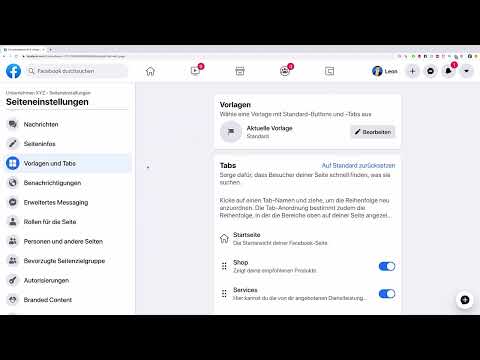
In the Templates and Tabs section, you determine which functions are displayed on your page. You can work on these tabs at any time or choose a completely new template. Available options include, for example, Shopping for sales pages, Business for classic company presences, Locations for branches, Services, Restaurants, or Cafés. Choose the template that best fits your business model.

Step 6: Setting notifications and saving
Under Notifications, you determine which events you want to be informed about. This ranges from new likes to incoming messages to comments. If a notification doesn't interest you, you can deactivate it. After every change, don't forget to click "Save" at the bottom so that the settings are applied.

Step 7: Understanding advanced messaging
The Advanced Messaging section is mainly relevant for users who connect external tools or chatbots to their Messenger. Such functions must first be reviewed by Facebook before they can be used. If you want to work with such services, you will find the corresponding options here. For most page operators, the default configuration is sufficient.
Step 8: Assigning roles and access rights
If you need support maintaining your page, you can assign roles to other people. To do so, enter a name or an email address and then select the appropriate role. The Administrator role can do everything, including deleting the page. The Editor may create posts, and the Moderator may additionally delete comments. The Advertiser may run ads, and the Analyst can only see the statistics. After being added, the person receives a notification and must accept the invitation before they can use the permissions.

In the People and Other Pages section, you can see who likes your page. Via the gear icon, you can remove or ban people. A banned person can then no longer post, comment, or send messages. This is helpful if someone repeatedly leaves insulting comments.

Step 9: Audiences, Authorizations, and Branded Content
The Preferred Pages and Audience section has been greatly reduced on Facebook. It used to allow you to analyze more precisely where your visitors come from. Today, you'll find the corresponding information more in the general statistics.

Under Authorization, you can apply for permission if you want to run political ads, for example. The Branded Content section is relevant if you work with influencers or promote other providers' products yourself. Always label such posts clearly so that it is obvious to your users that a product has been sponsored.

You can also link your Instagram account here. After that, you'll see Instagram messages directly in Facebook and can reply there as well. With WhatsApp it's a little different: you can send messages there, but not receive them to the same extent.

Step 10: Featured Pages, Crossposting, and Payments
Under Featured, you can specify which other pages are displayed on your page. This is especially worthwhile for companies with multiple locations or subsidiaries. One example would be a chain of stores linking its individual locations.

Crossposting allows you to share videos between two pages, provided both pages have added each other. You decide which videos may be posted multiple times, and you can also view the video statistics.

Your requests to Facebook end up in the Support Inbox. You'll receive replies there as well. If you want to earn money through videos, you'll find the settings for ad revenue, such as for in-stream ads, under Payments.


Step 11: Check History and Activity Log
The Page Management History shows you which changes have been made to your page. This is handy when several people work with the page. The Activity Log goes even further. There you can see all your activities on Facebook, including likes, reactions, and posts, not only on the page but also on your personal profile and in groups.

Summary – Setting Up a Facebook Page: Advanced Settings for More Customers
You have now learned about all the important areas of the advanced Facebook page settings. Start with the country restriction and the age restriction, because they determine who sees your page and your ads in the first place. Then set up Messenger: a personalized greeting, an away message, frequently asked questions, and buttons with offers. Don't forget about roles, either, so that only the right people can make changes. With these basics, you are perfectly prepared to fill your page with content and specifically win new customers.
FAQ
Do I always have to turn off the country restriction?No, but if you want to run ads in multiple countries, you should turn it off. A restriction only makes sense if you deliberately want to address a regionally limited audience.
How quickly should I reply to messages?As quickly as possible. Facebook rates pages that respond promptly as active, which can have a positive effect on the reach of your posts.
What is the difference between a welcome message and an away message?The welcome message is received by every user who writes to you for the first time. The away message only appears when you are currently unavailable.
Can I personalize the greeting with the sender's name?Yes. With the Add Personalization option, you can have the sender's first name, last name, or full name inserted automatically.
How do the Editor and Moderator roles differ?An editor can create posts, while a moderator can also delete comments. The administrator has all rights, including deleting the page.
Can I reply to Instagram messages in Facebook?Yes, if you link your Instagram account to the page. Then you'll see the messages directly in Facebook and can reply there.
What happens if a person is banned from my page?The banned person can no longer post, comment, or send messages on the page.
Where can I find the history of my changes?In the Page Management History, you can see all the changes that have been made to the page.


