
Imagine someone subscribes to your bot, and two days later this person automatically receives the next message, without you having to do anything. That's exactly what Sequences in ManyChat make possible. In this guide, I'll show you step by step how to create a Sequence, schedule messages with time intervals, add buttons with links, evaluate responses using tags, and keep track of the results.
The video is only loaded from YouTube when you play it – data (including your IP address) is then transmitted to YouTube/Google. More in the privacy policy
A Sequence is basically a chronologically ordered series of messages. As soon as a person becomes part of this Sequence, the process starts, and the messages are sent one after the other. This means you don't have to write and send new messages every day, but can plan your communication in advance.
Key Takeaways
A Sequence is an automated series of messages that starts when someone subscribes to a bot. Each message gets its own send time, which can be immediately, or after minutes, hours or days. Messages must be published and activated in the Sequence in order to actually be sent. With buttons, links and tags, you can capture reactions and control the flow in a targeted way. With statistics such as Sent, Clicks, Open Rate and Retention Rate, you can see how well your Sequence is performing.
Step-by-Step Guide
Why Sequences Make Sense
Before you get started, it's worth looking at the benefits. With Sequences, you automate your chatbot marketing. You decide once which content is delivered when, and the process then keeps running in the background. It's important that recipients get real added value. A Sequence that repeats the same promotional messages at short intervals quickly annoys people. Helpful videos, articles or offers, on the other hand, are gladly read.

Creating a New Sequence
In ManyChat, open the Sequences section. In the top right you'll find the "New Sequence" button. Click it to create a new Sequence. Then assign a unique name, for example "Example Sequence", so you can quickly find it again later. Confirm with "Create".


Adding the First Message
After creating it, ManyChat shows you a notice that there are no messages yet. Using the corresponding button, you start creating new messages. On the left side you'll see the so-called Schedule. It determines when a message is sent after subscribing to the Sequence. A message with the schedule "after one day" is therefore only sent 24 hours after the person enters the Sequence.

Then click "Create new reply" to write the first message. One example would be a personal greeting in which you insert the person's first name using the placeholder, such as "Hi Leon, thanks for being part of my newsletter." Word the text so that it feels friendly and leads directly to the content.

Adding a Button with a Link
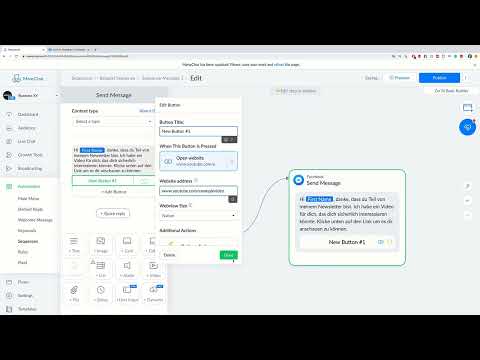
So that recipients can click through, you add a button below the text. To do this, choose the option for a button and give it a clear label, for example "Watch video". In the "Open Website" field, you then enter the destination address, such as a YouTube video or a blog article. Confirm the entry with "Done". A button makes the message interactive and at the same time gives you data about who clicked.

Publishing and Activating the Message
A message only takes effect once you publish it. To do so, click "Publish" at the top. Afterwards, you return to your Sequence and activate the message. Only through activation is it actually sent to new subscribers. So always check that the status is set to active before you sit back.

Setting the Send Time
Many users want the first message to arrive immediately after entering the Sequence. To do this, open the message's Schedule and select the "Immediately" option in the top right corner. Alternatively, you can make the timing flexible. The options are Minutes, Hours, and Days. This way you can send a message after five minutes, after two hours, or after five days. Save your setting with "Save and Update Schedule".

Creating Additional Messages in Chronological Order
A Sequence usually consists of several messages. Add more messages and pay attention to the timing order. A common misconception is that multiple messages with the same schedule are sent at the same time. For example, if you plan four messages at one-day intervals, the first arrives immediately, the second after one day, the third after two days, and the fourth after three days. The intervals therefore add up from message to message. So check each Schedule carefully before you save it.

Asking Questions and Evaluating Answers with Tags
It gets more interesting when you involve the recipients. A message can contain a question, such as "Hey Leon, how are you today?". You then offer two answer options, for example "Good" and "Not good". In the Actions area, you define a Tag for each answer. To do this, select "Add Tag" and assign the names, such as "doing well" and "not doing well". With these Tags, you can later filter subscribers in a targeted way and address them differently.


Including an Offer with a Free Download
In the next step, you can add an offer to a message, for example a free e-book. Write a short text that explains the benefit, and add a button below it. Label it "Download e-book" or a shorter variant if the text seems too long. Enter the address of your download page as the destination. Link the Action to the message and then publish it via "Publish". Finally, don't forget to activate the message in the Sequence.

Managing Messages and Evaluating Statistics
If you no longer need a message, you can delete it using the trash can icon at the bottom edge. To assess the effectiveness of your Sequence, open the statistics. There you will find the metric Sent, which shows how often a message was sent. Clicks reveals how often a button was clicked. The Open Rate indicates how many messages were opened. The Retention Rate shows how many people stayed in the Sequence and how many left it early. Use these values to continuously improve texts, time intervals, and offers.

Summary ??? Creating ManyChat Sequences: Step-by-Step Guide
You have now seen how to create a Sequence in ManyChat, plan messages with suitable send times, and equip them with buttons, links, Tags, and offers. Make sure to publish and activate every message so that it is actually sent. Plan the intervals deliberately, because they add up. In the end, the evaluation with Sent, Clicks, Open Rate, and Retention Rate helps you improve your Sequence step by step. Focus on helpful content instead of pure advertising, and your Sequence will remain interesting for your subscribers.
FAQ
What is a Sequence in ManyChat?A Sequence is a chronologically ordered series of messages that is automatically sent to a subscriber as soon as they are added to the Sequence.
When is the first message of a Sequence sent?That depends on the Schedule. If you select "Immediately", it is sent right after entering the Sequence. Alternatively, you can set a period in minutes, hours, or days.
Why is my message not being sent?Often the publication or activation is missing. Check whether you have published the message via "Publish" and activated it in the Sequence.
Do the time intervals between messages add up?Yes. Each Schedule refers to the previous message. With four messages, each one day apart, the last one therefore arrives only after three days.
What are Tags used for in a Sequence?Tags mark subscribers based on their answers or clicks. This way you can later filter them in a targeted way and address them with suitable content.
What does the Retention Rate mean?The Retention Rate shows how many people stayed in the Sequence and how many left it early. It helps you assess whether the flow is attractive to your subscribers.


