
If you move a layer into 3D space in After Effects and can't find the usual settings, you're usually only missing one step: activating the 3D area. With the March 2021 update, the 3D ground plane and the draft preview mode can be switched on contextually. This lets you navigate within a three-dimensional space, similar to dedicated 3D programs like Cinema 4D or 3ds Max. In this tutorial, you'll learn how to activate the feature, how to move around in the space, and how to align layers precisely.
The video is only loaded from YouTube when you play it – data (including your IP address) is then transmitted to YouTube/Google. More in the privacy policy
Key Takeaways
The 3D ground plane only becomes visible once you click the layer until the 3D cube appears.
In draft preview mode, you can display coordinates and the corridor, which gives you a much better spatial understanding.
With Dolly, the Rotation tool, and guide lines, you can place and align layers precisely in space.
Step-by-Step Guide
Step 1: Activate the 3D area via the layer
Before you can use the ground plane, you must activate the layer you want to edit. In the video, this is an image file named "1.jpg". Click the layer in the Layers panel until the 3D cube appears around it. This cube is the prerequisite for the remaining 3D settings to be displayed. So if you're missing settings, first check whether the cube is visible.

Step 2: Turn on draft preview mode
As soon as the cube appears, the 3D draft preview mode shows up in the panel, and you can now activate it. It provides the tools you use to explore the space around your layer. The switch happens directly in the context of the selected layer and is therefore only available when the layer is actually active.

Step 3: Switch on the 3D ground plane
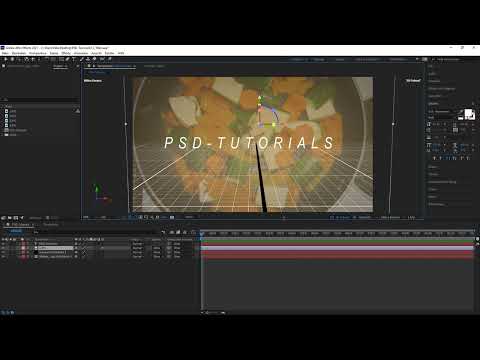
Now you switch on the 3D ground plane. It displays coordinates and the corridor in which you can move. The video makes clear how the view changes as a result: you immediately see where the layer sits in space and how it relates to the axes. This very step makes the difference between a flat and a spatially understandable working environment.

Step 4: Navigate in space and use the Dolly function
With the ground plane activated, you can move within the corridor. With the Dolly function, you move into the space or back out of it. In the example, the navigation is set up so that you can work practically infinitely far out. This way you don't lose sight of your layer, no matter how far away from it you go.

Step 5: Align layers with the Rotation tool
If you want to rotate a layer or align it in a specific direction, you reach for the Rotation tool. With it, you can rotate your layers in space and set their orientation to suit your subject. The tool is especially useful when you want to arrange elements at an angle or in perspective.

Step 6: Use guide lines for exact placement
For precise positioning, you activate the guide layers in the "View" menu. You can use them to align your layers so that they orient cleanly to the axes and edges. Especially with multiple layers in space, this aid ensures that your arrangement remains even and easy to follow.

Step 7: Create new layers directly in 3D space
You can also create new layers directly in the space. For this, the speaker mentions the key combination Ctrl or Cmd together with the Y key, which creates a new solid layer. Alternatively, you can choose a drawing tool and paint a shape or layer directly in the space. Whether you use the key combination or the tool is up to you.

Step 8: Shrink the Black Solid and Use Coordinates
To work better in space, it is advisable to shrink the large black solid. You can do this with the S key, which scales the view. Then you select the Selection tool and drag the layer's coordinates to the desired position. This step helps you keep the workspace clear and organized.

Step 9: Move Layers in Space and Set Their Depth
Now you align the layer to a specific point. In the video, it is moved to the left and placed a bit forward or backward. This gives you a good spatial understanding, since you control position and depth at the same time. With the Dolly you can also move back and check the result from a greater distance.

Step 10: Check the Difference from the Previous Way of Working
Finally, you can deactivate the ground plane again to see the comparison. Without the 3D ground plane, you lack orientation and depth, and the arrangement is hard to follow. Only with the ground plane do you get a much better view. In addition, you can rotate the space and thus check from different angles whether all layers are positioned correctly.


Summary – Activating the After Effects 3D Ground Plane and Using Draft Preview
The 3D ground plane and the draft preview mode in After Effects make working in three-dimensional space considerably easier. You activate the function by clicking the desired layer until the 3D cube appears, and then switching on the ground plane. After that, you can move around in the corridor, navigate with the Dolly, rotate layers, align them to guides, and create new layers directly in space. This significantly improves your spatial understanding, which is why the update counts among the most useful new features of the March update.
FAQ
How do I know that the 3D function is active?The function is active when the 3D cube appears around the layer after you click it.
Why can't I find the 3D settings?Usually the layer has not been activated yet. Click the layer until the 3D cube becomes visible, then the settings appear.
What is the 3D ground plane for?It displays coordinates and a corridor in which you can orient yourself and move in space.
How do I move forward and backward in 3D space?With the Dolly function, you move into or out of the space.
How do I align layers precisely?Under "View", activate the guide planes and align your layers to them.
Can I also create new layers in space?Yes, you can use the key combination Ctrl or Cmd and Y, or paint directly in space with a drawing tool.
Why should I shrink the black solid?A smaller surface provides a better overview and makes working in space easier.


