
Your campaign is set up, and now we get to the core of the Google Ads structure: the ad group. Using a dental practice as an example, in this guide I'll show you how to create an ad group, with keyword, ad texts, landing page and bid. The hierarchy always stays the same: campaign, ad group, keyword.
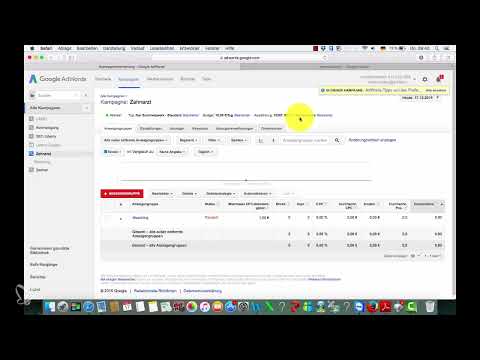
The video is only loaded from YouTube when you play it – data (including your IP address) is then transmitted to YouTube/Google. More in the privacy policy
Key Takeaways
- An ad group always belongs to a campaign and contains keywords, ads and bids.
- If possible, create only one keyword per ad group. This way, ad texts and landing page can be matched precisely to the search term.
- The keyword belongs in the ad headlines, and the landing page should match exactly this topic.
- You have to set the default bid at the end, otherwise the ad group will not run properly.
- New ads are reviewed by Google first. The Quality Score changes over time.
Step-by-Step Guide
Step 1: Create an ad group in the campaign
First open the campaign, in this example "Zahnarzt". There you will see that no ad group exists yet. Click on the ad groups section and start creating a new group.

Step 2: Name the ad group after the keyword
Choose a name that exactly reflects the keyword you want to work with. In this example, the group is called "Bleaching". A clear name helps you keep track later, even with many groups. Make sure to spell it correctly, because typos in the name are easy to overlook later and hard to find.
Step 3: Write ad headlines with the keyword
In the field for the ad headlines, several lines are available to you. The keyword should appear in at least one headline. A suitable headline is, for example, "Bleaching mit Erfahrung". Note the character limit: each headline may only be a certain length. If you exceed it, Google will show you. Then shorten the wording, for example by using a shorter word instead of "Spezialisten" or by omitting filler words.
Step 4: Check the ad preview
Before you continue, it's worth taking a look at the preview. It shows you what your ad looks like when it appears at the top of the search results, and how it appears on the side. This way you can immediately see whether the headline and description fit together and are displayed in full.

Step 5: Write the second headline and the ad text
The second headline should motivate the user to take action. One example is "Bleaching vom Spezialisten zu fairen Preisen jetzt buchen", where you shorten the individual lines so that they fit the character limit. The ad text is the description below the headlines. There you can include more information.

Step 6: Build trust and set a clear call to action
In the description, you emphasize that you are a specialist in the topic. Many patients do not want to be the first patient treated at a practice with unknown experience. The price statement "zu fairen Preisen" also helps prospects feel addressed, because they can immediately judge whether the offer is relevant to them. End the text with a clear call to action such as "Jetzt buchen". This very click is later the conversion that you want to measure.
Step 7: Set the final URL to the appropriate subpage
The final URL is the page the user lands on after the click. Do not direct it to the homepage, but to the subpage on the topic, in this example the page on bleaching. Anyone searching for bleaching should immediately find a suitable answer there. Copy the address of the subpage directly from the browser and paste it into the field.

Step 8: Enter the display URL correctly
The display URL appears below the ad in the search result. It does not have to show the complete address. Remove the "https://" at the beginning, otherwise the address will appear twice or incompletely. The path fields can reflect the name of the subpage, for example "Bleaching".
Step 9: Define the keyword
Enter the keyword in the field. In this example, you use "Bleaching" and additionally a regional variant such as "Bleaching Berlin". The following applies to every ad group: The keywords should be very similar in topic. If the topics are very different, the group becomes confusing.

Step 10: Have the search volume estimated
With the Keyword Planner, you can have an estimate made of how often a search term is searched for. To do this, you first have to name the ad group and enter a default bid. This bid determines the maximum amount you are willing to pay per click.

Step 11: Adjust the bid if no clicks occur
A bid that is too low means your ad is hardly displayed or not displayed at all. The ad then shows zero values for clicks and impressions. Increase the bid gradually and observe how the values change. However, a very expensive keyword can also lead to nothing being displayed. In that case, it is worth taking a look at the competition or at a similar, cheaper keyword.

Step 12: Use keyword suggestions selectively
Google suggests many additional keywords to you. Not every suggestion fits into this group. Topics such as "Bleaching Schiene" or "Bleaching Zähne" should go into their own ad groups so that the ad texts match the search term exactly. Each ad group keeps to one main keyword, which you use consistently in the headline and landing page.

Step 13: Recognize optional settings and set the default bid
In the form you will find further options, such as shortened URLs for mobile devices or tracking templates. These items are not strictly necessary to get started and can be added later. What is important is the default bid at the end of the form. It is the amount you want to work with initially, and you can change it at any time. Without a default bid, the ad group is incomplete.


Step 14: Save the ad group and check the status
Save the ad group. It then appears in the overview. If it is active, it is displayed in bold. If you want to pause it for testing purposes, you can do so at any time. When you switch it back on, it sometimes takes a moment until Google evaluates the keywords again.

Step 15: Raise the bid to the first page
If the keywords show a notice that the bid is not sufficient for the first page, increase it. In the example, it was raised to €2 so that the ad can appear at the very top. A higher bid improves visibility but also increases the cost per click. So keep an eye on the ratio of costs to returns.

Step 16: Understand the quality score and competing ads
The quality score is given on a scale from 1 to 10. In the example, it is 6 out of 10, which serves as a benchmark. If two of your own ads compete for the same keyword, usually only one is displayed. This is normal. First wait a day. If the problem persists, pause the weaker ad group.

Step 17: Check the values regularly
Google AdWords is not a system that you set up once and then forget. The quality score can change from one day to the next because Google evaluates real user data such as click-through rate and behavior on the page. Therefore, look at the monitoring view regularly so that you notice changes early.

Step 18: Create a second ad group
For another topic, you repeat the steps, this time with a separate group. In the example, this is the group "Teeth Cleaning," with the landing page about prophylaxis. The logic stays the same: one keyword, matching headlines, a matching subpage as the final URL.

Step 19: Write ad texts without abbreviations
Avoid abbreviations in the ad texts. Don't write "Prof. Teeth Cleaning," but the full "Professional Teeth Cleaning in Berlin." Spelled-out terms seem more trustworthy and are understood more quickly by users. Here too, pay attention to the character limit and shorten the addition if necessary.

Step 20: Set the landing page and default bid for the second group
Enter the matching subpage as the final URL, in this example the page about prophylaxis. Then set the default bid, in the example to 150, and save the ad group. Afterwards, check whether the landing page actually matches the keyword.


Step 21: Wait for the review
After saving, new ads and keywords initially show the status "Under review." This is normal and can take a while. Only after that do the ads become active. The best way to use this waiting time is to review your settings once more at your leisure.

Summary – Your first ad group in Google Ads: explained step by step
You have learned how to create an ad group within your campaign, name it after a single keyword, and write suitable ad headlines. You also know how to set the final URL and the display URL correctly, choose a sensible bid, and keep an eye on the Quality Score. Remember: only one keyword per ad group. If you follow this principle, your structure will be clear, and your ads will reach exactly the searchers you want to reach.
FAQ
How many keywords belong in an ad group?Ideally only one keyword per ad group. Thematically related but different search terms each get their own group.
Why is my ad not being shown yet?New ads and keywords must first be reviewed by Google. In addition, a bid that is too low can result in no clicks. Check the bid and wait a day.
What does the Quality Score mean?The Quality Score is a rating from 1 to 10. Google uses it to assess how relevant the keyword, ad, and landing page are to each other. A higher value usually improves position and costs.
What is the default bid?The default bid is the maximum amount you are willing to pay per click for the keywords in an ad group, unless you set something individually.
Do I have to use shortened URLs or tracking templates?No, neither option is strictly necessary to get started. You can add them later once you start dealing with analysis.


