
Copying sounds like the simplest task in the world, and most of the time it works exactly that way. As soon as expressions, effects or cameras are involved, though, the classic Ctrl+C and Ctrl+V often isn't enough. Then it overwrites values you wanted to keep, or the connection between the layers is lost. In this tutorial, I'll show you how to copy only the expression in After Effects, how to link effects together via property links, and even how to mirror a 3D camera into a precomposition.
The video is only loaded from YouTube when you play it – data (including your IP address) is then transmitted to YouTube/Google. More in the privacy policy
The example is a scene with 20 rectangles that are supposed to move independently of each other. It shows where normal copying reaches its limits and which alternatives After Effects offers.
Key Takeaways
- With Ctrl+C and Ctrl+V you copy expressions along with their values. In the process, the original position values can be lost.
- Via "Edit > Copy Expression Only" you take over only the expression and keep the individual values.
- A slider on a null object can be integrated into expressions as a central control and thus influence several layers at the same time.
- Via "Copy with Property Links", effects and properties are linked between compositions, so that changes in the original are immediately visible everywhere.
- With the same technique, a 3D camera can be transferred into a precomposition without losing it in the main composition.
Step-by-Step Guide
Starting Point: Many Layers with Their Own Position
First, set up your project with the rectangles. Each solid has its own position distributed across the screen. Your goal is to set all layers in motion at the same time without losing their starting positions.

Creating a Wiggle Expression on the First Layer
Select the first layer and press the P key to reveal Position. Then hold down the Alt key and click the stopwatch icon of Position. This is how you activate the expression. Enter wiggle(1, 100) in the expression field. The layer now moves about 100 pixels once per second.

Why Normal Copying Overwrites the Values
This step shows your first problem. If you copy the layer with Ctrl+C, select all the other layers and paste with Ctrl+V, not only the expressions are transferred, but also the position values. All rectangles then move to the same spot and move around the origin point you took over from the first layer. Their original distribution is lost.

Copy Only the Expression
The better solution is the "Copy Expression Only" command. You'll find it in the menu under "Edit". Select it while the position of the source layer is selected. This puts only the expression on the clipboard, and the values remain untouched.

Pasting the Expression onto All Layers
Now select all the rectangles that should receive the expression and press Ctrl+V. Each layer takes over the wiggle movement but keeps its own position. The grid is preserved, and you no longer have to enter any values by hand.

Creating a Central Slider on a Null Object
So that you can control the overall movement later, you create a null object. Add a slider to it via "Effect > Expression Controls > Slider" and name it Radius. This slider will determine the strength of the movement.

Linking the Expression to the Radius
In the expression, replace the fixed value 100 with a reference to the slider of the null object. The expression now reads the radius directly from the slider. Copy the updated expression again with "Copy Expression Only" and paste it again over all the rectangles.
Animating the Movement
Set the radius to 100 and create a keyframe. Then go to a later point in time, about five seconds further, and set the value to 0. When playing it back, the previously chaotically wobbling rectangles arrange themselves step by step until they stand calmly in their position.

Second Method: Connecting Effects via Property Links
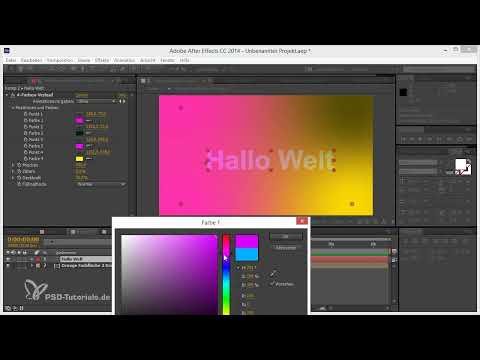
The second example is not about expressions, but about effects. Create a new composition, add a solid at composition size, and apply the effect "Generate > 4-Color Gradient" to it. Then move the solid into a precomposition.

Applying a 4-Color Gradient to Text
Create a white text, for example "Hallo Welt", without a stroke. Apply the 4-Color Gradient to it as well. Set the blend mode to "Normal" and reduce the opacity a little. The example is deliberately kept simple, but the technique can be transferred to many projects.

Copying Property Links
In the original composition, select the 4-Color Gradient and open the "Edit" menu. There you will find the command "Copy with Property Links". It creates an expression for each property of the effect that refers to the original.

Pasting the Link in the Subcomposition
Open the subcomposition and select the 4-Color Gradient there. Now paste the copied property links via "Paste". The existing effect is overwritten in the process and connected to the expression of the original.

Checking the Link
To check the connection, press the EE key in the subcomposition. You will now see all expressions of the layer. Then change colors or values in the original composition, and the changes also appear live in the subcomposition.
Copying a Camera with Property Links
The third example shows a 3D camera. Suppose you have a 3D text in your composition and have animated a camera move. If you want to transfer this camera into a subcomposition but keep it in the current composition, select the camera and copy it with "Copy with Property Links". The shortcut is Ctrl+Alt+C.

Moving Layers into a Subcomposition
Select the layers that should go into the subcomposition and choose "Pre-compose" with the shortcut Ctrl+Shift+C. The camera is removed from the main composition in the process and is now located in the new subcomposition. Open it with a double-click.

Pasting the Camera in the Subcomposition
In the subcomposition, paste the linked camera with Ctrl+V. With the EE key you can see that all properties of the camera now contain expressions that refer to the camera in the main composition. If you move the camera in the original, the subcomposition follows automatically.

Using the Particle Effect with the Camera
A practical application example is the effect "CC Particle World". It can be applied to a 2D layer and still reacts to the camera when it is in a composition with a linked camera. Use the grid and guides function to show the view in order to follow the movement of the camera. This way you can move around the particle system even though it is located in a subcomposition.

Relative Links in Newer Versions
Starting with After Effects CC 2014.1 (version 13.1), property links can also be copied relatively. This means you can still move or modify the linked camera after pasting it, and it remains bound to the camera of the original. This technique becomes particularly interesting with effects, which I will discuss in more detail in a later tutorial.

Summary ??? After Effects Workflow: Copying Expressions and Effects Selectively
With Ctrl+C and Ctrl+V you copy quickly in After Effects, but not always selectively. If you only want to transfer the expression, use "Edit > Copy Expression Only". The command preserves the individual position values of each layer. A null object with a slider allows you to control many layers at the same time.
For effects and cameras, "Copy with Property Links" is the right choice. The properties remain connected to the original via expressions, so that changes become visible everywhere. In this way, you can also move 3D cameras into sub-compositions and still control them in the main composition.
FAQ
Why does Ctrl+V overwrite my position values?With normal copying, not only the expressions but also the current values of the property are transferred. Use "Edit > Copy Expression Only" instead, so that only the expression is transferred.
How do I tell which expressions are active in a layer?Select the layer and press the EE key. All properties with an active expression will then be displayed.
What does property link mean?A property link is an expression that connects one property to another. If you change the original, the linked property is automatically changed as well.
How do I activate a slider on a null object?Create a null object, select it, and add a slider via "Effect > Expression Controls > Slider Control". You can then reference this in expressions.
Can I move a camera into a sub-composition without losing the connection?Yes. Copy the camera with "Copy with Property Links", pre-compose the desired layers, and paste the camera again in the sub-composition. The camera then remains linked to the original.
As of which version are there relative property links?Relative links are available from After Effects CC 2014.1 (version 13.1) onwards.


