

Have you ever opened a log file with thousands of lines and searched for a single piece of information? That is exactly what pipes, grep, sort and wc are made for. In this guide, you will learn how to specifically filter, search, sort and count the output of commands on Linux. The example used is the file syslog.1 in the directory /var/log. It records, at every system start, which services and programs were started.
The video is only loaded from YouTube when you play it – data (including your IP address) is then transmitted to YouTube/Google. More in the privacy policy
Key Takeaways
- A pipe (
|) passes the output of one command directly on as input to the next command. grepshows only lines that contain a specific word. With-v, you invert this filter.sortarranges lines alphabetically, and with-rin reverse order.wccounts lines (-l), words and characters.- Multiple pipes can be chained one after another. The commands are processed from left to right, and each step refines the result of the previous one.
Step-by-Step Guide
Step 1: Finding the Right Log File
First, switch to the log directory with cd /var/log. There are numerous log files there, some of which are very small and others very large. For our example, you need a file with a lot of content. The command ls -lat lists all files in detail so that you can compare the size information in the column.

With ls -lat, you see a list of files with their sizes. Files such as syslog.1 or lastlog are significantly larger than most others. The file syslog.1 is well suited for our example because you will find many entries about system starts in it.

Step 2: Viewing the File Contents
Before you filter, you should know what the entries look like. With cat syslog.1, you output the complete file in the terminal. You can see, line by line, which services, such as the network manager or the login management, have started. In between there are also messages about system commands. The file itself is not changed in the process; you only read it.

The problem is obvious: The output is very long, and the information you are looking for gets lost among the other lines. This is exactly where the filter comes in.
Step 3: Using the Pipe as a Connection
A pipe connects two commands with each other. The result of the left command is not output but passed directly on to the right command. On a Mac, you create the pipe character with the key combination Alt + 7. On Windows with a German keyboard, it works with AltGr and the key to the left of the Y. The key is usually located to the left of the Y key, immediately before the letter Y.

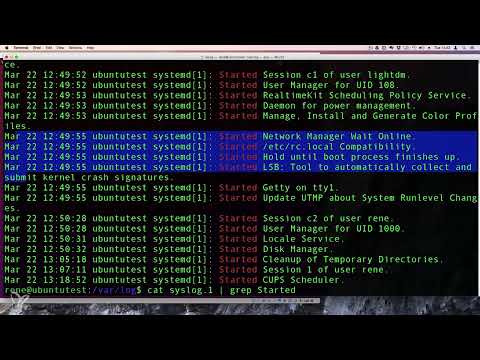
With the pipe character, you can now enter cat syslog.1 | grep started. The command cat outputs the file and passes the output to grep.
Step 4: Filtering for a Word with grep
The command grep searches its input for a specific word and shows only the lines that contain this word. The file itself remains unchanged; grep works only with the output. If you enter cat syslog.1 | grep started, you get a list of all lines in which the word "started" appears.
The word "started" is highlighted in color in the terminal. This way, you can calmly check whether a service was actually started or not.
Step 5: Using the Results in Practice
This technique is very useful in everyday life. For example, if you suspect that your firewall is being bombarded by an attacker, you can specifically search the log files for IP addresses. If suspicious addresses can be identified, you can then block them. This filter also helps you when troubleshooting in PHP or WordPress, because you can find the error messages directly in the log files.

Step 6: Exclude lines with grep -v
The -v option inverts the filter. With cat syslog.1 | grep -v started you get all lines in which the word "started" does not appear. This is helpful when you want to filter out certain entries that don't interest you.

Step 7: Chain multiple filters together
You can chain as many filters together as you like. To do this, simply add another pipe with an additional grep -v. The command cat syslog.1 | grep -v started | grep -v stopping first removes all lines containing "started" and then all lines containing "stopping". In this case, the order doesn't matter. In the end, only the lines that contain neither of the two words remain.

Step 8: Sort the output with sort
With sort you arrange the output alphabetically. To do this, enter cat syslog.1 | grep started | sort. With this log file, however, it doesn't help much, because every line begins with a date and time. The order is therefore already chronological, and sorting changes nothing. With ordinary text files containing words or names, sort clearly shows its strengths.

Step 9: Reverse the sort order
With the -r option you reverse the sort order. The command cat syslog.1 | grep started | sort -r shows you the entries in reverse. The most recent entries are then at the top, and you can see at a glance what was started last.

Step 10: Page through long outputs with more
If the output no longer fits in the terminal window, the more command helps. Attach it with a pipe: cat syslog.1 | grep started | sort -r | more. With the Enter key you move forward line by line, with the space bar you jump forward page by page. With the Q key you leave the view again.

Step 11: Count the results with wc
Sometimes you are not interested in the content, but only in the number of lines. The wc command (word count) returns three values: lines, words, and characters. With the chain cat syslog.1 | grep started | sort | wc, for example, you get 546 lines, 5568 words, and 42207 characters. If you only want the lines, you use wc -l. By the way, sorting is not necessary for counting, since it doesn't change the number of lines.

Step 12: Build a complex filter chain
You can combine all the previous commands into one chain. An example: cat syslog.1 | grep started | grep -v create | wc -l. First, grep selects all lines with "started". The second filter removes all lines with "create", and wc -l finally counts the remaining lines. In the example, 530 lines remain. So you read the chain from left to right like a list of rules that are processed one after another.

Step 13: Use pipes with other commands
The pipe doesn't only work with cat. You can use any command that produces output. The command ls sys* lists all files whose name begins with "sys". With ls | grep sys you achieve the same result in a different way. This knowledge helps you in everyday administrator or user tasks.

Summary ??? Filtering Linux output with pipes, grep and sort
Pipes are one of the most powerful tools in Linux. You connect commands with each other, filter with grep, exclude terms with grep -v, sort with sort, and count with wc. The filters are processed from left to right, so you can put together your own rules step by step. Practice the commands on a real log file, and you will quickly start using them in everyday life.
FAQ
What is a pipe in Linux?A pipe connects two commands. The output of the left command is passed as input to the right command.
How do I type the pipe character on a Mac and on Windows?On a Mac, you press Alt + 7. On Windows with a German keyboard, you use AltGr and the key to the left of the Y.
What does the -v option do in grep?With -v, all lines that do not contain the searched word are displayed. The filter is thus inverted.
Does grep change the log file?No, grep only reads the output and filters it. The original file remains unchanged.
What is the wc command used for?With wc, you count lines, words, and characters. With wc -l, you get only the number of lines.
Why is sort of little use with this log file?Each line begins with the date and time. As a result, the entries are already in chronological order, and an alphabetical sort barely changes the arrangement.
Can I use several filters in a row?Yes, you can chain as many pipes together as you like. Each command processes the result of the previous command.

