

Anyone who types ls -l into the terminal gets a long list of access rights, owners, and file names. The most important piece of information is right at the front, namely the very first character of each line. It tells you whether something is a folder, a regular file, or a link. In this tutorial, you will learn how to read this character, how to create links yourself, and how to tell the rarer file types apart.
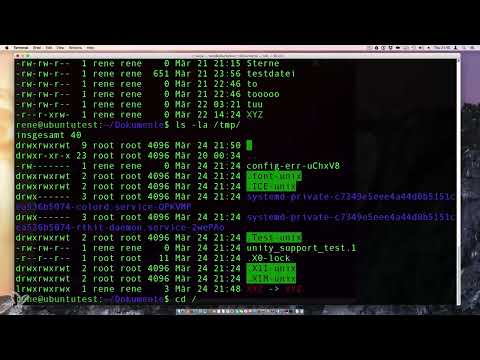
The video is only loaded from YouTube when you play it – data (including your IP address) is then transmitted to YouTube/Google. More in the privacy policy
You should already be familiar with the basics of access rights, because the type identifier comes directly before them. You don't need any prior knowledge of the file system, just a terminal and a few minutes of time.
Key Takeaways
The first character in the output of ls -l indicates the file type. A d stands for a directory, an l for a symbolic link, and a minus sign - for a regular file. In addition, there are other types such as character device files (c), block device files (b), Unix socket files (s), and pipes (p). Colors in the terminal can help you, but they are not a reliable distinguishing feature.
Reading the output of ls -l correctly
Start with the command ls -l in any directory. Each line describes one object, and on the far left you will see a combination of ten characters. The first of these is the file type, and the remaining nine are the access rights for the owner, the group, and everyone else.
So first, pay attention only to this first position. It is the answer to the question of what you are dealing with.

Recognizing folders by the letter d
A directory, that is, a folder, is marked with a d at the beginning of the line. The character stands for "directory". If you see a line in your output that begins with d, you can be sure that the name refers to a folder and not a file.
This distinction is especially important when you use commands like cp or rm, because folders behave differently from files with them.

Recognizing regular files by the minus sign
A minus sign at the very front means that it is a regular file. This includes text files, scripts, images, or programs. The minus is the character you will see most often in a typical home directory.
So if you see a line like -rw-r--r--, you know right away that you are dealing with a normal file.
Creating a symbolic link yourself
Before you learn to recognize links, it is worth creating one yourself. With the command ln -s you create a symbolic link. Suppose you have a file named XYZ and want to create a reference to it in the directory /tmp, then you enter ln -s XYZ /tmp/. You need the parameter -s because it makes the command create a symbolic link rather than a hard link.
A symbolic link is basically just a reference to another file or another folder. It does not contain the content itself, only the path to the target.

Recognizing links in the list
Now change to the directory where you created the link and run ls -l again. You will notice that at first nothing conspicuous has changed in the list until you look more closely. The new entry begins with an l, and after the name there is an arrow pointing to the target. There you will see something like XYZ -> XYZ.
The l tells you clearly that it is not a file, but a link to an existing file. Especially in larger directories, this is a valuable aid, because a link often looks exactly like the original in its file name.
Getting to know other file types
Besides folders, files, and links, there are several special types. A character device file is marked with c, a block device file with b. You recognize Unix socket files by the s, and pipes by the p. These types play a smaller role in everyday use, but they should not seem unfamiliar to you when browsing through system directories.
You don't have to memorize all the types. What matters is that you have a firm grasp of the meaning of d and l, because you will encounter them most often.
Finding device files in the /dev directory
You can find device files in the /dev directory. Switch to it and use ls -l to display the entries. You will find character-oriented devices with a c at the beginning. Block-oriented devices also appear; you can recognize them by the b.
A good example of a block-oriented device file is the main memory. The data in it is processed in blocks, which is why the type is marked with b. Between the device files you will also come across some links, which shouldn't bother you any further. They belong to the system structure and have nothing to do with your task at the moment.


Use colors only as an aid
Many terminals color folders, links, and files differently. That is practical, but you shouldn't rely on it. If your terminal is monochrome or you have a different color scheme, you quickly lose track. Colors can also look different depending on the configuration.
That is why the first character in the output is the most reliable indicator. It specifies the file type exactly, regardless of colors or settings.
Use the first character as the key
Remember the most important rule: The first character of the line in ls -l determines the file type. A d stands for folders, an l for links, and a - for regular files. The remaining characters describe the access permissions and are a topic of their own.
Once you have internalized this system, you can tell at a glance in any directory listing what you are dealing with.
Summary – Recognizing file types under Linux
The first character in the output of ls -l tells you the file type. A d marks directories, an l symbolic links, and a - regular files. With ln -s you create a link yourself, and in /dev you encounter character-oriented and block-oriented device files with c and b. Rely on this character for telling them apart, and not on colors in the terminal.
FAQ
How do I recognize in Linux whether something is a folder?A folder is marked in the output of ls -l with a d at the beginning of the line.
How do I recognize a normal file?A regular file begins with a minus sign in the output of ls -l.
What does the l at the beginning of a line mean?The l stands for a symbolic link, that is, a reference to another file or another folder.
How do I create a symbolic link?You create a symbolic link with the command ln -s, followed by the name of the original file and the destination of the link.
Can I also recognize file types by the colors in the terminal?Colors can help, but they are not reliable because they look different depending on the terminal and settings. The first character in ls -l is always unambiguous.
What do c and b mean in the output?The c stands for a character-oriented device file, the b for a block-oriented device file. You can find device files, for example, in the /dev directory.
What is a pipe or a Unix socket file?Pipes and Unix socket files are special file types that serve communication between processes. They are marked in the output with p and s respectively.

