

When you open a Linux system for the first time, the folder structure may seem unfamiliar. On Windows you know drive letters like C: or D:, but on Linux you will look for them in vain. Instead, there is a single starting point from which all directories branch out. This guide walks you through this structure step by step. You will learn how to recognize the difference from Windows, how to find your way around in the file browser and in the terminal, and what the most important system folders such as /bin, /etc, /home or /var are intended for.
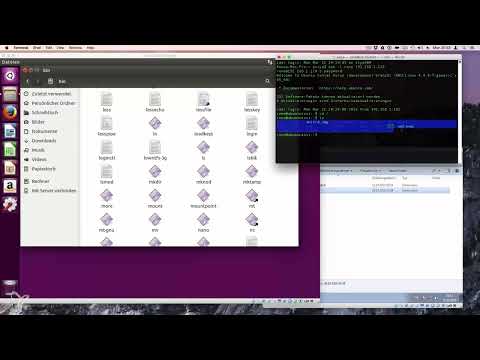
The video is only loaded from YouTube when you play it – data (including your IP address) is then transmitted to YouTube/Google. More in the privacy policy
Key Takeaways
Linux has no drive letters. Everything begins at the root level, which is represented by a slash /. External media such as CDs or USB sticks are not displayed as separate drives, but are mounted in folders such as /media or /mnt. Each user has their own home folder under /home. System files, programs and configurations are organized in fixed directories, each of which has a clearly defined purpose. You do not have to memorize all the folders, but you should know where to find what and which folders you had better not change.
Step-by-Step Guide
Step 1: The Difference from Windows
On Windows, storage areas are organized by letters. The system partition is usually on C:, a second hard drive gets another letter, and every USB stick appears with its own drive letter. On Linux, this principle is built completely differently. However, the library folder with pictures, music, documents and videos as well as the personal user folder are also present there and work similarly.

Step 2: The Personal User Folder
On Linux, open the file browser and click on "Files". There you will see familiar folders such as Pictures, Documents, Downloads, Music or Videos. There is also a Desktop folder. Everything that is on your desktop appears in the Desktop folder and vice versa. Your personal area is therefore clearly structured, even though the overall system is built differently.

Step 3: The Root Level with the Slash
In the file browser, switch to "Computer". At the top you will see the path. The slash / stands for the root level, that is, the topmost level of the entire system. Everything you find is located below this directory. There is no drive C and no drive E, only one shared directory tree.

Step 4: Removable Media on Linux
If you insert a CD, it does not appear as a separate drive, but as a folder within the root structure, for example under /cdrom. The same applies to a USB stick. The contents end up at a location in the directory tree, not under a new letter.
Step 5: The Home Folder
The /home directory contains the personal folders of all users. Each user gets their own folder with their name, such as /home/rene. In it you will find your documents and your settings files. Two users cannot have the same name, since each folder must be unique.

Step 6: Opening the Terminal and Connecting to the Server
To see the structure in the terminal as well, open your terminal or connect to a Linux server via SSH. You can find the IP address in the network settings of your system. With the command cd / you switch to the root level and with ls you list the contents. The output corresponds to what you saw earlier in the file browser.

Step 7: The /bin Directory for Basic Programs
The /bin folder (originally short for "binaries", i.e. programs) contains important commands such as ls or rm, which every user with access rights can run. There are no subdirectories here. The folder contains exclusively the programs you need for daily work on the command line.

Step 8: The /boot Directory for System Startup
/boot contains the files that Linux needs to start. This includes the GRUB bootloader. It allows you to choose which operating system or which Linux version should be started, similar to a dual-boot installation with Windows. As a rule, you don't need to change anything here.
Step 9: The /dev Directory for Hardware
The /dev folder (for "devices") contains information about your hardware. It defines which devices are connected and how Linux accesses them. This folder is also managed by the system and should not be changed manually.
Step 10: The /etc Directory for Configurations
The /etc directory (short for "editable text configuration") is the central location for configuration files. Most of the files are text files that you can open and modify with an editor. Here you define how a program should behave. Scheduled, recurring tasks such as cron jobs are also managed here.
Step 11: The Libraries in /lib
The /lib folder contains the libraries that Linux needs to operate. They roughly correspond to DLL files in Windows. For ordinary users, this area is invisible. Only when errors occur with outdated libraries might you need to intervene.
Step 12: Removable Media in /media and /mnt
Connected storage media such as USB sticks or external hard drives are mounted in /media. These media also appear in the graphical interface. The /mnt folder, on the other hand, is used for manually mounting drives, especially in the terminal.
Step 13: The /opt Directory for Custom Programs
The /opt (optional) directory is where programs end up that you install manually and that bring their own libraries and configurations. They are stored there separately from the rest of the system.
Step 14: The /proc Directory for Running Processes
The /proc folder is a virtual directory. There you will find information about running programs, the Linux version, and hardware data such as the processor. One example is cpuinfo, which displays the details of your CPU. The files are recreated at system startup.
Step 15: The /root Directory for the Administrator
The /root folder belongs to the administrator. It is deliberately not located under /home, because it must be accessible even when the home partition is not available. Only this way can, for example, rescue mode be used for maintenance work.
Step 16: The /run Directory for the Session State
In /run, information about the current system state is stored, such as which graphical interface is running or which programs are currently open. The contents are deleted and recreated with every restart.
Step 17: The /sbin and /srv Directories
The /sbin folder contains system programs that are absolutely required at startup, such as the command for shutting down or tools for partitioning and formatting hard drives. Unlike /bin, regular users do not have access here. The /srv folder (services) is usually empty. It is intended to hold files from services so that order in the system is maintained.

Step 18: The System Folders /sys and /tmp
The /sys folder contains files that represent interfaces to the Linux kernel. Here, kernel extensions for basic functions are adjusted. As a regular user, you generally don't need to deal with it. The /tmp folder stores temporary files for caching. This folder is regularly emptied automatically. It is well suited for experimenting, because you can create files there without worry and remove them again later.
Step 19: The /usr Directory for Installed Programs
The /usr folder (Unix System Resources) contains programs, tools, and libraries that administrators or users have installed afterward. The distribution's own packages are also included here. Programs from external developers also find their place here, even if they were not originally intended for your distribution.
Step 20: The /var Directory for Variable Data
The /var folder (variable) contains files whose content constantly changes during operation. One example is a web server such as Apache, which stores the files for websites here. Emails from a mail server also end up there. Particularly important is the subdirectory /var/log, in which logs of all activities and error messages are stored. If you want to analyze a problem, this folder is often the first place to look.
Step 21: Looking Up the Hierarchy in the Terminal
If you want to understand all the directories in detail, enter the command man hier in the terminal. The help page describes the entire directory tree down to deeper levels. To get started, though, it is enough to know the basic structure. You don't have to master every detail right away.

Summary ??? Linux Directory Structure Explained Simply: Folders and Their Functions
Linux organizes all data in a single directory tree that begins at the root level /. There are no drive letters; instead, removable media are mounted in folders. Your personal area is located under /home, while system files are managed in fixed directories such as /bin, /etc, /boot, /usr, /var and /tmp. For everyday use, you mainly need to know where your own files are located and which system folders you should rather leave untouched.
FAQ
Why are there no drive letters like C: or D: in Linux?Linux uses a single directory tree that begins at the root level /. All storage and removable media are mounted at a point in this tree, which is why no letters are needed.
Where do I find my personal files in Linux?Your personal files are located in your home folder under /home, for example under /home/yourname. There you will find folders such as Documents, Pictures, Downloads and Desktop.
How does a USB stick appear in Linux?A USB stick is mounted in folders such as /media or /mnt and is visible there as a directory. It does not get its own drive letter.
Can I display the folder structure in the terminal?Yes, with the command ls you list the contents of a directory. With cd / you switch to the root level.
What happens to my files in the /tmp folder?The /tmp folder is used for temporarily storing temporary files. It is emptied automatically at regular intervals, so it is suitable for tests but not for permanent data.
Why isn't the root folder located in the home directory?The /root folder must be accessible even when the home partition is not available, for example in rescue mode. That is why it is located separately at the top level.
Where do I find error messages or logs?Logs and error messages are stored in the /var/log folder. They are the first place to look when you want to analyze problems in the system.
Do I have to know all Linux folders by heart?No, for beginners it is enough to understand the basic structure. A detailed overview is available with the command man hier if you need it later.

