

Imagine your new blog article is published and shortly afterward automatically ends up as a LinkedIn post and in your readers' newsletter. That is exactly what content repurposing does, meaning the reuse of existing content in other formats. In this guide, I'll show you how to use AI automation to read a blog article, have it rewritten appropriately, and pass it on to multiple channels. You no longer have to manually rewrite texts for this. The setup is clearer than it looks at first glance.
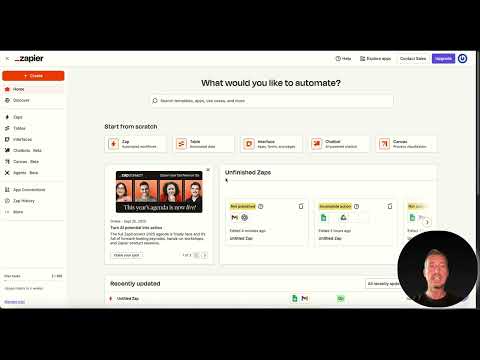
The video is only loaded from YouTube when you play it – data (including your IP address) is then transmitted to YouTube/Google. More in the privacy policy
Key Takeaways
- With content repurposing, you use existing content, such as a blog article, and automatically convert it into other formats like LinkedIn posts or newsletter texts.
- Every workflow consists of three building blocks: a source (blog, CMS, Google Sheet or text file), AI processing by ChatGPT, and the target channels.
- A trigger starts the process automatically as soon as a new post is published.
- Give ChatGPT a separate instruction for each channel so that the LinkedIn and newsletter texts differ from each other in a meaningful way.
- Tools like Make or n8n are particularly well suited for branching and more complex processes.
- For the ChatGPT integration, you need a premium account in many tools, because it counts as a pro feature.
Step-by-Step Guide
Step 1: Choose the Right Automation Tool
The first step is to find a tool that connects your applications with each other. In the video, the names Safir (probably Zapier), Make and n8n come up. Make and n8n work with visual flow diagrams in which you link steps via drag-and-drop. For a simple workflow with only a few stations, a simple tool is often enough. As soon as you plan branches, it's worth switching to Make or n8n.

Step 2: Define the Source
Your blog serves as the source. This can be a CMS like WordPress that is connected directly to the automation tool. Alternatively, a Google Sheet or a text file will work. In a spreadsheet, you simply create a new row containing the URL or the text of the article. This way you always get the latest information without having to trigger the process each time.

Step 3: Set Up the Trigger
The trigger decides when the workflow starts. Set it up so that it kicks in as soon as a new blog post is created. To do this, connect your blog system to the automation tool via the login. After that, you log in, and the tool has access to your latest posts. Make sure the connection stays permanently active, otherwise the process will stop unnoticed.

Step 4: Let ChatGPT Analyze the Article
Now you pass the text or the URL to ChatGPT. The AI reads the article, captures the key points, and creates new content from it. You don't have to make any adjustments by hand for this. What matters is that the tool passes ChatGPT's output on to the next step. The actual target channel is waiting there.
Step 5: Have the LinkedIn Post Created
For LinkedIn, you need a different form than for your blog. The post should be shorter, attract more attention, and strike a factual, professional tone. So formulate your prompt specifically: state the length, the tone, and the goal, such as a click through to the blog article. The tool then takes the finished text and can hand it over to your LinkedIn profile.

Step 6: Generate the Newsletter Text in Parallel
The newsletter pursues a different goal. It should make your readers curious and lead them to the full blog article. So have ChatGPT write a separate text that teases the content and contains a link to the post. The advantage: both texts are created from the same source, and you don't do double the work.

Step 7: Separate the Instructions for the Channels
For ChatGPT to deliver two different texts, you need to separate the instructions clearly. First formulate the task for the LinkedIn post and then the one for the newsletter. Explicitly state that these are two different results. This way the AI recognizes that it should not create one shared text, but two independent versions.

Step 8: Build branches and check premium access
The video shows that the process can be split into branches. One path leads to LinkedIn, a second to the newsletter, and optionally a third could run to Instagram. In Make, this step can be implemented particularly cleanly, whereas it is more cumbersome in other tools. Also note that the ChatGPT integration usually only works with premium access. Therefore, before building, check whether your account includes the necessary features.

Step 9: Test the workflow
Before you let the process run permanently, publish a test post or use a test row in the Google Sheet. Check the results for LinkedIn and the newsletter for tone, length, and links. Only when both texts are right do you fully activate the workflow. This way, you save yourself later corrections to posts that have already been published.
Summary – Content Repurposing with AI: Automating Blog to LinkedIn and Newsletter
You have seen how a new blog article is converted into a LinkedIn post and a newsletter text with the help of an automation tool and ChatGPT. The workflow begins with a trigger, reads the source, and passes it to the AI. Separate instructions ensure that each channel receives a suitable text. With branches in Make or n8n, you extend the process to additional platforms. Test the workflow before going live so that your content is delivered cleanly from the start.
FAQ
Which tool is best suited for beginners?For simple processes with few steps, a standard tool like Zapier is usually enough. As soon as you plan branches, Make or n8n are the better choice.
Do I have to pay to use ChatGPT?In many automation tools, the ChatGPT integration is only available with premium access. Check the prices and features of your tool before getting started.
Can I also send a blog article to multiple channels at the same time?Yes, you can serve LinkedIn, the newsletter, and other platforms like Instagram simultaneously. To do this, you create a separate processing step for each channel.
Why do I need a separate instruction for each channel?This way, ChatGPT knows that different texts should be produced. A LinkedIn post is short and attention-grabbing, while a newsletter can be more detailed and lead to the blog article.
Can the workflow publish texts without review?Technically, that is possible. However, it is advisable to check the results before publication, at least during the test phase.

