

If the monthly costs for Zapier or Make are holding you back, it's worth taking a look at Pabbly Connect. The platform works similarly to its well-known competitors, but charges significantly less. In this guide, I'll walk you step by step through the interface, from the first login to the connection with Google Sheets and Google Docs.
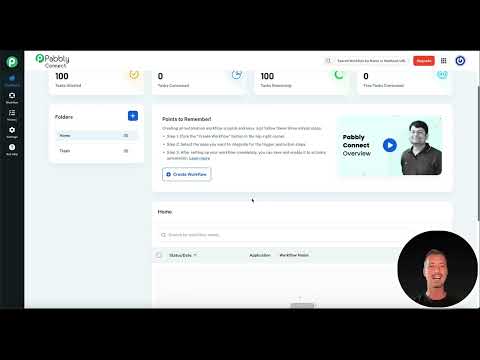
The video is only loaded from YouTube when you play it – data (including your IP address) is then transmitted to YouTube/Google. More in the privacy policy
Key Takeaways
- Pabbly Connect offers a fixed price with unlimited workflows and is particularly suitable for freelancers and small businesses.
- The interface is clear, and the operation is similar to Zapier and Make, so you will find your way around quickly.
- The selection of integrations is smaller than with the market leaders, but it is sufficient for common standard tasks such as newsletters, social media or invoicing tools.
- The connection to Google Sheets requires several manual steps via an add-on, but it is free of charge.
- Templates help you get started, but you should bring a little technical understanding.
Step 1: Understanding the Pricing Model in Comparison
Before you sign up, you should know what the platform will cost you. Pabbly Connect does not charge per task, but offers a fixed plan with unlimited workflows. The video considers a usage of 50,000 tasks per month as an example. For this, Pabbly Connect costs about 70 US dollars, while Zapier, according to the video, costs about 600 US dollars, Make around 124 US dollars and n8n Cloud about 168 US dollars. So you can see how big the difference can become as soon as your automation volume grows.

Step 2: Create a Free Account and Log In
On the homepage you will find the "Start now" button, which takes you to the registration. You can sign up either with your Google account or with an email address and password. For this tutorial, you choose the quick way via Google. After logging in, you land in the backend. The video uses the free version, which is completely sufficient for initial tests. Also make sure that you are in the current version 2 of the application, as the menu structure differs from it.


Step 3: Explore the Backend and Menus
Before you build your first workflow, it's worth taking a short tour of the menu on the left side. There you will find Dashboard, Workflows, History and Settings. Under "Workflows" you see all created automations, under "History" the execution logs. In the settings you manage global variables, connections, team members, API access, webhooks, the time zone and the task overview. Since you haven't created anything yet, all areas initially appear empty. That changes quickly as soon as you have created the first workflow.

Step 4: Create a Workflow and Choose the Builder
Go to the homepage in the backend and click the button to create a new workflow. Pabbly Connect offers you two variants of the workflow builder. The "Classic" builder resembles the structure of Zapier, while the modern "New Beta" builder is more reminiscent of Make and works more flexibly. For this tutorial, you choose the modern builder. Give your workflow a meaningful name; in the video it is called "Test Workflow". You can also create folders to categorize your automations later. This saves you time as soon as you manage several workflows.


Step 5: Define the Trigger and Connect to Google Sheets
Every workflow begins with a trigger, that is, the event that starts the automation. In the example, you choose Google Sheets as the trigger app and the option "New or Updated Spreadsheet Row". Pabbly Connect offers no AI support here, so you set the settings by hand. Then you click on "Connect". The platform generates a webhook URL for you, which you need for the connection. Copy this address before you continue, because you will need it right away in the next step.

Step 6: Install the Webhook Add-on in Google Sheets
Now it gets a bit more complicated. Open a new spreadsheet in Google Sheets and select "Extensions" in the menu, then "Get add-ons". Search for "Pabbly Connect Webhooks" in the add-on directory and install the add-on. Then launch it via "Extensions" and select the Initial Setup. There, paste the copied webhook URL and specify which column should serve as the trigger. Confirm your entry with "Submit". If the configuration was successful, a confirmation appears. With this procedure, the connection is complete. The effort is higher than with Zapier or Make, but in return you don't pay a cent.


Step 7: Add more actions
Once the trigger is set up, you can attach as many actions as you like in the designer. In the video, a Google Docs file is created as an example. To do this, you select Google Docs as the action app and connect your Google account. Since there is a working interface between Pabbly Connect and Google Docs, this connection is much faster than the connection via the add-on. You can add new steps at any time via the designer, such as additional actions from the spreadsheet. The operation feels similar to Zapier, just cheaper.

Realistically assessing strengths and limitations
Pabbly Connect is particularly suitable for beginners who want to test cost-effectively and for small businesses with a high automation volume. However, the variety of integrations is smaller than with Zapier, and the community is still modest in size. Very specialized business tools may be missing. Whether the platform is right for you therefore depends on which applications you want to connect. Try the free version before you commit.
Summary – Pabbly Connect as a cheap alternative to Zapier and Make
Pabbly Connect offers a fixed price with unlimited workflows, a clear interface, and an operation that resembles the structure of Zapier and Make. You start for free, create your workflow in the modern builder, and connect your trigger to Google Sheets via a webhook add-on. The connection is more laborious, and the selection of integrations is smaller. For standard automations and a tight budget, however, the platform is a serious option.
FAQ
Is Pabbly Connect free to use?Yes, there is a free version with which you can test your first workflows.
How does the price differ from Zapier?According to the video, Pabbly Connect costs about 70 US dollars per month for 50,000 tasks, while Zapier costs around 600 US dollars.
Do I need technical prior knowledge?A basic technical understanding helps, as you have to set up some connections manually.
How do I connect Google Sheets to Pabbly Connect?You copy the webhook URL, install the "Pabbly Connect Webhooks" add-on in Google Sheets, and enter the URL in the Initial Setup.
What weakness does Pabbly Connect have?The number of integrations and the size of the community are smaller than with Zapier or Make.

