

Imagine you have to create a suitable image for every new product in your online shop, or you manage social media channels and constantly need fresh graphics. This is exactly where image automation comes in. You enter a row in a spreadsheet, and an AI automatically creates an image from it and saves it in your cloud storage.
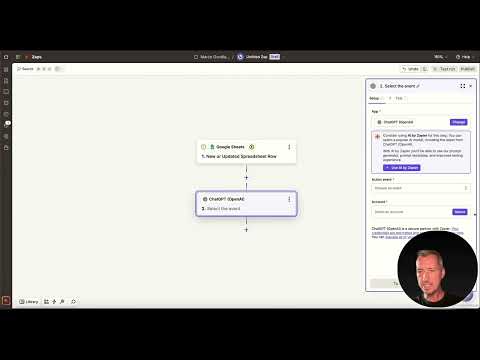
The video is only loaded from YouTube when you play it – data (including your IP address) is then transmitted to YouTube/Google. More in the privacy policy
In this tutorial, you will see how to use an automation tool to use a Google spreadsheet as an input source, integrate the image generator DALL·E via an interface, and save the finished image in Google Drive. In the video, Zapier is used for this, since Make was not available at the time of recording. However, the basic idea can easily be transferred to Make or n8n.
Key Takeaways
A spreadsheet is enough as a starting point: Every new row in Google Sheets can automatically trigger a complete workflow.
DALL·E is available directly via ChatGPT: You don't need to set up a separate interface to DALL·E, since image generation is already integrated into ChatGPT.
The storage location is defined in the workflow: With an action for Google Drive, every generated image is saved automatically.
Control remains important: AI images are not always perfect. A human review before publication will save you trouble later.
Step-by-Step Guide
Step 1: Set up Google Sheets as the trigger
The workflow begins with a trigger, that is, an event that starts the entire process. Open your automation tool and create a new scenario. As the first building block, you select Google Sheets. Connect your Google account and choose either an existing spreadsheet or create a new one. Make sure the columns are named clearly, because you will access exactly these values later.

As the event, you select "New or Updated Spreadsheet Row". This way, the workflow starts whenever you add a new row or change an existing one. The first column, starting at A1, serves as the source for your inputs. Here you can enter a product description or a title, for example.

Step 2: Select the image AI as the action
In the next step, you need an action that generates the actual image. A note from the video: Stable Diffusion cannot currently be used directly in Zapier, but DALL·E works reliably. Therefore, search for ChatGPT and select the event "Generate an Image" there. The video shows exactly this process, supplemented by the option "Analyze Image" for evaluating existing images.

The advantage of this solution is that ChatGPT already brings the interface to DALL·E with it. So you don't have to worry about API keys or additional connections. However, make sure that your ChatGPT account supports image generation and that your subscription is active accordingly.
Step 3: Pass the input as an image description
Now you link the data from your spreadsheet to the image generation. In the field for the image description, the so-called prompt, you insert the value from the column you selected in Step 1. This turns every new spreadsheet row into an individual image request. The more precise the description is, the better the result generally turns out. So describe style, colors, and subject as concretely as possible.

Step 4: Save the generated image in Google Drive
The next building block ensures that the image doesn't get lost. Add an action for Google Drive. The video first shows how to create a folder in which the images will be stored. Then you select the action for uploading or exporting a file. The workflow takes the image generated by DALL·E and sends it to exactly this folder.

During configuration, you need to link the field for the file with the result of the ChatGPT step. The name of the action may differ slightly depending on the version of the interface. The key is that an image file ends up in the desired folder. Test the result with a sample row before you permanently activate the workflow.

Step 5: Build in a human quality check
Full automation sounds tempting, but with images it is not always the best choice. AI results sometimes differ greatly from what you expected. That is why it is advisable to build in a control stage. The workflow then first places the images in a draft folder, and you manually decide which image gets published. The video explicitly recommends this approach, especially if you plan to use the images publicly later on.

An approval can be implemented, for example, with an additional spreadsheet column. There you enter "approved" or "rejected," and only approved images are processed further. This way you stay in control at all times without having to do most of the work yourself.
Step 6: Extend the workflow to include publishing
If you create social media posts regularly, you can take the workflow one step further. After saving, add an action for Instagram for Business. The image is then not only stored but also published automatically at a specific time. The combination of spreadsheet, AI, and publishing forms a closed loop: you enter data, and the finished result is ready without any further effort.
Keep in mind that publishing on platforms like Instagram is tied to its own requirements, such as a business account and the appropriate connection. Also check the platforms' terms of use and the rights to the generated images.
Summary – Creating images automatically with AI: DALL·E workflow with Google Sheets and Google Drive
With a Google spreadsheet as the input source, a DALL·E connection via ChatGPT, and a storage destination in Google Drive, you build a workflow that creates images without manual intervention. You start with a trigger, pass the spreadsheet data to the AI as an image description, and save the result automatically. A quality check before publishing ensures that only suitable images go online. The approach is suitable for online shops, social media editorial teams, and anyone who regularly needs visual content, and with a bit of practice it can be transferred to other platforms and tools.
FAQ
Which tool is used in the video?The video uses Zapier because Make was not working at the time of recording. The process can also be implemented with Make or n8n.
Can I use Stable Diffusion instead of DALL·E?In the video, Stable Diffusion is not offered directly in Zapier. DALL·E, on the other hand, is integrated via ChatGPT and works without problems.
Do I need a paid ChatGPT account?Image creation via ChatGPT generally requires a suitable account. Before building the workflow, check whether your plan includes the image function.
Why should I check the images before publishing?AI images do not always meet expectations. A manual check prevents unsuitable or faulty graphics from going online.
How do I prevent every generated image from being published immediately?First place the images in a draft folder and add an approval column to your spreadsheet. Only approved entries are processed further.
How do I write a good image description?Describe the subject, style, colors, and mood as specifically as possible. The more precise the input, the better the result will match your vision.

