
Long texts take time, especially when you need short versions, keyword lists, and publishing formats from them. That's exactly why, in this guide, I'll show you a workflow in Google Opal that you don't have to click together block by block. You describe your task in a prompt, and Gemini builds the process for you. In the end, a shortened text with keywords is saved automatically in Google Docs and also provided as an HTML output.
The video is only loaded from YouTube when you play it – data (including your IP address) is then transmitted to YouTube/Google. More in the privacy policy
I'll guide you step by step through the setup, the test with a 1,200-word sample text, and the extension with a branch. You don't need any programming knowledge for this.
Key Takeaways
- A well-formulated prompt is enough for Opal to create a complete workflow with input, AI processing, and output.
- The workflow consists of blocks for Input, Generate, Output, and Assets, which can be adjusted at any time.
- A test run in full-screen mode shows you each individual step and the result before you expand the workflow further.
- Using voice commands or additional inputs, you can extend the workflow with conditions, such as a newsletter branch.
Step 1: Start a New Workflow in Opal
Open the Google Opal home page and select the "Create new" option there. Opal then shows you an empty interface with the message "Let's build your app". Here you decide whether to use a template from the templates or to create something of your own right away. For this guide, we deliberately start from scratch so that you understand the setup from the ground up.

Step 2: Understand the Interface
Opal is divided into two areas. At the top you'll find the toggle between app view and editor. The lower area is the actual workspace, because this is where the blocks are located. You work with four element types: Input for inputs, Generate for AI processing, Output for the results, and Assets for additional files such as images, texts, or drawings. If you keep these four categories in mind, every further extension will be easier for you.
Step 3: Formulate the Prompt
Now comes the crucial part. In a prompt, you describe what the workflow should do. In this example, the task is roughly as follows: Create a workflow with a long text as input that is shortened. In addition, a keyword summary should be produced, and both results should be saved in Google Docs and also output as HTML.
Make sure to give clear details about input, processing, and output. You don't have to phrase it perfectly. I deliberately wrote my prompt a bit clumsily, and Gemini still implemented it correctly. What matters is that all the required steps are included. You can also write the prompt in German, which makes it easier to check during review.
Step 4: Let the Workflow Be Generated Automatically
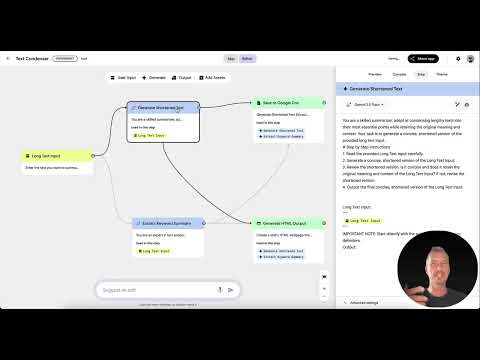
After you submit it, Gemini analyzes your text, thinks briefly, and then builds the workflow. You don't have to monitor this process; it only takes a few seconds. The result is a chain of several blocks that are already connected to each other. In my example, five blocks in total were created: the text input, the shortening of the text, the extraction of the keywords, the saving to Google Docs, and the HTML output.
Take a look at the connections between the blocks. They should run logically from left to right, that is, from the input through the AI steps to the outputs.

Step 5: Check the Individual Blocks
Before you test, it's worth taking a look inside each block. The Input block receives the text that you insert later. The "Generate shortened text" block reads this text and creates a shorter version. The "Extract keyword summary" block works in parallel and pulls out the most important terms. At the end, Save blocks take over the results and save them in Google Docs. The HTML output block converts the results into a web view.
The prompts in the blocks are partly written in English. This is irrelevant to the function. If you don't understand the content, copy it into a translator to check whether the instructions match your goal.

Step 6: Test the Workflow with a Long Text
For the test, I used a sample text of around 1,200 words from a placeholder text generator. You can use any long text you like, for example an article, a report, or a chapter. Copy the text and paste it into the input field. Alternatively, you can dictate the text or upload a file, provided your workflow allows for it.
Afterwards, open the application in full-screen mode, because you can follow all the steps more clearly there. A click on "Start" runs the workflow. You will see how the individual building blocks work one after another, and you can view every intermediate result.

Step 7: Check the results in HTML and Google Docs
At the end of the run, the shortened text and the keywords appear in the output. The HTML output provides a web view in which you can check the result directly in the browser. In addition, the version ends up in your Google Docs. There, the formatting is usually not as nice as in the HTML view, but the content is correct. For publication, you should therefore briefly rework the document, for example by adding headings or adjusting paragraphs.

Step 8: Extend the workflow with a branch
A workflow can be extended at any time. In the example, I added a second input that generates newsletter content. To do this, I simply instructed Opal in plain language to build in an additional condition. Opal re-evaluated the workflow and inserted a branch that connects the newsletter branch directly to Google Docs or the output.
However, you can also add building blocks manually. With an input block, you capture, for example, a user input during the run. With another AI block, you can, for example, have an image processed. You can also integrate assets such as files, texts or drawings via the sidebar.


Step 9: Develop the workflow further individually
The workflow is not fixed. You can adjust prompts in individual blocks, integrate additional models or change the output formats. Once you understand how the blocks fit together, you can build your own processes for blog articles, reports or presentations. Test every change with a short sample text before you work with large amounts of data. This way you find errors faster.

Summary – Google Opal: Create a workflow with an AI prompt and summarize long texts
With Google Opal, you build a workflow by describing your task in a prompt. Gemini creates a chain of input, processing and output blocks from it. The example workflow shortens long texts, extracts keywords and saves the results in Google Docs as well as in HTML. The test with a 1,200-word text showed that the process works reliably. The workflow can be extended at any time with additional inputs, branches and assets.
FAQ
Do I need programming skills to create a workflow in Google Opal?No, you don't need programming skills. You describe your task in a prompt, and Opal builds the workflow automatically.
Can I also write the prompt in German?Yes, you can phrase the prompt in German. This makes it easier for you to check the result.
What elements does a workflow in Opal have?A workflow consists of input blocks for inputs, generate blocks for AI processing, output blocks for results, and assets for additional files such as images, texts or drawings.
How do I test a workflow in Opal?You open the application, paste your test text into the input field and start the workflow with "Start". In full-screen mode, you can follow each step individually.
Can I extend a workflow afterwards?Yes, you can add blocks, build in branches or adjust prompts in individual blocks at any time. Opal can also implement changes on request by voice.
Why does the text in Google Docs look different from the HTML output?The formatting in Google Docs is often less polished than in the HTML view. However, the content remains identical, so you only have to rework the document.

