
Linear workflows can be put together with a few clicks: input, processing, output. But as soon as different situations arise, this simple structure reaches its limits. A complaint requires a different response than a product question, and a short meeting has to be handled differently than a three-hour discussion. This is exactly where conditions and branches in Google Opal come in. They ensure that your workflow decides for itself which path to take.
The video is only loaded from YouTube when you play it – data (including your IP address) is then transmitted to YouTube/Google. More in the privacy policy
In this guide, you will learn how to understand if-then logic, build branches, and control them cleanly with clear instructions to the AI. By the end, you will be able to design workflows that respond to different inputs and catch errors from the outset.
Key Takeaways
A condition is an if-then logic: the workflow checks a prerequisite and acts accordingly. Branches are the practical implementation of these conditions and split the flow into two or more paths. For the AI to decide reliably, you need clear prompts that describe what should happen when the condition is met and when it is not. Test every branch multiple times, because errors often only show up in practice.
Step-by-Step Guide
Step 1: Understanding the If-Then Logic
Before you build anything in Opal, you should have the basic idea clearly in mind. A condition answers a simple question with yes or no. Is the text longer than 200 words? Is the tone of an email negative? The workflow then automatically decides which path to take. That is why you should first write down your conditions on paper before transferring them into the workflow.

Step 2: Thinking Through a First Practical Example
A classic example is text length. If a text has more than 200 words, the workflow summarizes it. If it is shorter, it remains unchanged. This pattern is excellent for getting started because the condition can be checked unambiguously. Make sure you specify the limit concretely, because vague terms like "fairly long" lead to unpredictable results.
Step 3: Understanding Branches as Paths
A branch splits your workflow into several paths. You can imagine it like a signpost: go left if the condition is true, and right if it is not. Each path then continues independently until all paths merge again into a common output. It is precisely this structure that makes workflows flexible, because they do not know just a single flow.
Step 4: Defining Input Fields for the Text Type
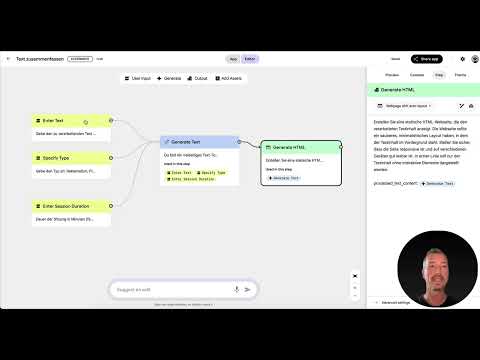
In the practical example, you work with several input fields. One field takes the text type, for example complaint, product information, product, social media, or meeting. Another field captures the duration of a session. Each of these inputs can trigger a condition. So think in advance about which values your user can enter and which paths you need for them. The more precisely the options are defined, the fewer incorrect entries will occur.

Step 5: Formulating the Instruction for the AI
In the "Generate Text" step, you store the instruction for the AI. Describe in it what task the model should take on, for example the role of a versatile text tool that works differently depending on the text type. It is important that you really tell the AI what to do when a condition is met and what to refrain from doing when it is not. The AI can only make concrete decisions if the instruction is concrete.

Step 6: Spelling Out Branches for Complaints and Meetings
A good example of a branch is the complaint. If the text type is complaint, the workflow writes a standard reply and explicitly notes that the text should be forwarded to support. For product information, on the other hand, it delivers the most important facts. For the text type product, a product description is created, and for social media, a short post.
Duration can also be used as a condition. If a meeting is longer than 30 minutes, the workflow creates a detailed summary from the notes. If you like, you can additionally request a complete protocol. However, make sure that each path ultimately delivers a processable text, because the following step always expects the same kind of result.
Step 7: Merging the Result in the Output
After all paths have been run through, the workflow merges them again in the "Generate HTML" step. There, the generated text is converted into a clearly structured HTML web page. This gives you a clean output, regardless of which branch was chosen before. This merging is an important point, because it ensures that the output remains consistent.

Step 8: Start with simple conditions and test thoroughly
Start with a few clearly understandable conditions, such as the length of a text. Only expand the workflow once the basic logic works reliably. In addition, test each branch multiple times with different inputs, including ones that lie at the boundaries. Only in practice will it become clear whether the conditions are set correctly and actually work the way you planned.

Summary – Google Opal: Building Workflows with Conditions and Branches
Conditions bring your workflows to life because they respond to different situations. Branches turn this logic into concrete paths, and clear prompts ensure that the AI implements the decision correctly. If you start with simple examples, test each branch thoroughly, and cover both the condition-met and condition-not-met cases, you will avoid many typical mistakes. In the next step, you can then integrate external data into your workflows.
FAQ
What is a condition in Google Opal?A condition is an if-then logic in which the workflow checks whether a prerequisite is met and then automatically selects a path.
What distinguishes a branch from a condition?The condition is the check itself; the branch is the resulting division of the workflow into two or more paths.
Why should I test simple conditions first?Simple conditions are easier to understand and verify. Only once the basic logic works is it worth expanding the workflow.
How do I write a good prompt for a condition?Describe specifically what the AI should do when the condition is met and what it should do when it is not met. Vague wording leads to unreliable results.
What happens if a condition is not met?You should always define an alternative for this, for example a second path with a different instruction. That way, the workflow remains functional in this case too.
Why does every path have to deliver a text at the end?The following steps expect processable text. If a path delivers something else, the output may be faulty or incomplete.
Where do I set up conditions and branches in Opal?You can find the settings for this in the AI steps area, where you store both the conditions and the instructions for the respective paths.
How do I test a branch properly?Test each branch multiple times with different inputs, including edge cases. Only then can you tell whether the condition is reliably recognized.

