
Imagine you want to get up to speed on a new technical topic, and the best explanation is in a 22-minute YouTube video. You would have to watch it, take notes, review the material, and at some point check whether anything has stuck. With Google Opal, you can automate this process. A ready-made workflow pulls the transcript from the video, summarizes the key points, creates a quiz, and delivers everything to you as an interactive report. In this guide, you will learn how to find this workflow, customize it, and use it for your own learning.
The video is only loaded from YouTube when you play it – data (including your IP address) is then transmitted to YouTube/Google. More in the privacy policy
Key Takeaways
- The "Learning with YouTube" workflow only processes a YouTube URL and goes through several steps: transcript, analysis, quiz, and report.
- With the "Remix" button, you can copy the workflow and adapt it to your needs.
- Comments that begin with a hash symbol (#) are not passed on to the AI and are suitable for notes on the individual steps.
- The more precisely you formulate the prompt, the better the summary and quiz will turn out.
- Videos of up to about 30 minutes are currently processed in full; for longer videos, the transcript is truncated.
Step-by-Step Guide
Step 1: Open the workflow and customize it as a Remix
Look for the "Learning with YouTube" workflow in Opal and open it. Then click "Remix". This creates your own copy that you can change freely without affecting the original template. This is especially worthwhile for learning workflows, because later you will want to adapt prompts and output formats to your learning style.

Step 2: Understand the individual steps
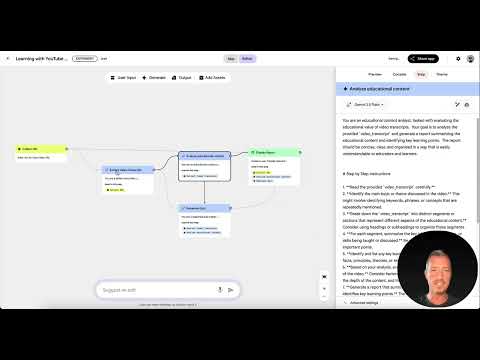
Before you change anything, get an overview of the structure. The workflow consists of a few clearly separated steps that build on one another: entering the URL, extracting the transcript, analyzing the content, creating the quiz, and outputting the report. Each step has a short description that explains what it does. Read them carefully, because this way you will immediately see where you can intervene later.
Step 3: Enter the YouTube URL as input
The input is the starting point of the entire process. Copy the address of the YouTube video you want to learn from and paste it into the input field. Opal automatically determines the video ID from it and prepares everything for the next step. Make sure the video is publicly available, otherwise no transcript can be retrieved.
Step 4: Generate the transcript with "Extract Video Transcript"
In the "Extract Video Transcript" step, the video is loaded and converted into plain text. You don't need to configure anything here. The step works in the background and provides you with the entire spoken word as the basis for all further steps. This transcript is the basis for the summary and quiz, so it is worth checking it later in the console.

Step 5: Use comments with the hash symbol for your own notes
The descriptions of the steps and all lines that you begin with a hash symbol (#) are not passed on to the AI. This is handy if you want to make notes directly in the workflow, such as "The term X was introduced here" or "Explore this point in more depth later". The comments therefore do not influence the result, but serve as orientation for you.
Step 6: Evaluate the content with "Analyze Education Content"
This step is the most demanding part of the workflow. Here, the transcript is combined with a prompt that instructs the Gemini 2.5 Flash model to prepare the content as learning material. The prompt contains specifications for structure, length, and target audience. It is written in English, but you can easily have it translated to understand exactly what is happening.
Step 7: Use prompt engineering deliberately
A simple request like "Summarize the text for me" is rarely enough for learning purposes. When learning, it is important to tell the AI clearly who the summary is for, which level applies, and which information is particularly important. The more precisely you formulate these specifications, the closer the result will come to your learning goal. So adapt the prompt in your copy to your requirements, for example to your prior knowledge or the desired format.
Step 8: Create a quiz with "Generate Quiz"
In the next step, a quiz is created from the analysis and the original transcript. Both sources are used so that the questions cover both the central statements and the details of the video. The quiz is the actual learning effect: after working through the material, you check whether you have understood it and consolidate your knowledge at the same time.
Step 9: Understanding the Output in the "Display Report"
The last step prepares all results as a clear report. In it, you will find the URL of the video, a brief summary, and the quiz. Using the linked URL, you can reopen the video at any time if you want to look up a passage. The report is therefore well suited as a compact study overview for later.

Step 10: Checking the Process in the Console and Noting the Limits
Depending on the length of the video, the workflow takes a few minutes. With the console, you can follow each step and see which data was passed to the AI. Here you can also see the current limit: the transcript is cut off for videos longer than about 30 minutes, because Google still limits the token memory during the beta phase. A 22-minute video, on the other hand, works without any problems.

Step 11: Using the Interactive Report
Open the report in the preview to see the results large and clearly laid out. There you can run the quiz directly. The format is designed so that you can use it without additional tools. Also think about how you could reuse the report, for example as learning material on your own website.

Step 12: Working Through the Quiz Yourself
Answer the questions one after another. If an answer is wrong, the report shows you the correct solution. It is precisely this feedback that creates the learning effect: you immediately notice which content you have not yet mastered with confidence, and you can specifically review the corresponding passage in the video.

Summary – Learning with Google Opal: From YouTube Video to Interactive Quiz
With the "Learning with YouTube" workflow in Google Opal, you turn a video into a complete learning package. You enter a URL, the workflow extracts the transcript, analyzes the content with a targeted prompt, creates a quiz, and presents everything in a report. Via the remix, you adapt the template to your needs, use comments for your own notes, and keep in mind the length limit of about 30 minutes. The approach is suitable for any topic for which there is a good YouTube video, and it can be extended as desired with your own prompts and output formats.
FAQ
How long can a YouTube video be for this workflow?Videos of up to about 30 minutes are currently processed in full. For longer videos, the transcript is cut off because the token memory is limited during the beta phase.
Do I have to program the workflow myself?No, you do not need any programming knowledge. You adjust the steps and prompts via the Opal interface and can use the descriptions of the individual steps as guidance.
What happens to comments that I write in the workflow?Lines that begin with a hash (#) are not passed on to the AI. You can therefore use them for your own notes without influencing the result.
Why should I adjust the prompt in the "Analyze Education Content" step?The more precisely you tell the AI who the summary is intended for and which content is important, the more useful the result will be for your learning.
Can I also display the quiz on my own website?Yes, that is possible in principle. The report with the interactive quiz can be used as a basis for learning platforms. The exact integration depends on your website.

