
You've just finished an audiobook and are wondering which book you should read or listen to next that connects to its style or themes? That's exactly what the "Automated Book Recommendation" use case in Google Opal is suited for. You enter a book title or a URL, and a pre-built template gives you alternative titles with a short explanation and a purchase link. In this section, I'll show you how the workflow is structured, how you can follow the results, and where you can customize the workflow.
The video is only loaded from YouTube when you play it – data (including your IP address) is then transmitted to YouTube/Google. More in the privacy policy
Key Takeaways
- The "Book Recommendation" template accepts a book title or a URL and creates five alternative book suggestions from it.
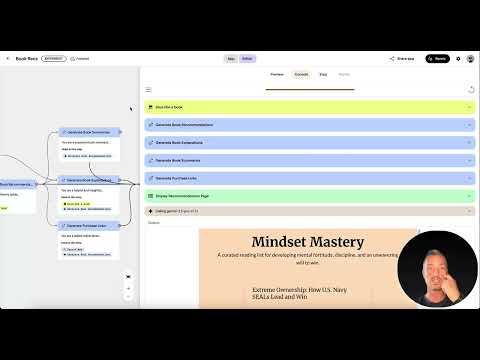
- The workflow consists of several steps with branches and prompts that run one after another: recommendation, summary, explanation, and purchase link.
- Through the preview, you can view every intermediate step and understand how a result came about.
- You have to set the language from the start, otherwise you will get English books.
- The workflow can be customized, and the application can later be embedded into a website.
Step-by-Step Guide
Step 1: Understand the problem and open the template
Before you get started, it's worth taking a look at the starting situation. You are reading or listening to a book and are looking for alternatives that fit similarly well. This is exactly where the template comes in. In Google Opal, open the "Book Recommendation" template, which already contains all the necessary building blocks. You don't have to build anything from scratch.

Step 2: Enter the input
The first building block of the workflow is the input. Here you enter either a book title or a URL. Your starting book determines the direction the suggestions take. The more precise the title, the better the results. The input is therefore the starting point for everything that follows.

Step 3: Understand the structure of the workflow
When you open the workflow, it looks complex at first glance. You see an input, several branches, and a series of queries, the so-called prompts. Each prompt takes on a clearly defined task. Understanding this structure is important because you can later adjust individual points in a targeted way. So you don't have to grasp everything at once, but can look at the building blocks one by one.

Step 4: Get to know the result and its components
At the end of the process comes the output. It consists of three parts. First, suitable books are suggested to you. Then a short summary of each book follows, and finally you receive an explanation of why this book fits your starting title. In addition, the workflow provides a link through which you can purchase the book. So you don't just get a list, but a recommendation that you can evaluate directly.

Step 5: Open the preview
So that you don't have to generate the result live first, you can use the preview. All steps have already been run through there. This saves waiting time, because a complete run takes a few moments. Open the preview and enlarge the window if necessary so that you can read the content easily.

Step 6: Check the recommendations for an example book
The book "Can't Hurt Me" by David Goggins serves as an example. The workflow delivers five possible alternatives for it. Take a calm look at the list and consider whether the suggestions match your interests. In the example, recommendations such as "Extreme Ownership" or "How Navy SEALs Lead and Win" are thematically close to the original, which shows how accurately the method can work.

Step 7: Follow the intermediate steps
A big advantage of this workflow is transparency. You can look in detail at which step delivered which result, how a book was identified, and at which point it was found. This way you retain full control over the process. If a recommendation seems strange to you, you can quickly find out where the problem lies.
Step 8: Evaluating Explanations, Summaries, and Links
In the next step, you look at the individual areas of the output: the explanations, the book summaries, and the links. You will see that all points of the workflow have been completed in full. This way you can judge whether the reasoning for each recommendation is convincing before you choose a book.

Step 9: Buying a Book Directly
You can buy a recommended book directly via the links provided. Note, however, that no book covers were displayed in the video. The images were not captured during scraping. This is an important note because you should not rely on cover images when you use the interface. The texts and links still work.

Step 10: Switching to the Application and Entering Your Own Input
Besides the preview, you can also open the application. There you enter your own book title that you would like to use as a starting point. You then receive suitable alternatives and can buy them directly. This way you use the workflow not just as an example, but for your own reading habits.

Step 11: Adapting the Workflow to Your Needs
If a result doesn't seem right to you, you can adapt the workflow. You can change individual prompts so that they match your ideas. This is worthwhile, for example, if you want to exclude certain genres or want more detailed explanations. Proceed step by step and test the result after each change.

Step 12: Setting the Language Correctly
An important point concerns the language. At the end, before the output, the workflow can be translated into German. However, if you really want to work in German, you should set the language from the very beginning. Otherwise, you will mostly receive English-language book suggestions. So plan this step in already when building the workflow.

Step 13: Integrating the Application into a Website
Finally, it is worth taking a look at further use. The workflow can be connected to a website, so that Google Opal creates the recommendations in the background and your visitors see the results directly. In this way, you can provide the feature to customers or readers, for example on a blog or in an online shop.
Summary – Automated Book Recommendations with Google Opal: How the Workflow Works
You have seen how the "Book Recommendation" template creates five alternative recommendations from a single book title or a URL. Each recommendation comes with a summary, an explanation, and a purchase link. The workflow consists of several steps that you can follow in the preview or in the application. You can adapt the process, set the language, and later make the solution available on a website. The missing book covers are a limitation of the current version, but the results themselves are convincing.
FAQ
What do I need to use the use case?You need access to Google Opal and the "Book Recommendation" template. With a book title or a URL, you can start right away.
Can I also enter a URL instead of a book title?Yes, the input accepts both a book title and a URL. Both serve as a starting point for the recommendations.
Why am I being suggested English books?The language must be set in the workflow from the beginning. A translation at the end only changes the output, not the selection of books.
Can I trace how a recommendation came about?Yes, you can check the individual steps in detail. This way you can see where a book was found and how it was determined.
Are book covers also displayed?In the version shown, no images are displayed because they were not captured during scraping. The texts and links still work.
Can I adapt the workflow to my wishes?Yes, you can change individual prompts and building blocks. Test the result after each change to check the effect.
Can I display the recommendations on my website?That is possible. The workflow can be connected to a website so that visitors can see the recommendations directly.

