
How many hours per week do you lose copying data from one app to the next? Zapier takes this work off your hands by connecting applications with each other and automatically running recurring processes. Thanks to built-in AI features, texts can be summarized, content can be analyzed, and entire workflows can be created from a text description. In this guide, you will get to know the interface, understand the pricing plans, and build a practical example step by step: An incoming email is summarized by AI and forwarded to Slack.
The video is only loaded from YouTube when you play it – data (including your IP address) is then transmitted to YouTube/Google. More in the privacy policy
Key Takeaways
- Zapier connects over 6,000 applications, including Gmail, Slack, Google Sheets, and Shopify.
- A Zap consists of a trigger and one or more actions. The Free version allows Zaps with two steps and 100 tasks per month.
- An AI action, for example with ChatGPT, can be built in as an intermediate step, for example to analyze or summarize texts.
- The built-in Copilot creates workflows from a text description and saves you a lot of setup time.
- You should test every step before you publish the workflow. Only then does it run permanently in the background.
- Sensitive data should not be passed to AI services without review, because processing often takes place on servers outside the EU.
Step-by-Step Guide
Step 1: Understand the plans and choose the billing
Before you start, take a look at the pricing page. Zapier offers various plans such as Free, Pro, and Team. You can choose between monthly and annual payment. Annual payment is noticeably cheaper, which is why it pays off as soon as you use Zapier regularly. Also pay attention to how many tasks you need per month, because as the number increases, the costs rise as well.

Step 2: Use the Free edition for first experiments
The free plan is excellent for trying things out. You get 100 tasks per month, an unlimited number of Zaps with two steps, and access to the automation platform. For tasks such as writing reports in Google Sheets or Excel, this is usually sufficient. Multi-step Zaps, premium apps, and webhooks, on the other hand, are reserved for the Pro plan.

Step 3: Create an account and log in
If you don't have an account yet, click "Sign up" on the home page. If you already have access, select "Log in". After logging in, you land directly in the dashboard, where all your automations are managed.

Step 4: Browse the app directory
Before you build your own workflows, it's worth taking a look at the catalog of available applications. The list is very extensive and is divided into popular, newly added, or premium apps. Through the categories, you can quickly find solutions for marketing, sales, or project management. With the search function, you can search specifically for an application like Gmail and immediately see all the automations linked to it.
Step 5: Understand the backend and the menu structure
In the left menu, you will find the item "Create". There you start new Zaps, Tables, Interfaces, Chatbots, or Canvas projects. The "Home" area shows your most recently edited automations, while "Discover" provides ready-made templates. Under "Zaps" you see all your own workflows, including those that are still under construction or have been deactivated. You should memorize this overview well at the beginning.

Step 6: Test a template
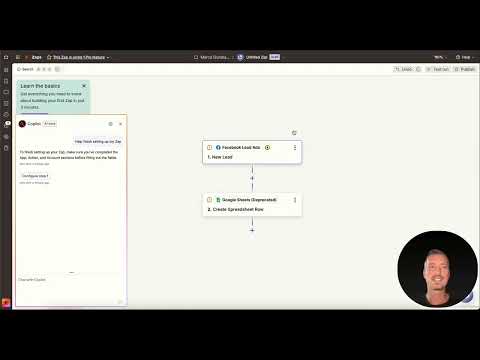
The quickest way to get started is through "Discover". There you will find templates for lead management, sales pipelines, customer support, and project management. A good example is the template that automatically transfers new Facebook Lead Ads to Google Sheets. Click "Try it" to load the template. You will then see how simply such a process is built and recognize which fields you need to adjust, such as the account or the trigger. If an application is marked as a premium app, you need a paid plan for it.

Step 7: Manage connections
Under "App Connections" you see all accounts that are linked to Zapier. Here you can also see whether a connection has expired and has been marked as "Update required". In this case, you simply have to reconnect the account. Via the three dots next to a connection, you can rename it, test it, replace it with another account, change the owner, or delete it. Especially if you use multiple accounts, this helps you keep track.

Step 8: Create your first own Zap with a Gmail trigger
Now it's time to build. Click on "Create" and select "Zap". You set Gmail as the trigger. Then you select the appropriate event, for example "New Mail", which kicks in as soon as a new email arrives. Afterwards, connect your Gmail account via "Sign in". On the Free plan, Zapier checks every 15 minutes whether new messages are present. This interval cannot be changed in the free version.

Step 9: Insert an AI step with ChatGPT
With the next step, you decide what should happen with the new email. Select ChatGPT or OpenAI as the action. In the video, the "Analyze Text" action was used for this, which analyzes and summarizes a text. Depending on the version, the names may differ slightly, but the logic remains the same. Select your OpenAI account and pass the content of the email as input. Then confirm with "Continue".

Step 10: Add the Slack action
Now the AI's result should go to Slack. Add another step and select Slack. As the action, "Send Direct Message" or "Create Message" are suitable, depending on whether you want to send a direct message to a person or to a channel. Enter the username and, in the message field, insert the summary from the ChatGPT step. This linking between the steps is the real core of every automation.

Step 11: Generate the workflow via Copilot prompt
Instead of setting up each step by hand, you can use the built-in Copilot. Describe the desired process in one sentence, for example: "Create Zap start with the trigger new mail in Gmail. The next step is summarize the text from the mail and send it to Slack." The Copilot analyzes your request and automatically creates the appropriate workflow. In the video, the input worked very reliably in English. Feel free to also try a German phrasing and check whether the result fits. Afterwards, you can add further steps, such as having a task created from the text.

Step 12: Test the AI step and fix errors
A test often brings surprises to light. In the example, the ChatGPT step reported the error "OpenAI API error". A look at the configuration first showed a wrong model, and then it turned out that the credit at OpenAI had been used up. If you top up your account, the action works again. Alternatively, you can skip the step with "Skip test", but you should still check it later.

Step 13: Configure Slack and run the overall test
Next, connect your Slack account and select the recipient. The message field should contain the summary from the Analyze step. After saving, click on "Test Run". Zapier now runs through the entire process and shows you a checkmark for each step. Three green checkmarks mean that the process works and the message actually arrives.

Step 14: Publish the workflow
Only when all tests have been successful should you publish the Zap. By publishing, you activate the automation, and it runs independently in the background from then on. Therefore, make sure your settings and filters are correct before you carry out this step. You can deactivate an unfinished Zap at any time and continue editing it.
Step 15: Use best practices and observe data protection
The AI functions are particularly suitable for recurring tasks such as social media posts, reports, or the categorization of emails. For example, you can automatically move newsletters into a separate folder and only be notified via Slack or WhatsApp about important messages. However, always keep data protection in mind. You should not pass sensitive content such as customer data or salary information to AI services unchecked, since the data is forwarded there and often processed on American servers.

Step 16: Implement your own exercise
To reinforce what you've learned, build a workflow that automatically summarizes incoming emails and writes them into a Google Doc. First try it without AI mode and set up each step manually. That way you'll understand the process exactly and know which settings you need. After that, it will be easy for you to develop your own automations, such as summarizing website content and saving the results in a spreadsheet.
Summary ??? Building Zapier Workflows: Step-by-Step Guide with AI
With Zapier, you automate processes between apps without having to program. You start on the free plan, connect your accounts, define a trigger, and add actions such as an AI step with ChatGPT. The Copilot speeds up creation, but before publishing you should test every step. Always pay attention to data protection, because not every piece of information belongs in an AI tool.
FAQ
Can Zapier be used for free in the Free version?Yes, the Free plan offers 100 tasks per month and Zaps with two steps. For larger workflows with multiple steps and premium apps, you need a paid plan.
How often does Zapier check for new emails on the Free plan?On the Free plan, the Gmail inbox is checked about every 15 minutes. This interval cannot be changed in the free version.
Do I need programming skills to build workflows?No, the interface is designed so that you can create workflows without code. For special cases, you can also integrate your own code if needed.
Why does my ChatGPT test fail with an API error?It is often due to an empty balance or a missing payment method at OpenAI. Top up your account and then check the model in the configuration.
Can I also use the Copilot with German prompts?Yes, you can try it out. In the video, however, the input worked very reliably in English, so a comparison is worthwhile.
What happens if I don't publish a Zap?Then the workflow remains inactive. It only runs automatically once you publish it.

