
Imagine you had to summarize the same texts every day, check tones of voice, and transfer results into a spreadsheet by hand. You can automate exactly these kinds of routines with Google Opal. To make that work, you need to know the basic elements that every workflow is made of. In this guide, you'll learn about the four most important building blocks: text input, AI analysis, image generation, and spreadsheet export. You'll find out what each block does, where to find it, and how it works together with the others. By the end, you'll have the foundation for your first own workflow.
The video is only loaded from YouTube when you play it – data (including your IP address) is then transmitted to YouTube/Google. More in the privacy policy
Key Takeaways
Key Takeaways
- A workflow consists of input, processing, and output. The building blocks are the elements you use to put these stages together.
- Text input is usually the starting point. This is where you enter texts, prompts, or sources that are processed further.
- AI analysis turns raw information into understandable results, such as summaries, keyword lists, or adjusted tones.
- Image generation creates an image from a text description directly in the workflow, without you having to open a graphics program.
- The spreadsheet export saves your results in a structured way, for example in Google Sheets, from where you can export them further to Excel.
Step-by-Step Guide
Step 1: Use Text Input as the Starting Point
Open a new workflow in Google Opal to go through the individual building blocks one after the other. The start is the text input, which is also called User Input. It is one of the most frequently used building blocks because it lets you bring your own content into your workflow. For example, you can paste in a blog article or a product text that the AI is supposed to summarize later. The text input can also take over content from other sources. Important: it is not necessarily the starting point, because a workflow can also be started by a trigger. In this example, however, you are working with a simple text that you enter directly.

Step 2: Test the Input and Formulate the Prompt
After you have started the workflow, an input field appears. Here you can directly write an instruction, for example "Create a blog article on the topic of AI". You can also add keywords that should be taken into account in the result. The rest of the process, i.e. the processing by the AI, is then started via the Generate button. Make sure your input is clear and specific. A vague instruction leads to imprecise results. By the way, Gemini also understands German inputs, although Opal is currently mainly available in English or for the US market.

Step 3: Use AI Analysis in the Generate Block
The next and, in my view, most important building block is the AI analysis. You will find it in the menu under Generate. Here the AI processes your input and delivers insights, assessments, or summaries. It takes in all the information from the input field and processes it according to your instruction in the prompt. This can be a long text that you have converted into bullet points, or a text that you want to summarize. So the AI analysis turns raw data into understandable information that you can continue working with. The connection between text input and Generate is the core principle on which almost every workflow is built.
Step 4: Recognize and Adjust the Tone of a Message
A particularly practical example of use is adjusting the tone. In the Generate block, you can write: "Detect the tone of the email I just entered and adjust it to a friendly tone." The AI then analyzes the existing tone and rewrites the text, for example in a friendly, neutral, or critical tone. Make sure that you actually enter the input text into the input field and that the Generate block is connected to this field. Otherwise the AI doesn't know what to refer to. With the connection between input and analysis, Opal recognizes that this is the user input text that it is supposed to process.
Step 5: Generate Images Directly in the Workflow
Image generation is a particularly exciting building block. With it, you automatically create images from a text description, right inside your workflow. So you can enter an instruction such as "Create a modern product image of a running shoe for me". If you also pass information to the block as input, for example a note about black-and-white stripes, the image generation takes this information into account as well. You can also select a different AI variant if you want to achieve better results. What's special about this: text, AI, and image are combined in a single workflow, without you having to open a separate graphics program.

Step 6: Formulate the Image Prompt Precisely
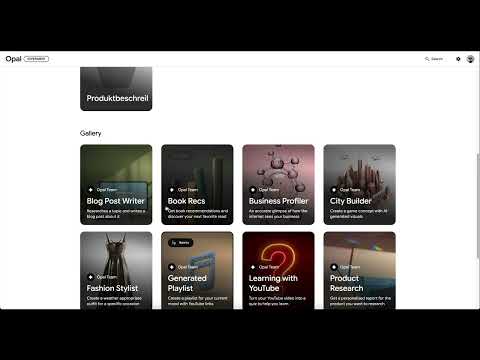
For good results, you need a precise image description. Specify the subject, style, and special features as exactly as possible. A prompt like "running shoe, black-and-white striped, modern product photo" delivers much better results than a single word. If the result doesn't fit, you can refine the description and start the generation again. Image generation is also part of the Opal automation tool. Opal also provides many best-practice examples and templates, for example for video creators, music creators, or fashion stylists. You can adopt these templates and adapt them to your needs.
Step 7: Set Up the Table Export in the Output Area
The last building block is the table export. It is located in the Output area. With it, you can output the results of your workflow in a structured way into a table, for example in Google Sheets. To do this, add an Output block and connect it to the result of the AI analysis. This way, at the end of the workflow you get a table that is available directly in Google Sheets format. The table export is particularly suitable when you want to collect, compare, or reuse data. Think, for example, of lists of social media ideas, survey results, or the analysis of customer feedback.
Step 8: Save Results in Google Sheets
To save the output, you select the option Save to Google Sheets in the Output area. The workflow then delivers a table for which you can define the column headings. A possible prompt would be: "Create a summary from the list in five columns with suitable column headings." The information comes from your input, which can be, for example, a website, a YouTube video, or a pasted text. From Google Sheets, you can process the table further as you like, including exporting it as an Excel file. The process is simple and can be easily replicated with a little practice.

Summary – Understanding Google Opal Building Blocks: Text Input, AI Analysis, Image Generation, and Table Export
The four building blocks text input, AI analysis, image generation, and table export form the basic framework of every Google Opal workflow. The text input provides the content, the AI analysis processes it, the image generation adds visual elements, and the table export saves the results. If you understand these building blocks and connect them with each other, you can build your own automations. In the next step, you will combine all four building blocks into a complete workflow and see how they work together.
FAQ
What is the difference between text input and AI analysis?The text input receives your content, and the AI analysis then processes it according to your prompt.
Does a workflow always have to start with a text input?No, a workflow can also be started by a trigger. In many cases, however, the text input is the starting point.
Can I also create images with Opal without using a graphics program?Yes, image generation creates images directly from text descriptions within the workflow.
Where do I find the building block for AI analysis?It is located in the menu under Generate.
How do I save results in a table?You use the table export in the Output area and select the option Save to Google Sheets.
Can I still edit the results later?Yes, the results in Google Sheets can be processed further and, for example, exported as an Excel file.
Does Opal also work with German input?Gemini understands German, but Opal is currently available mainly in English and for the US market.

