
You want to build AI-powered automations without writing a single line of code? Then Google Opal is worth a closer look. This guide shows you step by step what the tool can already do today, how to find your way around the templates, and where you are better off relying on other solutions.
The video is only loaded from YouTube when you play it – data (including your IP address) is then transmitted to YouTube/Google. More in the privacy policy
Introduction
Google Opal is a no-code tool with which you create workflows via a visual interface. The big difference from classic automation platforms is that you don't click together the desired process step by step. Instead, you describe in plain language what should happen, and the AI creates a complete workflow from it, including branches.
At the same time, Opal is still in beta. This means that not every function runs reliably and the tool is constantly changing. If you know its possibilities and limits, you can use Opal specifically where it is really strong.
Key Takeaways
Opal requires no programming knowledge, as all workflows are created via a visual interface and text input. The AI translates your description into a finished process. Templates such as the Blogpost Writer give you a quick start that you can customize. Opal is particularly suited to content creation, simple workflow optimization, and smaller business applications. When it comes to connecting external services, however, Opal is significantly more limited than Zapier, n8n, or Make. The tool is closely integrated with the Google ecosystem, currently available in the USA via Google Labs, and intended primarily for quick, uncomplicated automations.
Step-by-Step Guide
Step 1: Understanding the Visual Interface
The first impression of Opal is crucial, because the entire operation works via a graphical interface. You don't have to write scripts or program interfaces manually. A workflow consists of individual steps that you can add, move, and adjust. Manual additions are possible at any time, but you don't necessarily have to configure every step yourself.

Step 2: Generating Workflows via Prompt
The real core of Opal is AI-powered creation. Unlike with classic automation tools, you describe in a prompt what your workflow should do. Opal analyzes these instructions and generates the complete process from them, including all branches and requirements. So you formulate your goal the way you would explain it to someone in everyday life. A clear description with inputs, desired result, and any conditions usually leads to a usable result.
Step 3: Getting Started Quickly with Templates
If you don't yet know exactly what a prompt should look like, the templates are your best starting point. In the gallery you'll find ready-made templates such as Meeting Notes, Content Analyser, text generators, product research, or social media posts. The gallery is continually being expanded, so it's worth checking in regularly.

A good example is the Blogpost Writer. When you open it, you immediately see the complete template with all steps. Each step shows you which task it handles and which prompt is behind it. You can use the template as it is, or adapt it to your needs and then save it again.

Step 4: Understanding the Individual Steps of a Template
A template consists of several building blocks that build on one another. In the Blogpost Writer, a topic is first generated, which you define in the input field. This is followed by research or directly by the outline, depending on how the process is configured. Then a banner image is created and the actual post is written. In the last step, text and image are merged in a blog post view.
It is important that at each step you can see which AI model is being used. For images, for example, a model for image generation; for texts, a model for text generation. Usage limits, such as for image generation, are also displayed to you.

Via the preview, you can test the process before putting it into productive use. If you enter a topic there, such as "AI", and submit it, the research starts automatically.
Step 5: Running the Process and Tracking the Status
After submitting, the workflow runs step by step. During the research, sub-areas such as basics, history, or current developments are processed in parallel. Opal shows you a status display, so you can see at any time which phase the process is in. Incidentally, this behavior is also defined in the template's prompt.

At the end comes the result, in the example a finished blog post with a matching image. You can follow this process with further examples to get a feel for the possibilities.
Step 6: Using inputs and outputs flexibly
Opal accepts various input forms. You can enter text, work with data and tables, or combine multiple inputs. Many formats are also possible on the output side. In addition to text, you can generate images, audio, structured data, and videos, provided you choose the appropriate AI for it.
Another advantage is the close connection to Google services. Gmail, Docs, Drive, Sheets, and Calendar can be integrated seamlessly. If your work takes place in the Google ecosystem anyway, you benefit from this especially. Since the underlying AI is Gemini, the interplay with other Google functions also works well.
Step 7: Realistically assessing Opal's limits
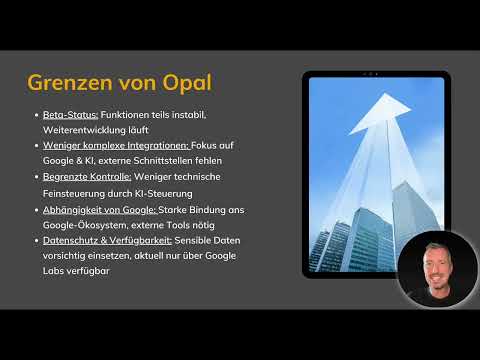
Before you integrate Opal into your daily routine, you should take the beta status seriously. Not all features are stable, and Google continues to develop the tool. This also has advantages: you can already test Opal now, and your feedback feeds into the development. It is also to be expected that more templates and perhaps even the sharing of your own templates will become possible in the future.

The biggest difference from tools like Zapier, n8n, or Make lies in the integrations. These platforms offer thousands of connections to external services. Opal, by contrast, focuses more on the Google environment and on AI. Complex interfaces are therefore still largely missing. Connecting external services also requires additional access data, so-called credentials, which must be set up properly.
Another point is the limited control. Since much is controlled by the AI, you sometimes have less influence over technical details than with classic automation tools. You are also more tied to the Google ecosystem. If you use many external tools, you may additionally need another automation solution.
Regarding data protection, the same applies as with all cloud services: you should process sensitive data only deliberately and with care. In addition, Opal is currently available through Google Labs and primarily in the USA. From other countries, access can only be gained through workarounds, such as a VPN. Be sure to check the terms of use before choosing such a route.
Step 8: Drawing a conclusion for your choice
Opal is ideal if you want to quickly build your first automations with AI. It works particularly well for content creation, optimizing simple workflows, and smaller business applications. If, on the other hand, you need complex connections to numerous external services, you can hardly get around Zapier, Make, or n8n for the time being.

The next step will cover best practices, tips, and detailed examples. It will show how you build workflows from start to finish, run them, and integrate them into your daily routine.
Summary – Google Opal at a glance: strengths, limits, and first AI workflows
Google Opal enables you to build AI workflows without programming. You describe your goal via prompt, use templates as a starting point, and can generate results in text, image, and other formats. The close connection to Google services is a clear plus. At the same time, the tool is still in the beta phase, the integrations are limited compared to Zapier, n8n, or Make, and availability is currently restricted. For quick, simple automations in the content and business areas, however, Opal is already an exciting option today.
FAQ
What is Google Opal?Google Opal is a no-code tool with which you create AI-powered workflows via a visual interface and describe them through text input.
Do I need programming skills to use Opal?No, you don't need any programming skills. Workflows are created through prompts and graphical operation.
How does Opal differ from Zapier, n8n, or Make?Opal generates workflows mainly via AI and focuses on Google services. Zapier, n8n, and Make, on the other hand, offer significantly more integrations with external services and more technical control.
What does Opal's beta status mean?Beta status means that some features are not yet stable and the tool is continuously being developed. User feedback feeds into the development.
Is Opal available worldwide?No, Opal is currently available through Google Labs primarily in the USA. Access from other countries is restricted.
Can I create my own templates?You can customize existing templates and save them anew. Whether sharing your own templates will also be possible in the future depends on Google's further development.
What should I pay attention to regarding data protection?As with all cloud services, you should process sensitive data only deliberately and review Google's privacy policy.

