
So far, you have mostly worked with a single input field in Google Opal. That is enough for simple tasks, but it quickly reaches its limits as soon as you want to process different sources. This is exactly where this tutorial comes in. You will learn how to set up multiple input fields for different types of data, such as manual text, uploaded files, emails, and Google Sheets URLs, and how these sources come together in a shared workflow.
The video is only loaded from YouTube when you play it – data (including your IP address) is then transmitted to YouTube/Google. More in the privacy policy
The goal is a flexible process that takes the appropriate path depending on the input. I will show you the setup step by step so that you can then apply the principle to your own projects.
Key Takeaways
In Opal, you can combine multiple input fields with different data sources in one workflow. Each type of input is routed to the AI via its own processing path. You enter manual text directly, files are read out first, emails and messages go straight through, and Google Sheets URLs are retrieved before processing. In the end, all paths lead to the same output, and you can specifically test each input type using the preview.
Step 1: Understanding the Previous Workflow as a Starting Point
Before you build something new, it is worth taking a look at the familiar structure. The simple workflow consists of three elements: an input field, an AI generator, and an output field. The data flows in a straight line from left to right, with no branching and no conditions.

Step 2: Why Multiple Input Fields Make Sense
You could create a separate input field for each data source and connect them all together. However, this quickly becomes confusing and makes little sense if the inputs have to be handled differently anyway. In addition, a single input field can already accommodate a great many elements. The difference is that you deliberately build separate entry points for different sources so that each type takes its own path through the workflow.

Step 3: Using the Available Input Types via the Plus Icon
Via the plus icon in the input area, you can add further input options. The choices include an upload from your device, a YouTube video, a file from Google Drive, a drawing, or a webcam video. You do not have to commit to a single option in this selection, because each input can be processed separately later.

Step 4: Creating Different Input Fields for Different Content
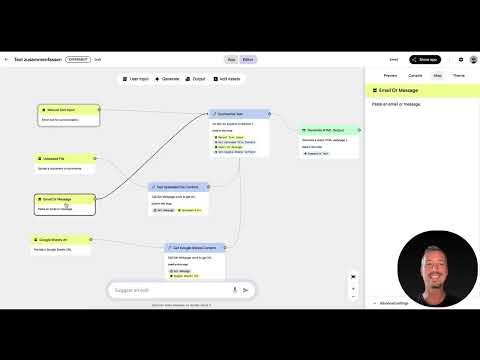
For the example in this tutorial, you set up four inputs. The first is a manual text field into which you type text to be summarized directly. The second is an upload field for files, for example a PDF. The third is a field for emails or messages. The fourth is a field for a Google Sheets URL. Typical use cases would be newsletters, PDF documents, plain text passages, or tables with data.

Step 5: Understanding the Branches in the Workflow
Each input field leads to its own processing path, which ends up in the same AI instruction at the end. In the example, the instruction states that the AI should work as an expert in text summarization and process the input following a step-by-step guide. Whether the content comes from text, a file, an email, or a table only determines which path is taken beforehand.
It is best to look closely at the branches before you test the workflow. That way, you can immediately see which building block is responsible for which source.

Step 6: Setting Up the Path for Uploaded Files
For an uploaded file, a building block called "Get upload from content" is used first. It analyzes the file and reads out its content. Only then is this content passed on to the AI, which continues working with it. This intermediate step is necessary because the AI cannot process a file directly in the same form as a text.

Step 7: Processing Emails and Messages Directly
The path for emails or messages is simpler. The content goes directly to the AI, without any prior retrieval steps. This makes sense because the message is already available as text. Here you only need to make sure that the input field is correctly connected to the AI instruction.
Step 8: Retrieving Google Sheets URLs
A Google Sheets URL works differently. Opal uses the "Get Google Sheet Content" block here, which retrieves the information via the stored address. This data is then passed to the AI, which summarizes it. Make sure the spreadsheet is shared for access, otherwise the retrieval may fail.
Step 9: Defining the Output at the End
Regardless of the input path, every branch ends in the same output element. In the example, a formatted text output is generated that contains the result of the summary. Since all paths converge here, you only need to set up the output field once.

Step 10: Testing the Workflow via the Preview
The preview is the most important tool for checking your branches. In the test, select a specific input type, for example the file upload. The workflow then starts via exactly that input and runs through the matching chain. This way you can see whether each path delivers the desired result before you share the workflow.

Step 11: Making Use of the Flexibility of the Setup
With multiple input fields, your workflow remains clear even as requirements grow. You can retrieve and pass on a wide variety of information without changing the basic structure. This example provides a good foundation for the next expansion, such as conditions that determine which path is taken.

Summary – Google Opal: Combining Multiple Inputs in One Workflow
You have seen that Google Opal supports multiple input fields for different data sources. Manual text is processed directly, files are read out first, emails go directly to the AI, and Google Sheets URLs are retrieved beforehand. All paths lead to the same output. With the preview, you can test each branch individually. You can build on this structure in the next steps, for example with conditions.
FAQ
Can I use multiple input fields at the same time in Google Opal?Yes, you can create as many input fields as you like and connect each one to different data sources.
Does an uploaded file have to be read out before AI processing?Yes, the "Get upload from content" block analyzes the file first and then passes the content to the AI.
Why are emails processed directly, but Google Sheets data is not?Emails and messages are already available as text. With Google Sheets, the data must first be retrieved via the URL.
What do I need to keep in mind with a Google Sheets URL?The spreadsheet should be shared for access so that the retrieval works.
How can I test a workflow with multiple inputs?Use the preview and select the input type you want to check.
Which input types are available via the plus icon?These include upload from device, YouTube videos, files from Google Drive, drawings, and webcam videos.

