

Imagine that every morning a report or a quote lands in your inbox, which you previously had to laboriously transfer into a document and send as a PDF. This very effort can be fully automated. In this guide, I'll show you how to convert a text into a finished PDF and send it directly to the right recipient, without lifting a finger yourself.
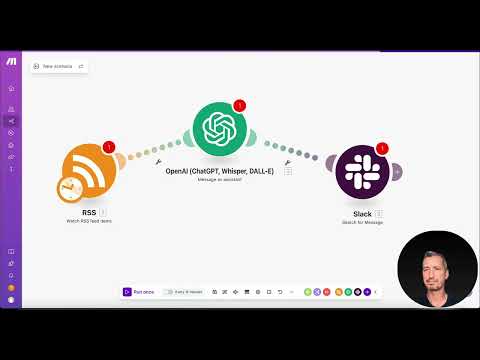
The video is only loaded from YouTube when you play it – data (including your IP address) is then transmitted to YouTube/Google. More in the privacy policy
The process is straightforward: A trigger delivers the content, ChatGPT prepares it, a PDF service converts it, and Gmail sends the result. In the end, you have a workflow that you can reuse in Make as often as you like.

Key Takeaways
A PDF workflow consists of a few building blocks: a trigger, text processing, PDF creation, and sending. The order of the modules determines how clean the result looks in the end.
When creating the PDF, you should pay attention to choosing the right module. Since incoming emails are usually in HTML format, you choose the conversion from HTML to PDF and not the conversion from PDF to something else.
You need to store the credentials for Gmail, ChatGPT, and the PDF service once. After that, the workflow runs without further intervention.
Standard tools like PDF.co are a good alternative to built-in solutions. Compare prices and features before you commit.
Step-by-Step Guide
Step 1: Define the Starting Point
Before you start in Make, you need a clear idea of where your text comes from. In the example, a source sends the content by email, which is then passed on to ChatGPT. There, the data is summarized and prepared the way you want it later in the PDF. So think in advance about which source you will use, because this determines the trigger in your scenario.
Step 2: Choose a Suitable PDF Tool
The software of Zapier-like tools often offers its own modules for PDF creation. However, the video makes it clear that not every integrated module delivers the desired quality. That is why it is worth looking at external services like PDF.co, which reliably produce optimized PDFs. Pay attention to price, range of features, and whether the service processes your templates cleanly. For this tutorial, I chose a well-known provider where the conversion works reliably.

Step 3: Create a New Scenario in Make
Open Make and click on "Create Scenario". This starts an empty workflow that you build module by module. Each module corresponds to a step your document goes through. You can create as many scenarios as you like once you have understood the basic principle.

Step 4: Set Up the Trigger with Gmail
As the first module, you add a Gmail trigger. It monitors your inbox and starts the workflow as soon as a new message arrives. The text you receive in an email is thereby automatically passed on to the next step. Make sure you connect the Gmail account correctly and set the appropriate filters so that only the desired emails are processed.
Step 5: Prepare the Text with ChatGPT
After the trigger comes the ChatGPT module. Here you pass the content of the received email and specify what the response should look like. For example, you can specify that the text be output in a certain format or be linguistically revised. Select the right action for ChatGPT in the module, because only then can the text be processed cleanly.

Step 6: Generate the PDF
Now comes the core of the workflow. In the PDF module, look for the option to convert HTML to PDF. This choice is crucial because emails are usually in HTML format. Pass the content prepared by ChatGPT to this module. The result is a finished PDF file that can be sent in the next step.

Step 7: Send the PDF via Gmail
In the last module, you add "Gmail: Send an Email". Enter the recipient, write a suitable subject line, and attach the generated PDF file. This is also where you decide who the document goes to. You can enter the recipient manually or take it dynamically from the original email. With this step, your workflow is complete.

Step 8: Store the credentials
So that all modules can talk to each other, you need to store the credentials for Gmail, ChatGPT, and the PDF service. This is done via the connections in Make. Once set up, they remain saved, and you don't have to enter them again for every new scenario. Once you have completed this step, the workflow is ready to use without interruption.

Step 9: Test and extend the workflow
Before you let the workflow run permanently, you should test it once. To do so, send a test email and watch how each module processes the data. Make shows you which data arrives at which point. Once everything is correct, you can extend the process, for example by sending via Slack or WhatsApp instead of email, or by combining multiple triggers.

Summary – Automatically create and send PDFs with Make
You have now seen how a PDF workflow can be put together from just a few modules. The trigger via Gmail supplies the content, ChatGPT prepares it, a PDF service generates the file, and Gmail sends it. The key point is choosing the right HTML-to-PDF module and storing the credentials once. After that, you can use the process as often as you like and adapt it to your own scenarios.
FAQ
Which tools do I need for this workflow?You need Make as the automation platform, a Gmail account, access to ChatGPT, and a PDF service such as PDF.co.
Do I really have to switch the PDF tool?No, but built-in modules don't always deliver the desired result. An external service can be the better choice, especially for formatting.
Why do I have to convert HTML to PDF?Emails are usually in HTML format. Converting HTML to PDF ensures that the layout and content are preserved.
Can I also send the PDF via Slack or WhatsApp?Yes, instead of the Gmail module, you can use other sending modules, provided they are available in your scenario.
What happens if a module doesn't work?First check the stored credentials. After that, it helps to test the workflow step by step. You can also have an AI help you with troubleshooting.
How often do I have to enter the credentials?Once stored, they remain saved in Make. You only have to re-enter them if a password changes or the connection expires.

