

An automation that only moves data from A to B saves time, but it doesn't think along with you. This is exactly where the combination of classic automation and artificial intelligence comes in. Zapier handles the workflow, and ChatGPT reads the content, summarizes it, or rewrites it. Whether it's a reply template for incoming inquiries or a social media post from an idea list in Google Sheets: the basic principle stays the same. This guide shows you step by step how to integrate ChatGPT into Zapier, where typical stumbling blocks lurk, and what costs you should plan for.
The video is only loaded from YouTube when you play it – data (including your IP address) is then transmitted to YouTube/Google. More in the privacy policy
Key Takeaways
- In Zapier, ChatGPT is used not as a trigger but as an action. The trigger is, for example, a new email in Gmail.
- For the connection you need an OpenAI account with an API key and a funded balance, because usage is billed based on consumption.
- On the free plan, Zapier only checks for new emails every 15 minutes, and the range of features is severely limited.
- For processing, the plain-text content of an email is better suited than the HTML version.
- Test each step individually and check limits and plans before you publish an automation.
Step 1: Prepare your OpenAI account and API key
Before you open Zapier, you need access to OpenAI's interface. Log in to the platform and create an API key. Also add a small balance, because requests to ChatGPT via the API are chargeable. A few euros are often enough for trying things out. Without a balance, every run aborts with an error, and you will get to know exactly this problem later on.

Step 2: Create a new Zap
Log in to Zapier and click "Create new Zap". Zapier offers ready-made templates that you can use. If you don't find a suitable one there, you start with an empty Zap. It's best to first describe what you want to automate, such as "summarize emails". This helps you keep the workflow in mind while you build the individual steps.

Step 3: Set Gmail as the trigger
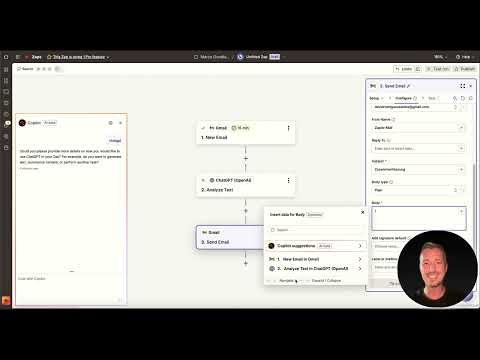
In this setup, ChatGPT is not the trigger. As the trigger, you choose Gmail and the event "New Email". Connect your Gmail account and confirm access. Note that the free plan only checks for new emails every 15 minutes. For a test, you therefore have to either wait or start the test run manually after sending yourself an email.

Step 4: Add OpenAI as an action
Click the plus icon below the trigger and select ChatGPT or OpenAI as the action. Then connect your account by pasting in the API key. Once the connection is established, the available actions appear. These include, for example, analyzing text, evaluating images, and classifying content. You can also create custom actions, but one of the standard actions is enough to get started.

Step 5: Define the task and pass on the text
For the summary, select the appropriate text action. In the "Text to be analyzed" field, you then assign the content of the email. Use the body in Plain Text format for this. It contains only the raw text without HTML markup, which allows ChatGPT to process it more cleanly. Then you specify what should happen, for example: "Summarize the following text in three sentences." The more precisely you phrase this instruction, the more useful the result will be.

Step 6: Select the model
In the next step, you select the model. In the video, GPT-4o mini is used. It is comparatively inexpensive and sufficient for simple summaries. You don't need to adjust fields such as maximum token count or temperature to get started. Leave them at the default values until you have understood the workflow and want to optimize in a targeted way.
Step 7: Run the first test and check your budget
Test the step using the test button. If an error message appears, first check your OpenAI balance. In the video, the budget was empty, so the request could not be executed. Top up the balance in your OpenAI account and set a usage limit. This way you keep costs under control and avoid unpleasant surprises.

Step 8: Set up the Gmail action for sending
Now add a second action: Gmail again, this time with the event "Send Email". Select your account and initially enter your own address as the recipient. Assign a sender name and a subject such as "Summary". In the text field, use the data selector to insert the result of the ChatGPT action. These fields only become available to you once the previous step has been successfully tested. Therefore, be sure to configure the AI action completely before you continue here.

Step 9: Test the entire workflow
Once all steps are marked with a checkmark, you can test the complete Zap. To do so, send a test email to your own inbox and wait for the next polling, or start the test run directly. Afterwards, check each individual step in the history. Does the text arrive completely? Does the summary make sense in terms of content? Only when every step works should you publish the Zap.

Step 10: Find errors and recognize the limits of the free plan
Even with simple workflows, an error can occur. In the video, the summary initially remained empty, and a second test run had to follow. Another obstacle was one step too many, which is only available in the paid plan. As a result, the Zap could not be run. Remove such steps or switch plans. Also keep in mind that you quickly hit limits with connections and limits in the free plan.

Step 11: Keep an eye on plans and costs
The free plan is only sufficient for simple tests with a few steps. For your own productive workflows, you need at least a paid version. In the video, the Professional plan costs 20 euros per month with annual billing, otherwise 29 euros. It allows significantly more steps and features. Consider in advance whether the effort is worthwhile for you, and factor in the ongoing costs for OpenAI usage.

Step 12: Outlook on Make
The tutorial has shown that Zapier with ChatGPT is quickly ready to use. A comparison with Make is still pending, because the service was not reachable at the time of recording. The process there is similar: a trigger, an AI action, and an output. So keep an eye out for the next tutorial if you want to see the implementation in Make.

Summary – Integrating ChatGPT into Zapier: Generate texts and summarize emails
In Zapier, you connect a trigger such as Gmail with ChatGPT as an action. To do this, you set up an OpenAI account with an API key and credit, choose a suitable model, and pass the plain text of the email to the AI. Then you send the result to yourself via Gmail. Test every step, keep an eye on your budget and plan limits, and check errors in a targeted way. This turns a simple forwarding into an automation that understands content and prepares it for you.
FAQ
Do I need a paid Zapier plan for ChatGPT in Zapier?Yes, according to the video you need at least a paid version, because the free plan only allows a few steps.
Why is my summary displayed as empty?Usually it is due to an empty OpenAI balance or an error with the model. Check your budget and repeat the test.
Why should I select the body as plain text?Plain text contains only the pure content without HTML formatting. This allows ChatGPT to process the text more cleanly.
How often does Zapier check for new emails on the free plan?On the free plan, the check occurs every 15 minutes.
Can I also implement the automation with Make?Yes, the principle is similar. In the video, a separate tutorial on Make is announced.

