

You've set up your first automation, it's running, and you lean back, relaxed. This very moment is dangerous, because automations don't just keep running on their own. Tools change their interface, passwords expire, and new features alter the behavior of your workflows. If you ignore that, you often only notice problems when a customer complains about a missing invoice.
The video is only loaded from YouTube when you play it – data (including your IP address) is then transmitted to YouTube/Google. More in the privacy policy
In this guide, I'll show you how to keep an eye on your flows, detect errors early, and expand them step by step. That way, your automations grow along with your business instead of becoming a confusing patchwork.
Key Takeaways
- An automation needs regular maintenance, ideally once a month.
- Error notifications are mandatory, and you should supplement them with your own notification channels if needed.
- Scaling works best when you start small and only expand what runs stably.
- Brief documentation saves you a lot of time later when troubleshooting and making adjustments.
Step 1: Establish regular review as a fixed routine
The most important step is not a technical one, but an organizational one. Decide when you will review your workflows. A fixed rhythm of about once a month has proven effective. Enter the appointment directly in your calendar, because a resolution you don't remember is of no use to you.
The routine becomes even more reliable if you automate the reminder itself. To do this, build a small workflow that sends you a message by email or WhatsApp on a set day. This message can contain a simple checklist: Are all flows running? Have any interfaces changed? Are login credentials still valid?

Step 2: Activate and check error notifications
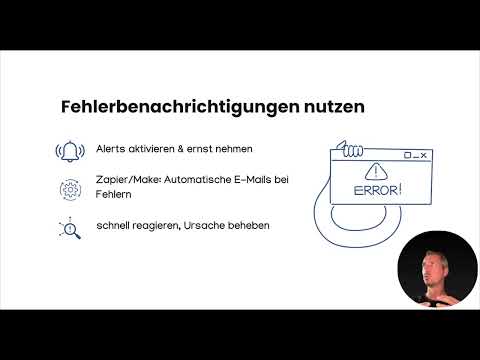
Most automation tools automatically notify you by email as soon as a step fails. That sounds reassuring, but there's a catch: These emails can end up in spam, disappear into the newsletter folder, or simply be overlooked. That's why you should specifically check your tool's settings and make sure the notifications go to an address that you actually read regularly.
Test the notifications once deliberately, for example by running a workflow with an intentionally faulty step. That way you'll see whether the message arrives, and in an emergency you won't have to guess.

Step 3: Set up your own error procedure
If you rely only on the standard email, an error can still slip past you. An additional error procedure therefore makes sense. This is a separate workflow that reacts to errors and notifies you through a different channel, such as Slack, WhatsApp, or a messenger of your choice.
Tools like Zapier or Make offer dedicated error paths for this. You define what should happen when an error occurs, for example a message with the name of the affected workflow and the time of the error. This way you know within a few minutes where things are going wrong, and you stay up to date on all processes.
Step 4: Start small and expand step by step
Many automations start out very unassumingly, for example with a simple email notification for a new form entry. That's exactly right. Only when you notice that this process runs stably should you expand it. Expanding doesn't mean rebuilding everything at once, but adding one step after another.
A good example is customer onboarding. From the simple notification, a complete process gradually emerges: The form saves the data, a welcome email is sent out automatically, and in the end the invoice is created. Each building block is tested before the next one is added. This way you avoid having an error that is hard to find in a complex system.

When expanding, also pay attention to when it is really necessary. Expand a workflow when you need it regularly and it runs reliably, not just because it would be technically possible.
Step 5: Document your automations
Documentation seems like a tedious duty at first glance, but it is one of the most effective measures against chaos. For each automation, briefly write down what it does, which tools it connects, and where the login credentials are stored. The credentials belong in a secure password manager and not in an unencrypted note.
This information will help you find errors faster later on and adapt workflows more easily. If a tool changes its interface, you will know immediately which processes are affected. And if you hand over tasks to a team member, that person won't have to laboriously work their way through unfamiliar flows.

Conclusion on Maintenance and Scaling
Automations are not a one-time project, but an ongoing process. What matters is not to build a huge system right away, but to start small, check regularly, and expand what you have achieved in a targeted way. If you cultivate these habits, your automations will reliably grow along with your business, your team, or your everyday life.

Summary – Maintaining and Scaling Automations: How to Keep Your Workflows Reliable in the Long Term
Automations need regular maintenance because tools, interfaces, and login credentials are constantly changing. Therefore, schedule a monthly review and ideally set yourself a reminder for it. Also make sure that error notifications arrive reliably, and supplement them if necessary with your own error procedure via a second channel. When scaling, the rule is: start small, only expand stable processes, and test every new component. A short documentation with the function and login credentials helps you find errors faster and adapt workflows more easily.
FAQ
How often should I review my automations?Ideally once a month. A fixed appointment in your calendar or an automatic reminder helps you stick to the routine in the long term.
Are my tool's error emails enough?For the beginning, often yes, but they can end up in spam or be overlooked. An additional error procedure via Slack, WhatsApp, or another channel significantly increases reliability.
When should I expand an automation?Expand it as soon as it runs stably and you need it regularly. Add new steps one after another and test each one of them.
Where should I store login credentials for my automations?Login credentials belong in a secure password manager and not in an unprotected note or spreadsheet.
What do I need to record in the documentation?Briefly note which task the automation performs, which tools it connects, and where the login credentials are stored. That is usually enough to find errors quickly later on.

