

Before you build your first automation, you should prepare your tools. Good automations rarely fail because of the logic, but often because of missing accounts, outdated browsers, or logins that you only start searching for at the decisive moment. In this chapter, you will go through all the prerequisites step by step, so that you don't get stuck while following along. You don't need any prior knowledge, just about two hours of time and a few free registrations.
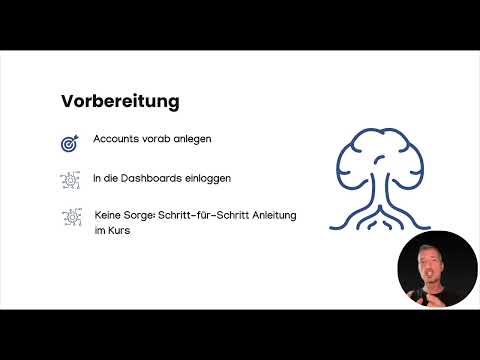
The video is only loaded from YouTube when you play it – data (including your IP address) is then transmitted to YouTube/Google. More in the privacy policy
Key Takeaways
- An up-to-date browser is the foundation. Google Chrome is the safest choice, Microsoft Edge also works reliably.
- Almost all common automation tools offer a free entry-level plan, which is completely sufficient for the examples.
- For AI applications, you need a free account with OpenAI. For image generation, DALL-E or Stable Diffusion are suitable.
- A Google account is helpful because many examples work with Google Sheets or Google Drive.
- A second screen or a split window makes it easier to follow along. If you have neither, you can also watch the video completely first and then rebuild it afterwards.
Step-by-Step Guide
1. Choosing the Right Browser
The browser comes first. Your browser is the window to all the tools you will work with later, and it should always be up to date. Google Chrome is the recommended choice because all the functions shown run there without restrictions. Microsoft Edge also works without problems with the tools presented, since it is built on the same technical foundation as Chrome. Firefox and Safari are generally usable, but with some interfaces there may be small deviations. If you are unsure, install Chrome or Edge and use this browser exclusively for this project. This way you avoid extensions or settings that could disrupt the process.

2. Creating Free Accounts for the Automation Tools
Next, you need access to the automation platforms covered in the course. These include Zapier, Make, n8n, IFTTT, Pabbly Connect, and Integrately. The good news: all of these providers offer a free entry-level plan that is completely sufficient for the exercises. So you don't have to provide a credit card to get started. Create the accounts at your leisure, confirm the email addresses, and note down the login details in a safe place. Make sure you choose the free plan during registration so that no unexpected costs arise.

3. Setting Up an OpenAI Account for ChatGPT
For all examples in which artificial intelligence plays a role, you need an account with OpenAI. Through it you access ChatGPT and can additionally use the API, with which AI functions can be integrated directly into your automations. Here too, free access is sufficient for the first steps. Note that the terms for AI services change more often than for traditional tools. If a feature in the course is not immediately available, check in your account under settings which plan is currently active.

4. Preparing Tools for Image Generation
If you want to create images automatically, DALL-E or Stable Diffusion are options. Both can be integrated into automations and deliver usable results at no cost, as long as you use the free version. Midjourney is also powerful, but by now only works with payment. For the exercises in the course, this is not necessary. Decide on a tool, create the account, and familiarize yourself with the interface before you start with the examples.
5. Opening the Dashboards and Testing Logins
After all accounts have been created, you should log in to each dashboard. That sounds like a small thing, but it saves you a lot of time later. If you know where the areas for connections, Zaps, scenarios, or workflows are located, you can focus fully on the content in the course. Don't worry, you don't have to understand everything yet. The course explains step by step where to find what and which areas you actually need. Simply note which menu items there are and how to navigate to them.
6. Having a Google Account Ready
A Google account is not mandatory, but very helpful. In several examples, you work with Google Sheets as a simple data source or with Google Drive as storage for files. If you already have a Gmail address, you can use it directly. Otherwise, quickly set up a new account. Make sure you select the correct Google login when connecting the tools, in case you own several accounts. This prevents confusion if files don't show up later.

7. Set up your workspace so you can follow along
You learn the most when you watch the video and try things out yourself at the same time. A second screen is ideal for this. If you only have one monitor, a split window also works, with the video playing on one side and your browser on the other. If that is not possible, watch the chapter completely first and then work through it step by step afterwards. The learning effect remains almost the same. In addition, there is a quiz for each module that you can use to check and deepen your knowledge.
8. Use the preview of the upcoming modules
With this preparation, you are ready for the classic introduction to automation. The next module covers the three biggest automation tools, namely Zapier, Make, and n8n. This is where things get really practical for the first time, because you will see on screen how an automation is created. Keep your login credentials handy and open the dashboards so you can get started right away.
Summary – Setting up automation: Preparing your browser and free accounts
Preparation determines how smoothly your introduction to automation goes. You need an up-to-date browser, ideally Google Chrome or Microsoft Edge. In addition, you need free accounts with the automation tools, with OpenAI for ChatGPT, and optionally with DALL-E or Stable Diffusion for images. A Google account makes working with Sheets and Drive easier. Log in to all the dashboards once, set up your workspace with a second screen or a split window, and use the quiz for review. This way, you are perfectly prepared for the first practical steps.
FAQ
Do I absolutely need Google Chrome?No, Microsoft Edge also works without any problems. Firefox and Safari are possible, but Chrome is the safest choice because all examples run there without restrictions.
Do I have to pay for the tools?No, all the automation tools mentioned offer a free starter plan that is completely sufficient for the exercises in the course.
Can I use Midjourney for free?Currently not. Midjourney is now paid only. You don't need it for the course, though, since the free versions of DALL-E and Stable Diffusion are sufficient.
Is a Google account mandatory?Not necessarily, but it is very helpful because many examples work with Google Sheets or Google Drive.
What do I do if I only have one screen?You can use a split window or watch the chapter completely first and then rebuild it step by step afterwards. The learning effect is almost the same.
Why should I log in to the dashboards beforehand?If you are already familiar with the interfaces, you can focus entirely on the content in the course and don't have to search for menu items.

