

Anyone who researches regularly knows the problem: A large part of the time doesn't go into the actual analysis, but into clicking through sources, skimming articles, and sorting the results. This is exactly where this guide comes in. You'll learn how to monitor an RSS feed, have an AI summarize the new entries, and receive the results automatically in Slack or by email.
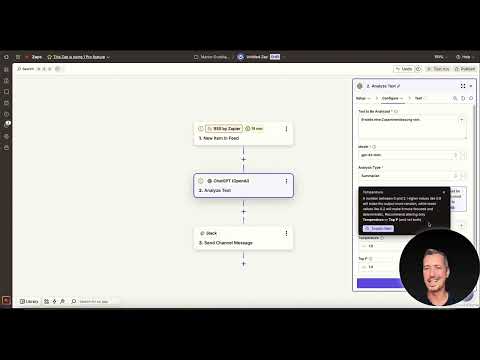
The video is only loaded from YouTube when you play it – data (including your IP address) is then transmitted to YouTube/Google. More in the privacy policy
The workflow isn't difficult to implement, but it is one of the more advanced automations because several building blocks work together: a trigger, an AI action, and an output channel. I'll show you the process with both Zapier and Make, so you can choose the tool that suits you better.
Key Takeaways
An RSS feed can serve as a trigger, so that every new entry automatically starts the workflow. An AI action using the GPT-4o mini model summarizes the content, and the output ends up in Slack, by email, or via WhatsApp. Always use the official OpenAI action for the AI action and not the beta variant. You should critically review suggestions from the platform's AI assistant. And after a successful test, don't forget to publish the workflow, otherwise it will never run on its own.
Step-by-Step Guide
Step 1: Open the platform and create a new workflow
Log in to Zapier and open the area for creating a new Zap. You'll find the button either at the top left or directly in the dashboard. A Zap is Zapier's term for an automated workflow.

Step 2: Use the AI assistant or adopt a template
Zapier offers an AI assistant where you describe what should be automated. It then suggests triggers and actions. In practice, however, this assistant doesn't always deliver usable results. It therefore makes sense to treat the suggestions as a starting point and then check them manually. A prepared template that you can copy often gets you to the goal faster in this case.

The assistant then shows you the suggested structure with trigger and actions. This structure serves as a framework for the following steps.
If you want to save time, you can also adopt the finished structure from a prepared template and then adapt it to your needs.

Step 3: Set up the RSS feed as a trigger
The first building block is the trigger. Select the RSS block as the trigger and enter the URL of the feed you want to monitor. This can be a news portal, a blog, or a trade magazine whose posts are relevant to your research. As soon as a new entry appears in the feed, the workflow starts.

Step 4: Add an AI action with OpenAI
Now comes the step in which the actual summary is created. Add an action from OpenAI, specifically the regular variant. The beta version is already available, but not yet mature, and setting things up via the stable action is much more straightforward.
Within the OpenAI action, select the type "Analyze Text," i.e., text analysis. Then you need to connect your account with your OpenAI key, if you haven't done so yet.

Before you continue, add the "Count" step, which counts the number of entries. Then confirm with "Continue."

Step 5: Formulate the prompt for the summary
In the next field, you enter the prompt, i.e., the instruction to the AI. A simple but effective wording is something like: "Create a summary of" followed by the placeholder for the content from the RSS feed. You insert the placeholder by selecting the data fields from the previous step. This way, Zapier passes the actual text of each new entry to the AI.
If you want to control the output more precisely, you can extend the prompt, for example with the length of the summary or the language.

Step 6: Set the model and parameters
As the model, I recommend GPT-4o mini. It is inexpensive to run and usually delivers good results for summaries. As the analysis type, you choose "Summarize", i.e. summarizing.
In most cases, you can leave the number of tokens unchanged. The "Temperature" parameter determines how creative or how variable the responses turn out. For factual summaries, a low to medium value makes sense; the default value is usually sufficient. Then confirm with "Continue". The AI module is now set up.
Step 7: Send the result to Slack
The last step is to forward the result. For this, choose the action "Send Channel Message" in Slack. This automatically posts the summary in a channel of your choice. Select the channel and insert the placeholder with the generated summary into the message field.

Step 8: Use alternatives to Slack
You don't necessarily have to use Slack. If you would rather receive an email, choose the mail action instead, for example via Gmail. I use Gmail very often for my automations. A WhatsApp message is also possible, so that you are notified as soon as a new summary is available. The only important thing is that you store the respective access credentials.

Step 9: Test and publish the workflow
Test the process before you put it into production. Check whether the summary is created correctly and sent to the right destination. Only once the test has been successful do you activate the workflow via the "Publish" button. Many people forget this step. Without publishing, the Zap will not continue to run automatically, no matter how well it is set up.

Step 10: Implement the same workflow in Make
Make works with what is called a scenario and follows basically the same logic. Create a new scenario and again set the RSS module with your feed URL as the trigger. As test data, you usually select the first entry of the feed.

Next, add the module for ChatGPT or OpenAI and pass on the text content from the RSS entry. In the last step, you connect Slack, Gmail or WhatsApp as the output. Here too, all access credentials must be entered so that the scenario works smoothly.

Unlike Zapier, the setup in Make is displayed visually as a flow. This makes the chain of trigger, AI processing and output particularly clear. The conclusion is the output in Slack or by email.

Summary ??? Setting up automated research with RSS, GPT and Slack
With an RSS feed as the trigger, an AI summary by GPT-4o mini and output in Slack, by email or via WhatsApp, you have a research pipeline that keeps you constantly informed about new content. The setup is equally feasible with Zapier and Make. When implementing it, pay attention to three points: the stable OpenAI action instead of the beta, the critical review of the AI assistant's suggestions, and publishing the workflow after a successful test.
FAQ
Question: Do I need programming skills to implement this workflow?Answer: No. The setup is done via selection menus and placeholders. However, a basic understanding of triggers and actions helps.
Question: What costs are incurred for the summaries?Answer: The costs depend on the model used and the length of the texts. GPT-4o mini is comparatively inexpensive, but you should still keep an eye on usage.
Question: Why doesn't the platform's AI assistant always work reliably?Answer: The automatically generated suggestions are helpful as a starting point, but can be faulty or incomplete. Therefore, check each module manually.
Question: Can I monitor multiple RSS feeds at the same time?Answer: Yes, by creating multiple workflows or by building a scenario with multiple sources in Make. This way you keep different topics separate and in view.
Question: What happens if I don't publish the workflow?Answer: The workflow only runs in test mode and is not triggered automatically. Only after clicking "Publish" does it work on its own.

