

A star, an arrow, or a warning sign is often needed several times in a project. Redrawing them every time costs time. The Symbols panel in Illustrator solves this problem: it stores graphics that you can drag and drop onto your artboard at any time. In this tutorial, you will learn how to open the panel, use the included libraries, edit individual symbols, and create your own symbol library that you can reuse in future projects.
The video is only loaded from YouTube when you play it – data (including your IP address) is then transmitted to YouTube/Google. More in the privacy policy
Key Takeaways
- You open the Symbols panel via the Window menu and then Symbols.
- Illustrator already includes default symbols and additional libraries, for example for celebrations or flowers.
- Symbols are dragged and dropped onto the artboard and can be used there.
- Symbols cannot be modified directly via their anchor points. To do so, you have to edit the symbol or convert it into a regular object.
- You create your own symbols by dragging graphics into the panel, naming them, and setting the export type.
- Via the panel menu, you save a symbol library, which you can later find again under "User Defined".
Step-by-Step Guide
Opening the Symbols Panel
If the Symbols panel is not yet visible on your screen, open it via the Window menu and then Symbols. The panel then appears in your workspace and can be moved like any other panel.

Inserting Predefined Symbols
The default Symbols panel already contains some symbols. To use one of them, click on it and drag and drop it onto your artboard. The symbol is inserted there as a copy, and you can continue editing it like any other element.
Opening More Symbol Libraries
The default symbols are only the beginning. Via the small menu at the bottom edge of the panel, you will find the item Open Symbol Library. There, numerous categories that Illustrator includes are available. If you choose the Celebration category, for example, an additional panel opens with matching motifs such as a balloon.


You can also open the Flowers category in the same way. It also appears as its own panel. If you drag a flower from there onto the artboard, it is automatically added to the Symbols panel as well. This way, you gradually collect the symbols you need regularly in one central place.

Editing and Converting Symbols
By default, objects in the Symbols panel are inserted as symbols. This has a drawback: you cannot directly modify the anchor points and paths. If you want to adjust a symbol, first select it on the artboard and then click Edit Symbol in the control panel. Then you confirm with OK, and you can edit the object's paths as usual.
If you want to permanently detach the symbol from the symbol link, choose the option Convert Object instead. The element then becomes an ordinary object that no longer has a connection to the panel.
Creating Your Own Symbols Panel
The Symbols panel can be filled not only with predefined motifs but also with your own graphics. For this example, you first empty the existing panel: you select all symbols by holding down the Shift key and clicking on the symbols. Then you click the trash can icon at the bottom edge. Illustrator asks, to be safe, whether you really want to delete all symbols. If you confirm with Yes, the panel is completely empty.

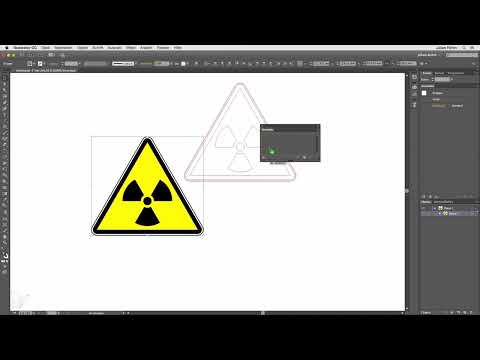
Now you drag and drop your own graphic, for example a warning sign, into the empty panel.

Naming the Symbol and Setting the Export Type
As soon as you drag the graphic into the palette, a dialog window opens. Here you assign a name, such as Warning Sign, so that you can easily find the symbol again later. Then you choose the export type. You can choose between Movie Clip and Graphic. For a warning sign that doesn't move, you choose Graphic and the behavior Static instead of Dynamic. Confirm the settings with OK.
The warning sign is now in the symbol palette and can be dragged onto the artboard, just like all the other symbols.

Saving a symbol library
So that you can use the warning sign in future projects as well, you need to save the palette. To do this, open the small menu at the bottom edge of the palette again and choose Save Symbol Library. A window opens in which you give the library a name, for example Warning Signs. The correct folder is already preselected. Complete the process by clicking Save.
Reusing a saved library
Now create a new file. The symbol palette shows the default symbols again. To load your own library, open the palette menu and go to Open Symbol Library. At the very bottom, under the category User Defined, you will find your saved libraries. Clicking Warning Signs opens a palette with your symbol, which you can use just like all the other symbols.


Summary – Symbol palette in Illustrator: Using symbols and saving your own libraries
The symbol palette is a practical tool for recurring graphics. You can open supplied libraries such as Celebration or Flowers and insert symbols via drag and drop. With the option Convert Object or Edit Symbol, you adapt graphics. You create your own symbols by dragging them into an empty palette, naming them, and setting the export type. Save the palette as a symbol library, and you will find it again in every new project under User Defined.
FAQ
How do I open the symbol palette in Illustrator?You open it via the Window menu and select the Symbols entry there.
Can I edit a symbol in the palette directly?Not directly. You first have to select it and choose Edit Symbol. Alternatively, you convert it into a normal object via Convert Object.
How do I delete all symbols from the palette?Select the symbols while holding down the Shift key, click the trash can icon, and confirm the prompt with Yes.
Which export type do I choose for a non-moving symbol?For a static graphic, you choose the export type Graphic and the option Static.
Where do I find my saved symbol library again?In the symbol palette menu, under Open Symbol Library, you will find the User Defined section. Your saved libraries are located there.

