
If you want to highlight text on the web, you know the procedure from word processors like Microsoft Word: you select a word and click a button. In HTML code, these buttons don't exist. You have to write the markup yourself, and that works with a few tags and a few CSS properties. In this tutorial, you will learn how to display text in bold, italic, and underlined, and why choosing the right HTML tag means more than just controlling the appearance.
The video is only loaded from YouTube when you play it – data (including your IP address) is then transmitted to YouTube/Google. More in the privacy policy
Key Takeaways
The most important points at a glance:
- For bold text, the HTML tag
<strong>is best suited, because it describes the meaning of the text and not just the appearance. - With
<span>and a CSS class, you can style text areas specifically without using a semantic tag. - The CSS properties
font-weight,font-style, andtext-decorationcontrol font weight, font style, and underlining. - The properties can be combined as you like.
- For italic text with emphasis,
<em>is the semantically more sensible alternative to a pure style declaration.
Step-by-Step Guide
Step 1: Bold with the strong tag
The simplest way is through the HTML tag <strong>. You write the text you want to highlight between the opening <strong> and the closing </strong>. In the example, the text "Lorem ipsum dolor" is inside a paragraph. As soon as you open the page in the browser, this section appears in bold. You don't need to create a CSS file for this, since the browser displays the tag as bold by default.

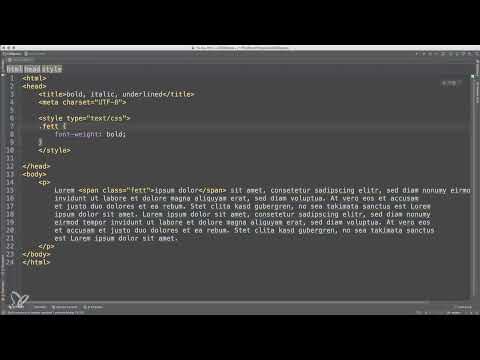
Step 2: Bold with span and a CSS class
Another way is through the <span> tag. It marks an area within a text but does not change anything about the display itself. You can assign a class to the <span>, for example class="fett". In the style section of your page, you then specify for this class that the font weight should be bold. For this you use the property font-weight with the value bold. The result in the browser is the same as with <strong>, but the way to get there is different. You specify the appearance in CSS instead of controlling it through the meaning of the tag.

Step 3: Why strong is the better choice for bold text
Although both variants look the same, they differ in one important point: semantics. A <strong> tag tells the browser that this text is particularly important in terms of content. Search engines like Google and other programs that read web pages can recognize and evaluate this information. A <span> with a class "fett", on the other hand, provides only an instruction for display without any meaning. Therefore, always use <strong> whenever HTML natively offers a suitable markup. Use <span> and CSS only when you want to adjust a text area purely for design purposes.

Step 4: Italic text with span and a class
For italic text too, you can first go the route via <span>. You enclose the desired word, in the example "Magna", with a <span> and give it a class, such as class="kursiv". As long as you haven't defined any CSS yet, the word remains unchanged. This shows you that the class alone has no effect yet and that only the stylesheet determines the design.
Step 5: Italic text with font-style
In the style section, you now create the appropriate CSS rule for the class. For this you use the property font-style and set it to italic. If you reload the page, the word "Magna" appears in italics. The property font-style describes the font style and not the font weight. Make sure to keep these two properties apart, because they are often confused in text design.

Step 6: Underlining text with text-decoration
For underlining, you need the property text-decoration. It generally describes a text decoration, which also includes lines above or through a text. If you set the value to underline, the text is underlined. In the example, you add this rule to the class that already controls the italic text. Then you reload the page and see that the word appears both italic and underlined at the same time.

Step 7: Combining Properties
The styling options can be mixed freely. You can give the same class font-weight, font-style and text-decoration at the same time. This allows a word to be bold, italic and underlined all at once. The only important thing is that you keep an overview of your stylesheet. A class intended for a specific kind of emphasis should also have a name that describes this function. In the video, for example, a class "hervorgehoben" ("highlighted") is used, which combines italic text with an underline.
Step 8: em as a Semantic Alternative to Italic Text
Finally, you will get to know the <em> tag. It stands for "emphasize" and marks emphasis within a sentence. By default, the browser displays the text in italics, without you needing any CSS. Compared to <strong>, <em> has a weaker weighting in the hierarchy. So use the tag where a word should be emphasized in terms of content, for example with a foreign word or a particular nuance in the sentence. If you would like to delve deeper into the structure of semantic HTML documents, you will find further information on this in later lessons.
Summary – HTML Bold, Italic and Underline with CSS
You have now learned about the three typical text markups. For bold text, it is best to use the <strong> tag, since it expresses the meaning of the text. With <span> and a class, you can style text areas when no suitable semantic tag is available. The font-weight property controls the font weight, font-style the font style and text-decoration the underlining. For emphasized italic text, <em> is suitable. All properties can be combined, so you can flexibly adapt texts to your design.
FAQ
What is the difference between strong and span with bold text in CSS?Strong describes the meaning of the text as particularly important and is evaluated by browsers and search engines. Span with CSS only changes the appearance, without making any statement about the content.
Why is the font-style property not the same as font-weight?Font-weight determines the font weight, such as bold or normal. Font-style determines the font style, for example italic with the value italic.
Can I display text as bold, italic and underlined at the same time?Yes. You can combine font-weight, font-style and text-decoration in the same CSS rule so that all three styles take effect at the same time.
When should I use em instead of italic text via CSS?Use em when the text should be emphasized in terms of content. Pure styling without meaning, on the other hand, is better controlled via CSS.
Do I have to reload the page after a CSS change?Yes, in the browser the change only becomes visible after reloading the page.


