
A program that displays nothing remains invisible to the user. This is exactly where this tutorial comes in. You will learn three practical ways in which JavaScript makes information visible in the browser, and find out where the strengths and weaknesses of each method lie.
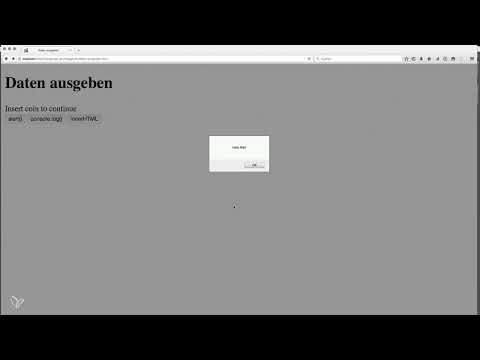
The video is only loaded from YouTube when you play it – data (including your IP address) is then transmitted to YouTube/Google. More in the privacy policy
A quick note up front: in TVML/TVJS you don't have to output data this way. Still, the topic is important, because the following examples build on it. The foundation is the IPO principle: input, processing, and output. This tutorial deals with the last part, output.
Key Takeaways
- With
alert()you create a browser popup. The method is simple, but it can hardly be styled and it blocks the page. - With
console.log()you write invisibly to the developer console. This is ideal for debugging, even on live sites. - With
document.getElementById()andinnerHTMLyou display content directly in an HTML element. For notices to users, this is usually the best choice. - The meta tag for UTF-8 ensures that umlauts and special characters are displayed correctly.
- With
document.write()you replace the entire document. You should avoid this method for normal output.
Step-by-Step Guide
Step 1: Prepare the Example Page
First, open the prepared example page. It already contains three buttons whose function names are already set. Your task is to assign an action to each button via the onclick event. Make sure to reload the page after every change. Otherwise the browser will not interpret the code again, and your changes will have no effect.

Step 2: Display a Message with alert()
In the first button, enter the call alert("Hallo Welt") for onclick. After saving and reloading, a browser window with your text appears when you click. The method is quick to implement and is suitable for simple notices.
However, it has drawbacks. The window cannot be styled, and as long as it is open, the rest of the page cannot be used. For form validation or more extensive notices, you should therefore choose other approaches.


Step 3: Create Console Output with console.log()
In the second button, write console.log("Hallo du"). The message does not appear on the page, but in the developer console, which you open with the F12 key or via the context menu with "Inspect". The user doesn't notice any of this, which makes the method excellent for debugging, even on already published pages.
An advantage over alert becomes apparent with multiple messages. They do not block the page, but stack up in the console. If the same message repeats, the browser shows a counter instead of filling the list. If you change the text in the code, the new version also appears in the console after reloading.

Step 4: Address an HTML Area with getElementById()
Now comes the variant that is best suited for notices to users. First, use document.getElementById("canvas") to get the HTML element with the ID canvas. This ID is already assigned in the document. By default, the area shows the text "Insert Coin to continue".
Then, when the button is clicked, you set the content of this element anew. To do this, you use the innerHTML property and assign it a text, for example "meine Meldung für dich". After reloading and clicking, you will see that the content in the document actually changes. The page remains fully usable, and you can freely style the appearance with CSS.

Step 5: Display Umlauts Correctly with the Meta Tag for UTF-8
If umlauts or the sharp S are displayed incorrectly, the cause is the character set. Without further specification, the browser assumes an older ISO character set. The solution is the meta tag <meta charset="UTF-8"> in the head section of the HTML document. UTF-8 is a Unicode encoding and is the standard for web pages today.
You do not need to understand the exact background of Unicode, bits, and data types for the moment. Just remember that your document should work with UTF-8. After adding the tag and reloading, the umlauts will be displayed correctly.

Step 6: Understanding the Difference from document.write()
As the last method, this tutorial shows you document.write(). With onclick, you call, for example, document.write("neues Dokument"). On click, the entire previous page content disappears, and only the text "neues Dokument" remains. The developer tools then also show only this text in the source code.
So the method does not append anything to the page, but replaces the entire document. This is destructive and not suitable as an output. You should keep it in mind, but rather use innerHTML for messages on the page.

Summary – Outputting Data in JavaScript: Alert, Console, and HTML in the Browser
You have now learned about the three main output options. The alert is suitable for simple, short notices, but it blocks the page. The console is ideal for developers and for debugging, since the user does not see it. For visible notices in the document, the combination of getElementById() and innerHTML is the preferred solution. In addition, you have learned why the UTF-8 meta tag is necessary for umlauts and why document.write() completely replaces the document.
Try out all the methods yourself in the example page. Later, with jQuery, even more convenient options will be available to you.
FAQ
How do I output a message in a browser popup?With the command alert("Text") in the onclick event of a button, you display a simple popup.
Where do I see the output of console.log()?You can find it in your browser's developer console, which you open with F12 or via "Inspect".
Why should I not use the alert for form validation?The popup cannot be styled and blocks the rest of the page until the user confirms it.
How do I change the content of an HTML element with JavaScript?You get the element with document.getElementById("ID") and set its content via the innerHTML property.
Why are my umlauts displayed incorrectly?Without any specification, the browser uses an older ISO character set. With the meta tag <meta charset="UTF-8"> in the head section, this is fixed.
Why is document.write() unsuitable for outputs?The method replaces the entire document, so the previous page content is lost.


