

Imagine you have a database with customers, addresses, and postal codes, and you only want to see the customers from a specific town. That is exactly what queries in Access are for. They ask questions about your data, perform calculations, and link information from multiple tables. In this guide, you will learn what queries are, what types there are, and why they are so important for a well-organized database.
The video is only loaded from YouTube when you play it – data (including your IP address) is then transmitted to YouTube/Google. More in the privacy policy
Key Takeaways
- Queries answer questions about your data, perform calculations, and combine tables with one another.
- Select queries retrieve data, while action queries add, change, or delete data.
- Queries only display the fields that are really needed for a specific task, thus keeping forms clear and organized.
- The subdatasheet displays linked records directly and is a preview of working with queries.
Step-by-Step Guide
Step 1: What a Query Actually Is
So far, you have mainly worked with tables. In practice, however, you can hardly get by without queries. A query accesses the records in your tables and provides the answer to a specific question, for example which customers live in a certain town. You can also use it to perform calculations on the existing values.

Step 2: Combining Data from Multiple Tables
A major advantage of queries is that they bring together information from different tables. In the video, for example, the postal code table is combined with any other data. The query specifically addresses the tables involved and links them via their relationships. In this way, you get information in a single view that would otherwise be spread across several tables.
Step 3: Distinguishing Between Select Queries and Action Queries
Access knows two basic types of queries. Select queries retrieve data from a table. When you display records or perform calculations, you are working with a select query. Action queries, on the other hand, change the data. With them, you add data, modify existing entries, or delete records. Remember this difference, because it determines what a query actually does with your data.
Step 4: Making Forms Clear with Queries
Queries make your interface clearer. You do not have to display all fields on every form. A user generally does not need the internal ID or the postal code ID, but only the information that is important for their task. These technical details are of interest primarily to the database administrator or designer who maintains the data model. Too many fields would only confuse the user. A query delivers exactly the subset that is needed.
Step 5: Recognizing Relationships and the Subdatasheet
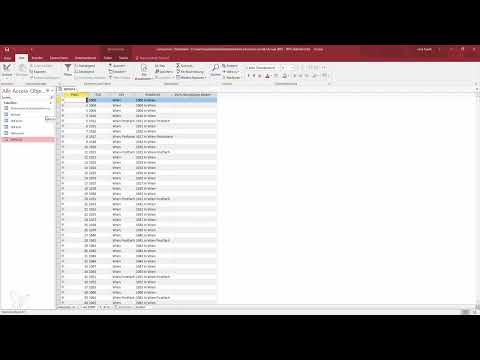
You have already gained some experience: an ID field was added, and postal codes and towns were imported. Because of the relationships between the tables, a plus sign now appears in front of each record. Clicking it opens the subdatasheet, which displays the linked records of the other table. In the example, you can see the customers belonging to a specific postal code ID.
Step 6: Creating New Records Directly via the Subdatasheet
Once the subdatasheet is set up, you do not have to specify the reference anew for every entry. You can enter new customers directly in the table, and they are automatically linked to the matching postal code ID. This saves time and prevents errors in assignment. Keep in mind: the subdatasheet is not yet a query. It merely shows you how relationships can be used in everyday work.

Step 7: Preview of Your First Own Query
In the next lesson, you will create your first own query. Then you will see how queries are structured and how you formulate questions about your data precisely. Use the time until then to take a close look at the tables and relationships in your database. The clearer you are about your data structure, the easier it will be for you to get started.
Summary – Understanding Access Queries: An Overview of Select and Action Queries
Queries are the central tool for asking questions about your Access database. They deliver specific records, perform calculations, and link tables with one another. Select queries retrieve data, while action queries change the data. In addition, queries ensure that forms show only the fields that the user really needs. The subdatasheet makes relationships visible and shows how linked data can be used in everyday work. With this basic understanding, you are well prepared to create your first own query in the next step.
FAQ
What is a query in Access?A query asks targeted questions of your data, performs calculations, and combines information from multiple tables.
What is the difference between select queries and action queries?Select queries retrieve data from a table or perform calculations. Action queries add, modify, or delete data.
Why should I use queries instead of working directly with tables?Queries display only the fields you need, link tables together, and make forms clearer for users.
What is the subdatasheet used for?The subdatasheet displays related records from another table directly and makes it possible to assign new entries appropriately right away.
Is the subdatasheet a query?No, the subdatasheet is a display of related data. The actual work with queries follows in the next lesson.

