

Have you ever wondered why the filter greater than 2000 comes up empty on your postal code, even though it works perfectly on the ID? This guide solves exactly that problem. You will learn how to work with numbers and date values in Access queries, which criteria fit which field type, and how to narrow down time periods cleanly. In the end, you will be able to create a query for all customers born in the 1980s and save this query permanently.
The video is only loaded from YouTube when you play it – data (including your IP address) is then transmitted to YouTube/Google. More in the privacy policy
The examples come from a customer table with ID, name, city, postal code, and date of birth. You can rebuild it directly.
Key Takeaways
The field type determines which criteria Access offers. Text fields such as the postal code can only be filtered using text patterns, while number fields such as the ID accept comparisons like greater than or less than. For time periods, the Between operator is suitable, which includes both numbers and date values. Date fields need the Date/Time data type, otherwise the time period will not work.
Step-by-Step Guide
Step 1: Getting an Overview of the Query
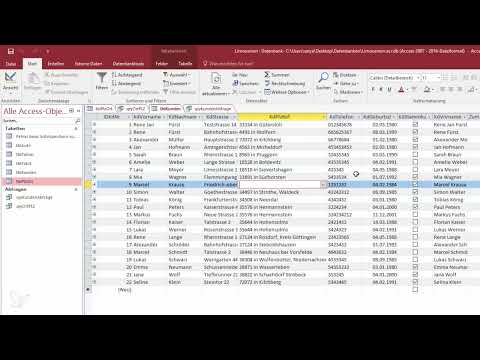
Open your query in Datasheet View. It links city and postal code and shows you the records clearly. By clicking the arrow above a column, you can sort and filter. The names can be arranged alphabetically, so that, for example, you immediately see all entries starting with A. Familiarize yourself with this interface, as it forms the basis for all the following steps.

Step 2: Why Number Filters Fail on Text Fields
The postal code is defined as a text field in your case. If you want to set a number filter such as greater than 2000 here, Access rejects it, because the filter applies exclusively to numeric values. Text values are sorted according to different rules: it is done character by character, so that, for example, 10000 can come before 2000. Therefore, always check the field type first before you define a criterion. In the next step, I will show you how you can still filter meaningfully.

Step 3: Filtering Text Fields with Wildcards
You can also filter specifically on text fields. In the text filter, you choose, for example, the option that begins with an expression, and enter 5*. The asterisk is a wildcard for any number of characters. The result shows you all postal codes that begin with a 5. This is the appropriate method for text fields: you work with patterns instead of size comparisons.

Step 4: Filtering Number Fields with Greater-Than and Less-Than Criteria
Number fields behave completely differently. The ID is defined as Long Integer, that is, as a whole number. Here you can define ranges directly. Enter >2000 in the filter to see all records from ID 2000 upward. If you reverse the sign and enter <2000, you get all records up to ID 2000. Remove the previous filter before each new test so that the results do not overlap.

Step 5: Narrowing Down Postal Codes as a Number Field with Between
In your example, the postal code is stored as a text field, and that is exactly where the catch lies. If you switch the field to a numeric value, you can define ranges. However, you should only do this if you are sure that no postal codes with letters occur, as are common in the United Kingdom or Canada, for example. Letters cannot sensibly be treated as numbers.
In the Criteria field, you then enter Between 2000 And 4000. Access translates the operator into the German notation Zwischen ... Und. The result shows you all postal codes from 2000 up to and including 4000. The limit values are therefore inclusive, which you should keep in mind when checking the results.
Step 6: Preparing Date Fields Correctly
To work with date values, you need a field of the Date/Time data type. Check in Table Design View whether the date of birth has exactly this type. A date stored as text cannot be compared reliably. Incidentally, the reference to the postal code is also a number field, but the field itself remains a text field. So pay attention to the distinction.

Step 7: Defining a Birth Period with Between
Now you can filter out all customers who were born between 1980 and 1989. Open the query in Design View and enter Between #01.01.1980# And #31.12.1989# in the criteria field of the date of birth. Access automatically adds the hash signs when you enter the date. The period includes the first and the last day of the period. Then switch to Datasheet View to check the result. You will now see only customers from the 80s.

Step 8: Sorting the Result
The filtered list can also be sorted. Click the arrow in the date of birth column and choose ascending sort order. The customers will then appear in chronological order, beginning with the birth years 1980, 1984, 1985 and 1988. The sorting only changes the display and not the filter, so you can change it again at any time.
Step 9: Saving the Query
Once the filter and the sorting are correct, save the query via the menu or with the keyboard shortcut Ctrl + S. Give it a meaningful name such as Customers 80s. This way, this analysis will be available to you in the future without having to set it up again, which saves time especially for recurring reports.

Step 10: Testing a Different Period
You can adjust the period at any time. In Design View, simply change the date limits in the Between expression, for example to a period starting from the year 2000. After switching to Datasheet View, Access immediately shows you that customers from the 90s no longer appear. This approach is suitable for quickly comparing periods without having to create a new query each time.
Summary – Access Queries: Filtering Number and Date Criteria Correctly
You have seen that the field type determines the available criteria. You filter text fields with wildcards such as 5*, and number fields with comparisons such as >2000 or <2000. The Between operator is ideal for number ranges and date periods, and it only works properly if date fields have the Date/Time data type. With a saved query, you keep your analyses permanently under control.
FAQ
Question: Why can't I set a greater-than filter for my postal code?Answer: The postal code is stored as a text field, and greater-than filters only work with numeric values. Use wildcards such as 5* instead.
Question: Can I convert a postal code into a number field?Answer: This is possible, but you should only do it if all values are purely numeric. If the field contains letters, for example with British or Canadian postal codes, it remains a text field.
Question: Are the limits included with Between?Answer: Yes, both the lower and the upper limit value are part of the result.
Question: Why does my date filter show no results?Answer: Check whether the field has the Date/Time data type. Date values stored as text cannot be compared reliably.
Question: Do I have to enter the hash signs for date values myself?Answer: No, Access adds the hash signs automatically as soon as you enter a date.
Question: How do I remove a filter before setting a new one?Answer: Delete the filter in Datasheet View via the filter icon of the respective column so that old and new criteria do not overlap.

