

An Excel import often seems unspectacular, until the first error message appears. If you want to bring German postal codes with their corresponding place names into your Access database, you quickly run into problems: the headings are read incorrectly, records are missing, and in the end the primary key cannot be changed. In this tutorial, I will guide you step by step through the entire process. You will learn to identify the causes, restructure the table, and restore referential integrity.
The video is only loaded from YouTube when you play it – data (including your IP address) is then transmitted to YouTube/Google. More in the privacy policy
Key Takeaways
- The first row of an Excel file must contain the column headings, otherwise Access misinterprets the records.
- Postal codes are not unique, because several places share the same postal code. That is why the postal code is not suitable as a primary key.
- As long as relationships exist, the primary key cannot be changed. You must remove the relationships beforehand.
- An AutoNumber field as the primary key solves the uniqueness problem. The foreign keys in the Customers and Drivers tables then refer to the ID instead of the postal code.
Step-by-Step Guide
Step 1: Append the Excel file
Open the Postleitzahl-Ort table and start the Excel import via External Data. Select the Excel file with the German postal codes and confirm that you want to append the records to an existing table. Access then shows you a preview in which you can check the mapping. This is exactly where the first problem shows up.

Step 2: Recognize missing column headings
During the import, you notice that the first row of the Excel file is not recognized as a header row. Instead, the first postal code with the first place name appears as a field name. The reason is simple: the Excel file is missing the column labels in the first row. Access therefore takes the first record as the column heading and then reports that the field does not exist. The import is aborted.

Step 3: Correct the Excel file
Open the Excel file and insert the two column headings in the first row. Write "Postleitzahl" in the first column and "Ort" in the second. Pay attention to capitalization, because Access compares the names with the field names of the table. Then save the file as an Excel file and start the import again. This time the columns are mapped correctly.

Step 4: Check the incomplete import
After completion, Access reports that numerous records were not inserted. Open the table and compare the number of records with the Excel file. You will find that only a fraction of the data was imported. The Excel list contains significantly more entries. This is a clear signal that there is a uniqueness problem blocking the import.

Step 5: Analyze the properties of the Postleitzahl field
Switch to the table's Design View and look at the Postleitzahl field. It is set up as Short Text with a field size of 10, and the index is set to "No Duplicates". This means that each postal code may occur only once. However, in the Excel file there are many postal codes assigned to multiple places, for example in large cities with several districts. This is exactly why the import fails.

Compare this setting with the duplicates in the Excel file. There you will see the same postal code in several rows with different place names. A postal code therefore cannot be a unique key.
Step 6: Understand the conflict with the primary key
The obvious idea would be to use the place as the primary key instead. That doesn't work either, because there are places that belong to several postal codes. So the Postleitzahl table cannot be uniquely identified by the postal code or the place alone.
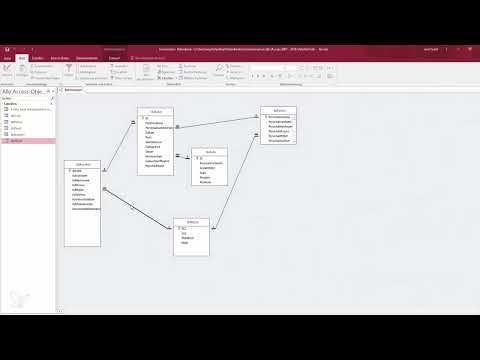
If you try to change the primary key in the Database Tools, you get a message saying that no changes are possible. The reason lies in the existing relationships with the Customers and Drivers tables. As long as these relationships with referential integrity exist, the primary key remains locked.

Step 7: Set the AutoNumber ID as the new primary key
The sensible solution is to add your own ID field as an AutoNumber to the table. This field automatically receives a consecutive, unique number. Set the data type to AutoNumber and set the index to "No Duplicates". Then make this field the primary key. The postal code remains as a normal data field and may now occur multiple times.

Step 8: Remove relationships and adjust foreign keys
Close all tables that are connected to the postal codes table so that no locks remain. Then open the Database Tools and remove the relationships to the Customers and Drivers tables. Only then can the primary key be changed. Since the database is in test mode, no real records are affected, and removing them is unproblematic.

Step 9: Clean up the database
Delete all existing records in the postal codes table before you begin the rebuild. Afterwards, you should clean up the database using "Compact and Repair". This permanently removes data that is no longer needed from the file. This is important so that old error remnants do not affect the new setup.

Step 10: Define foreign key fields as numbers
The fields for the postal code reference in the Customers and Drivers tables now point to the ID. Since the ID is a number, you must change these fields from Short Text to the Number data type. Select Long Integer as the field size so that the fields match the AutoNumber. Here too: as long as there is no real data in the fields, the change can be made without any problems.

Step 11: Reset the primary key
Open the postal codes table in Design View and remove the existing primary key. Then set the ID field as the new primary key. It makes sense to drag the ID to the first position in the field list so that the structure remains clear. Make sure that the Postal Code field is set to no index or to "Duplicates OK".

Step 12: Restore relationships with referential integrity
Now re-establish the relationships. Connect the ID field of the postal codes table to the respective foreign key field in the Customers and Drivers tables. Enable the "Enforce Referential Integrity" option for each relationship and save the changes. This ensures that records can only refer to existing postal code entries.
Step 13: Start a new import
Now begin the import with the Austrian records and then with the German postal codes. The table assigns the IDs automatically, and each record receives a unique assignment to its location. Depending on your computer's performance, the import takes a few seconds to minutes. Confirm the process via "Finish" and wait until the progress bar disappears.

Step 14: Check the result
Open the table after the import and check the number of records. In the example, the table contains 61,807 records after the complete import. No more error messages should appear. Scroll through the list and spot-check whether postal codes and locations are assigned correctly.

Step 15: Set up the lookup field in Customers again
Since the relationships were rebuilt, the dropdown field in the customer form has disappeared. Open the Design View of the Customers table and adjust the Postal Code Reference field via the "Lookup" tab. Select the postal codes table as the row source and specify three columns: the ID with a width of 0 cm, the postal code with 3 cm, and the location with 7 cm. Set the list width to 10 cm and enable the "Limit To List" option.

Step 16: Test the dropdown selection
Open a customer form and click on the newly set up field. You will now see the list entries with postal code and city. Enter a postal code and check whether the matching cities are displayed. If you want to display the city instead of the postal code, adjust the column widths accordingly and save the form. Afterwards, you can repeat the process with the driver form.

Summary ??? Importing Postal Codes into Access: Solving Errors and Ensuring Integrity
Importing German postal codes usually fails at three points: missing column headings in the Excel file, duplicate postal codes, and existing relationships that block the primary key. The solution is to correct the Excel file, temporarily remove the relationships, and introduce an AutoNumber field as the primary key. Afterwards, you restore the relationships with referential integrity and adjust the lookup fields. This keeps your data consistent, and postal codes can be managed even when they occur multiple times.
FAQ
Why is the first data row used as the field name during the Excel import?Because the first row of the Excel file contains no column headings. Access then interprets the first record as the header row and subsequently reports that the field does not exist.
Why can't the postal code be used as the primary key?Several cities can have the same postal code, which means postal codes are not unique. However, a primary key must uniquely identify each record.
Why can't I simply change the primary key?As long as relationships with referential integrity exist, Access locks the primary key. You must first remove the affected relationships.
Why should the foreign key field have the Number data type?Because it refers to an AutoNumber field, and AutoNumbers are numbers (Long Integer). The data type of the foreign key must match the primary key, otherwise the relationship cannot be established.

