
Editing images in Photoshop opens up countless creative possibilities to give your photos a whole new dimension. A special focus is on the Dodge & Burn technique, which allows you to selectively add light and shadow to emphasize shapes. In this tutorial, you will learn how to showcase a model's hands and arms perfectly using this method. Let's get started!
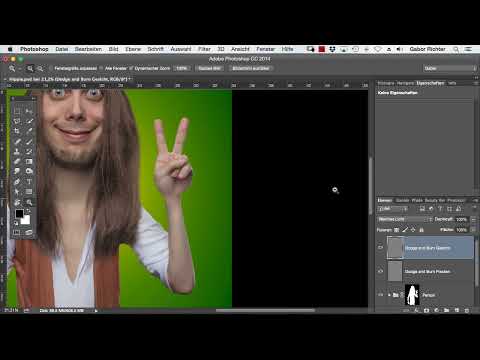
The video is only loaded from YouTube when you play it – data (including your IP address) is then transmitted to YouTube/Google. More in the privacy policy
Main insights:
- With Dodge & Burn, you can effectively model shapes.
- The use of lightening and darkening highlights certain areas and adds depth.
- Patience and fine adjustments are key to achieving a three-dimensional effect.
Step-by-Step Guide
Start by preparing the Dodge & Burn layer that you will use to edit your hands and arms. You can create a new layer or use an existing one.

First, let's focus on the hands. Here you can invest a lot of time and enjoy the process. The goal is to shape the fingers to be a bit “sausage-like.” A good starting point is to lighten the areas, especially the fingertips, so they appear like small balls and round out the overall image.
As you lighten the finger area, you should also darken the surrounding areas. This significantly improves the shape of the hands. This gives you the opportunity to actively work on various spots of the fingertips while refreshing the folds between the fingers as well.

If you are working on a thumb, you might also completely darken the sides and lighten the middle. This immediately makes the shape more three-dimensional. You will quickly notice that the areas you edited show more dimension.

For the palms of the hands, you should take a similar approach. First, lighten the area, going over it several times to achieve a noticeable impact. Then darken the side areas slightly to create more shape.
The fingertips are especially important for the overall appearance. If you take the time to edit each finger area, it will show an amazing effect. You will find that this significantly enhances the tactile perception of the hands, improving the overall work.
Now switch to the arm. Your goal is to make it appear more three-dimensional and lively. You can lighten the middle of the arm. This creates a reflection that you can often see with tights. However, darken the outer contours slightly to enhance the 3D effect.

When you then work on the other side, lighten the inside further and darken the outside. This will make the arm look rounder overall and less flat.

Regularly check back and forth between the "Before" and "After" of your work to assess progress. You will confirm that the appearance of your hands and arms has significantly improved.

If you want to make additional adjustments, such as emphasizing the contours of the neck, you can do so. However, ensure that it does not create too much variation, especially if you do not want to add unexpected highlights.

If you want to experiment with shaping a muscle area, you can darken a dark area and then place a lighter area on top. Keep in mind that these additional effects could influence your base approach.

But for the hands and arms, you now have the framework to shape them effectively into a comic character. Remember: patience is the key to success, and regularly checking your work will yield the best results.

Summary – Comic-Style Photoshop: Shaping Hands and Arms
In this guide, you learned how important the Dodge & Burn techniques are to make the hands and arms of your model look three-dimensional and appealing. Targeted editing that includes lightening and darkening can make all the difference. Use your creativity and keep experimenting!
Frequently Asked Questions
How long does it take to edit the hands and arms?It depends on your level of detail, but plan for at least 30 minutes.
Can I also edit other body parts with this technique?Yes, the technique is applicable to all body parts to emphasize their shape.
What tools do I need for Dodge & Burn?A brush with low opacity is important for precise work.
How important are colors in this process?Editing images of this kind often requires color corrections; experiment with different settings to achieve the best results.
Is it possible to apply the technique to digital painting?Absolutely! The methods are universally applicable and very effective for digital painting as well.


