
Do you know this? In After Effects you place one light after another in your 3D scene, move it, change the color, and find the mood getting better and better. But as soon as you play back an animation, you have to wait a long time every time. The more elaborate the lights and shadows are, the longer the RAM preview takes, and your computer gets noticeably hot in the process.
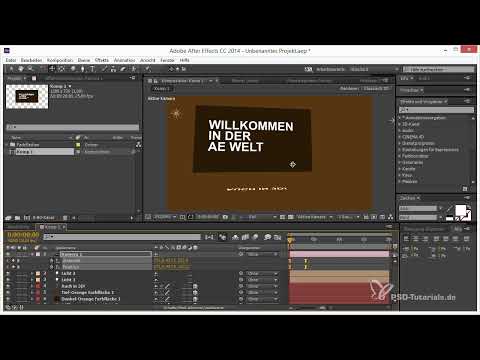
The video is only loaded from YouTube when you play it – data (including your IP address) is then transmitted to YouTube/Google. More in the privacy policy
This is exactly where this quick tip comes in. With the 3D draft mode, After Effects offers a small but very helpful function that lets you check your animation almost in real time. Lights and shadows are not calculated, so you can work smoothly. In this tutorial, you will learn how to use the 3D draft mode effectively, which steps are important, and when you should return to full quality.
Key Takeaways
- Lights and shadows require a lot of computing power during preview and significantly extend the waiting time.
- The 3D draft mode hides lights and shadows for the preview and enables quick feedback on your animation.
- It is best to judge the position, color, and mood of lights on still images, not on running animations.
- For movements such as camera or object animations, the preview in 3D draft mode is usually completely sufficient.
- You only check the full quality with all shadows shortly before rendering or saving.
Step-by-Step Guide
Step 1: Place Lights in the Scene
Start by equipping your scene with lights. Create a new light layer, position it in your 3D composition, and, if needed, enable shadows for the layers that should cast them. It is completely normal here to duplicate a light, move it to a different spot, and judge the effect directly in the composition window. Keep in mind that every additional light increases the calculation time.

Step 2: Fine-Tune the Position and Color of the Lights
Now comes the actual design work. Move your lights, try out different light colors, and observe how the mood of the scene changes. A slightly cooler light can make a scene feel more objective, while warm light creates a cozy atmosphere. Test different variations until your subject looks exactly the way you imagine it. For this phase, it is advisable to work with still images, because that is where you see the effect of the light most clearly.

Step 3: Activate the 3D Draft Mode
Now comes the actual trick. Look for the 3D draft mode switch in the upper area of the timeline and click it. Once the function is active, lights and shadows are no longer calculated in the preview. The result: you get almost instant feedback on your animation, and playback runs much more smoothly. The display looks simpler than the final result, but it is perfectly sufficient for the motion sequences.

Step 4: Check Animations in Draft Mode
In 3D draft mode, you can now check your animation without long waiting times. Set keyframes for the desired movements, for example for an object moving from position A to position B, or for a camera move. To make the movement look smoother, you can select the keyframes and smooth them with the "Easy Ease" function (keyboard shortcut F9). Then you play the animation and assess the flow of movement. Pay attention to the length of your animation, because if it stretches over many seconds, you should check the timing values again.

Step 5: View the Final Result in Full Quality
Once you have adjusted the movements to your satisfaction, switch the 3D draft mode off again and view the animation in full quality. Only now are all shadows, lights, and details displayed correctly. You should carry out this check as the last step before saving or rendering. Since full quality takes significantly longer, it is worth using it deliberately and not playing it back after every small change.

Step 6: Use the Preview in Everyday Work
You should not use the 3D draft only in exceptional cases, but regularly during the working process. Switch it on whenever you are working on movements, timing, or camera work, and leave it active until you specifically want to check the lighting effect. This way, you save considerable time and computing power with every preview. You will notice that you can try out more versions in the same amount of time and thus work more productively.

Summary – 3D Preview in After Effects: Saving Time with Light and Shadows
The 3D draft in After Effects is an inconspicuous function with a big impact. It hides lights and shadows in the preview, allowing you to check animations in almost real time. Use this option for movements, camera work, and timing, and only use full quality for the final check. This way you keep an overview, spare your computer, and work much more smoothly.
FAQ
Why does the RAM preview take so long with 3D scenes?Lights and shadows have to be recalculated for every single frame, which, depending on complexity, requires a lot of computing power.
What exactly does the 3D draft do?It hides the calculation of lights and shadows in the preview, so that animations can be played back significantly faster.
Does the 3D draft change my finished project?No, the function only affects the preview. The settings of your lights and shadows remain fully intact.
When should I check the full quality?Ideally shortly before saving or rendering, when all movements and lighting settings are finalized.
Is the 3D draft also suitable for lighting design?For assessing light and shadows, you should rather use still images, since the preview in draft mode does not show these effects.
Can I smooth the movement with Easy Ease?Yes, select the keyframes and use the keyboard shortcut F9 to make the transitions look softer and more natural.


