
If you want to color individual image areas or entire layers evenly in GIMP, the Fill tool is the right solution. It doesn't work like a brush, but fills contiguous areas with a single click. To make this work, you need to know which fill types there are, how the threshold works, and when transparent layers play a role. That is exactly what this guide is about.
The video is only loaded from YouTube when you play it – data (including your IP address) is then transmitted to YouTube/Google. More in the privacy policy
Key Takeaways
Key Takeaways
- You can reach the Fill tool via the icon in the toolbar or with the keyboard shortcut Shift + B.
- You can fill with the foreground color, the background color, or a pattern.
- With the "Fill similar colors" option and the threshold, you determine how far the fill spreads to neighboring color tones.
- With the "Fill whole selection" option, you fill an entire selection or layer, regardless of color differences.
- The "Fill transparent areas" and "Sample merged" options determine how the tool behaves on transparent layers.
Finding and Opening the Tool
The Fill tool is hidden in the toolbar behind a shared icon with the Gradient tool. Hold the mouse button down on the icon or click it to select the tool. It's faster with the keyboard shortcut Shift + B. As soon as the tool is active, all the options you need in the following steps appear in the tool settings.

Setting the Fill Type
In the tool settings, you will first find the fill type. With the foreground color, you fill areas with the color that is currently in front in the color selection, black in the example. You use the background color, white in the example, accordingly for the second color tone. You can make the selection directly in the dropdown menu. Pay attention to which color is in front in the color swatches before you click into the image, because otherwise something other than what you wanted can happen quickly.

Determining the Affected Area
The "Affected area" entry determines which pixels are changed at all. By default, "Fill similar colors" is selected. In this case, not only the pixel you click on is filled, but also all pixels of a similar color. Which color tones still count as similar is controlled by the threshold via the slider below. A small value captures only very close color tones, while a larger value increasingly includes gradations.

Using the Threshold
First set the threshold to 15 and click into the image. You are on the image layer and want to fill an area with black. With a click of the left mouse button, not only the clicked pixel is colored, but also all areas whose color lies within the threshold. It's best to do this step with a click on Undo, so you can compare the effect directly.

Gradually Increasing the Threshold
Now increase the threshold carefully, for example to 30 and later to 50, and click on the same spot in the image each time. With each step, more similar color tones are captured. At 50, the area is already significantly larger than at 15. Undo each attempt before you test the next value. This way you can see exactly how the selection changes and can find a suitable value for your image.

Warning About a Threshold That Is Too High
If you set the threshold very high, for example to 100, nearly all color tones in the image are recognized as similar. A click on one spot then fills the entire image with the foreground color. The result is therefore not faulty, but a logical consequence of the setting. If you don't want that, reduce the value and manually set it back to a low range.

Fill Whole Selection
If you want to fill an entire layer with a color, you don't need a threshold. To do this, select the option "Fill whole selection" in the "Affected area" section. The threshold settings will then be hidden automatically. A click in the image will then fill the entire layer with the chosen color. You can also undo this step if needed and return to the "Fill similar colors" option.

Fill with the Background Color and Use the Control Key
If you want to fill with the background color, you can select the background color directly in the tool options. However, it is quicker with the Control key. If you leave the option set to foreground color, you automatically switch to the background color while holding down the Ctrl key. As long as you hold the key, you can fill an area with the background color without switching to the settings. When you release the key, the tool works with the foreground color again.

Fill Transparent Areas
The option "Fill transparent areas" is active by default and should stay that way. If you activate an empty, transparent layer below your image layer and click in the image, this entire layer will be filled with the foreground color. The threshold plays no role here, because there are no different color tones on a transparent layer. There is only one uniform transparent area, which is colored completely.

Use the Sample Merged Option
If you additionally activate "Sample merged," the tool behaves as if you were working directly on the image layer. GIMP then treats all visible layers together as one coherent image. So you can also click multiple times on a transparent layer, and exactly those sub-areas that are connected in the visible overall image will be filled. This is especially useful if you are working on several layers and still want to take the shapes of the overall image into account.

Fill a Selection on a Transparent Layer
To fill a shape, you first choose the selection. In the example, you use the "Ellipse Select" tool to draw a circle on an empty, transparent layer. Then you choose the Fill tool and click once inside the circle. The selection is filled with black. With the Move tool, you can then position the filled circle as you like.

Autocrop the Layer
If the circle should be on its own layer that is exactly the same size as the circle itself, the "Autocrop Layer" function helps you. You can find it in the menu under Layer and then Autocrop Layer. After that, the layer consists only of the area of the circle, and the rest is disregarded. This saves space and makes further editing easier.

Protect Transparent Areas
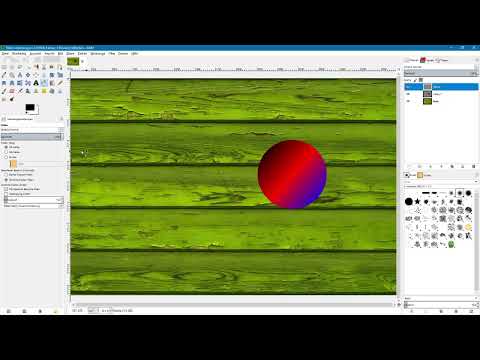
On a second layer that already contains a circle with a gradient, filling does not work quite as simply. First activate the layer and then protect the transparent areas using the corresponding icon in the layers palette. This means you can no longer change the transparent areas. A click with the Fill tool in the center of the circle now colors only the area that matches the threshold. If, on the other hand, you want to fill the entire circle evenly, the next method is the better choice.

Fill the Entire Circle with the Shift Key
To fill an area completely without changing the threshold, hold down the Shift key while clicking. The tool then automatically switches to the "Fill whole selection" option. However, you can also select the option manually in the menu. A click on the circle fills the entire selection with the color. Make sure that you actually click on the selection and not on the surrounding area.

Fill a Selection with a Pattern
To conclude, the tutorial shows how to fill a shape with a pattern. Stay on the current layer, select "Pattern" under "Fill type", and click on the pattern field. A selection opens there, in which you can choose a pattern. If you then click on the circle, it will be filled with the chosen pattern. Here too, make sure not to accidentally click outside the selection. It is best to hold down the Shift key when you click on the circle. This ensures that the entire selection is filled with the pattern.

Summary ??? Fill Tool in GIMP: Coloring Image Areas in the Beginner Tutorial
The Fill tool in GIMP is a versatile aid for coloring image areas and layers evenly. You decide on the fill type, that is foreground color, background color, or pattern, and on the affected area. With the threshold, you control how many similar color tones are included. For complete areas, you use the option "Fill whole selection" or the Shift key. On transparent layers, the options "Fill transparent areas" and "Sample merged" help you place the fill precisely. With this knowledge, you can design individual parts of the image in a targeted way and gain experience step by step.
FAQ
Where do I find the Fill tool in GIMP?It is located in the toolbar behind a shared icon with the Gradient tool and can also be accessed with the keyboard shortcut Shift + B.
What is the difference between foreground and background color when filling?With the foreground color, you fill areas with the front color; with the background color, with the second color that you have set in the color selection.
What does the threshold do?The threshold determines how similar a color must be in order to be filled as well. The higher the value, the more color tones are included.
How do I fill an entire layer with a color?In the "Affected area" section, select the option "Fill whole selection". After that, a click in the image fills the entire layer.
How do I quickly switch to the background color?Hold down the Ctrl key while you click in the image. As long as the key is held down, the tool uses the background color.
What happens if I want to fill on a transparent layer?The threshold plays no role there because there are no different color tones. The entire transparent layer is filled with the chosen color.
What does the option "Sample merged" do?It ensures that GIMP treats all visible layers as one combined image, so that you can access the overall image regardless of the active layer.
How do I fill only part of a selection or the entire selection?With a normal click, you fill areas according to the threshold. If you hold down the Shift key, the entire selection is filled.
How can I fill a shape with a pattern?Select the entry "Pattern" under fill type, choose a pattern, and then click on the selection. It is best to hold down the Shift key so that the entire shape is filled.


