
Imagine your program is supposed to accept a text and save it wherever the user wants. That is exactly what you build in this practice exercise. You extend an existing JavaFX interface with a TextArea and make sure that the entered text is saved to a text file via a FileChooser.
The video is only loaded from YouTube when you play it – data (including your IP address) is then transmitted to YouTube/Google. More in the privacy policy
Introduction
The task builds on the code from the previous video. There you already got to know a FileChooser, which lets the user determine the save location and file name themselves. Now you replace the single-line input field with a multi-line TextArea. The text the user enters there should then end up in the selected file.
The exercise is manageable, but it comes with a few typical stumbling blocks: dealing with layout positions, the question of how to read the content of a control, and handling cancel actions. The last point in particular shows you why clean error handling is so important in GUI programs.
Key Takeaways
- A TextArea is a multi-line input field that you create, import, and add to the layout like other JavaFX controls.
- In the GridPane, you use column and row indices to determine where an element sits. With setColumnSpan you can stretch an element across several columns.
- You read the content of a TextArea with getText(). A hard-coded test text is of no use in a real program.
- If the user cancels the FileChooser, you do not get a File object. The subsequent write operation then leads to a NullPointerException if you do not react to it.
- With a small test file, you finally check whether the text and save location are actually correct.
Step-by-Step Guide
Step 1: Understand the task
Before you write code, it is worth taking a look at the goal. The user types text into a field, clicks a button, and selects the name and directory of the file in the dialog. Afterwards, exactly this text should be in the file. Your program must therefore bring three things together: the input, the dialog, and writing to the file.

Step 2: Create and import the TextArea
First create a new TextArea object, for example with TextArea textArea = new TextArea();. Make sure you import the class javafx.scene.control.TextArea. Without the import, the IDE reports an error, and the problem can be fixed in a few seconds with the shortcut for imports.

Step 3: Add the TextArea to the interface
Now you add the control to your GridPane. In the video, the TextArea is placed at position 0/0, the label at 0/1, and the button at 1/1. The values refer to column and row, with counting starting at 0. The call is, for example, grid.add(textArea, 0, 0);. Then briefly test the program to see whether everything appears in the expected place.
Step 4: Stretch the TextArea across two columns
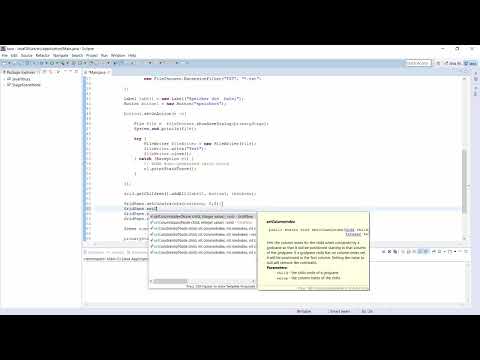
The TextArea quickly looks too narrow in the first column. setColumnSpan helps here. You tell the element that it should extend across two columns. In the video, the method name is first mixed up and then corrected: What is meant is setColumnSpan, not setColumnIndex. The difference is important, because the index only determines the starting position, while the span determines the width. After this change, the layout looks much more balanced.

Step 5: Enter text and test the Save button
Now you enter any text in the TextArea and click the Save button. At this stage, the code probably still writes a hard-coded test text to the file. That is fine for the first run, but it already shows that the connection between the button and the file output works.

Step 6: Understand the cancel case
Here comes the most interesting part. If the user clicks Cancel in the FileChooser, the dialog does not return a File object. If your code nevertheless tries to write to this file, a NullPointerException occurs. The error is not a coincidence, but a classic pattern: A return value is used without being checked beforehand. A simple check like if (file != null) before the write operation prevents the crash. You can add the check right after the selection of the file name.

Step 7: Reading the Content of the TextArea
Instead of a fixed test text, your program should now save the actual content of the TextArea. To do this, you call textArea.getText() and pass the returned String to the write method. In the video, the method name is initially pronounced incorrectly; the correct name is getText(). With this change, the example becomes a real application, because now what gets saved is what the user has entered.

Step 8: Testing the Result
Start the program again and enter your own text, for example "Mein Test". In the dialog, select a folder and a file name, for example "meinTest.txt", and save. Then open the file with a text editor. If your entered text is exactly there, the solution works. Also try cancelling in the dialog to make sure your program no longer crashes.

Step 9: Ideas for Your Own Extensions
The exercise is deliberately kept simple. You can expand it as you like, for example with color selection, formatting functions such as bold or italic, or a button for opening existing text files. If you implement your own extensions, it is worth capturing your progress with a screenshot. That way you can see for yourself how far you have come.

Summary – JavaFX: Saving Text from a TextArea via FileChooser
You have created a TextArea, positioned it in the GridPane, and stretched it across two columns. You read the entered text with getText() and save it to a file via the FileChooser. You have also seen how cancelling the dialog leads to a NullPointerException and how to prevent it. If you have followed these steps, you have mastered the basics of file dialogs and text input in JavaFX.
FAQ
Why do I have to import the TextArea?Java only knows the class once it has been included with an import statement. Without the import, the compiler reports an error.
What is the difference between setColumnIndex and setColumnSpan?setColumnIndex defines the starting column, setColumnSpan determines how many columns the element occupies.
Why does an error occur when cancelling the dialog?In this case, the FileChooser returns null. If the program tries to access this non-existent object, it terminates with a NullPointerException.
How do I avoid the crash when cancelling?Check the result of the dialog before the write operation with a condition such as if (file != null). Only if a file has been selected do you write the text.
Which method reads the text from the TextArea?The getText() method returns the entire content of the field as a String.
Can I extend the program later?Yes, you can add, for example, formatting, colors, or the opening of existing files. The exercise provides a solid foundation for this.


