
Imagine you open After Effects and wonder how a cartoon, a stop-motion clip, or a robot scene is created. This guide shows you the most important animation styles, explains how they work, and makes clear which of them can be implemented in After Effects. The timestamps in the screenshot variables refer to the time stamps in seconds of the video tutorial.
The video is only loaded from YouTube when you play it – data (including your IP address) is then transmitted to YouTube/Google. More in the privacy policy
Introduction
Animation is more than just stringing images together quickly. Behind every style there is its own technique, its own working methods, and a typical visual language. The tutorial presents seven styles: computer animation, hand-drawn animation, stop motion, animatronics, motion capture, and rotoscoping. Afterwards, the instructor shows how After Effects works with keyframes, frame rates, and 3D layers, and how styles can even be combined within a single project.
Key Takeaways
- Animation styles differ primarily in the technique used to create the images: on the computer, by hand, with real objects, or by tracing real footage.
- After Effects works with keyframes, which you use to define movements, sizes, and positions precisely.
- The frame rate determines how smooth or how stop-motion-like an animation looks. You can adjust it afterwards.
- Styles can be combined and switched on or off at any time, which is especially helpful for creative experiments.
Step-by-Step Guide
Step 1: Understanding Computer Animation
Computer animation is created entirely on the computer, usually in a 3D program. Well-known examples are Toy Story or Tangled. All characters and environments are modeled digitally, animated, and then output as a finished video.
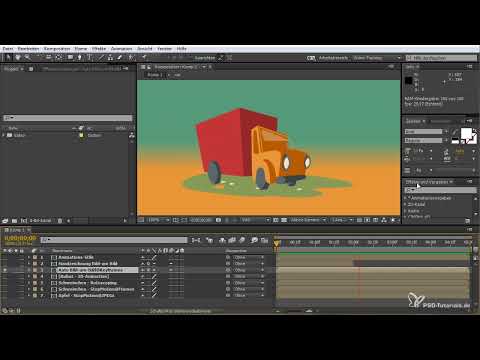
In the tutorial you see this principle using the example of a vehicle that drives into the frame, pauses briefly, wobbles slightly back and forth, and drives out again. These movement sequences are created in After Effects using the keyframe function. So you define at specific points in time where the object is located, and the program calculates the movement in between.

The instructor shows right afterwards how quickly a complete scene can be built with keyframes. The scene is created without elaborate drawings, because you only have to set the key positions.
Step 2: Recognizing Hand-Drawn Animation
Classics like The Lion King or Bambi were made from thousands of individual drawings that were played back one after another. Each drawing differs minimally from the next, and only the rapid sequence creates the impression of movement.
Typical of this style are a slight unsteadiness in the lines and gradients that do not look perfectly even. Today many animations are drawn digitally, but the look can also be imitated in After Effects. You recognize it by the fact that the scene sways a little and looks slightly offset.

Step 3: Understanding Stop Motion
With stop motion, you move real objects such as Lego figures or clay figures in front of a fixed camera. After each small change you take a photo. When these images are later played back one after another, movement is created. Well-known examples are Coraline or Paranorman.
In the tutorial you can see this with an apple that is changed frame by frame. The individual images are imported into After Effects as a sequence. As a result, the movement looks jerky, just like stop motion.

Step 4: Controlling the Frame Rate Deliberately
The stop-motion look depends heavily on the number of frames per second. The original apple footage is natively at around 30 fps and accordingly looks smooth. If you want to create a jerky impression, you can reduce the frame count. This causes movements to be displayed visibly in individual steps.
Conversely, a scene can be made smoother with more frames, provided the footage allows it. What matters is that you can adjust the frame rate at any time to match your vision.

Step 5: Getting to Know Animatronics
Animatronics are mechanical robots that are fitted with a realistic-looking outer shell. They were used primarily when computer-generated images still did not look convincing. Films like Terminator, Jurassic Park, or Aliens use this technique to make characters seem tangible and real.
Even though animatronics are not created directly in After Effects, it is worth knowing about them. It helps you understand the origin of typical looks and deliberately incorporate role models when designing your own scenes.

Step 6: Understanding Motion Capture
In motion capture, markers are attached to an actor's body. Cameras record the movements of these points and transfer them as coordinates into a 3D program. There, the data then controls digital characters. This technique is used above all in games and in films such as The Lord of the Rings with Gollum, Avatar, or Beowulf.
You can think of motion capture as a link between real movement and digital animation. A human provides the template, and the computer handles the implementation.
Step 7: Trying Out Rotoscoping
Rotoscoping works similarly to tracing early drawings. Real film footage serves as the basis, and every image is traced or repainted over it frame by frame. The result looks like a mix of reality and drawing. Well-known examples are A Scanner Darkly with Keanu Reeves or Tron.
In After Effects, you can create a similar impression with effects. The tutorial shows a scene with a heat effect and blurring, which can be transformed into a scenery that looks hand-drawn using a single effect. It is worth experimenting with the settings there.

Step 8: Combining and Switching Styles
After Effects allows you to combine several styles or even change the look in the middle of a project. In the tutorial, the instructor shows a farm with little pigs that initially looks like stop motion but is transformed by additional effects into a rotoscoping scene with wobbling eyes. These settings can be switched on or off at any time.
This lets you test which variant you like better and, if necessary, return to the original, smooth scene. Therefore, save important intermediate versions before making larger changes.

Step 9: Building a 3D Scene
A CGI scene (Computer Generated Images) is created entirely on the computer. There you work with a coordinate system in which objects move along three axes: the X-axis horizontally, the Y-axis vertically, and the Z-axis into depth. In addition, there are lights and textures, that is, the colors and surfaces of the objects.
A simple cube that grows larger illustrates the principle well. When scaling, the cube does not grow in just one direction but along all three axes simultaneously. This is exactly how complex animations are assembled in 3D programs.

Step 10: Finding Your Own Style
At the end of the tutorial, the instructor emphasizes that there are no fixed limits. Before you start, think about what effect you want to achieve. Should your animation look realistic, playful, comic-like, or jerky? This decision determines which technique you choose and how you combine them.
Feel free to try out styles and compare the results. Over time, you will develop a feel for which technique suits your projects.

Summary ??? Understanding Animation Styles in After Effects: From Computer Animation to Rotoscoping
The animation styles presented differ mainly in how they are created. Computer animation and 3D scenes are created on the computer, hand-drawn animations from many individual images, stop motion from photographed objects, and rotoscoping from traced footage. Animatronics and motion capture use real templates, whether as mechanical figures or as captured body movements.
In After Effects, you can achieve many of these looks through keyframes, control of the frame rate, and suitable effects. Particularly valuable is the ability to mix styles and adjust them at any time. This way, you can experiment freely and develop your own style.
FAQ
Which animation style is the oldest?Hand-drawn animation is considered one of the oldest forms. It arose from stringing together many individual drawings.
What is the difference between stop motion and computer animation?In stop motion, real objects are photographed and changed frame by frame. In computer animation, all characters and movements are created entirely in the computer.
What are keyframes used for in After Effects?Keyframes mark points in time at which properties such as the position, size, or rotation of an object change. After Effects automatically calculates the movement in between.
How do I create a stop-motion look in After Effects?You can reduce the number of frames. This makes movements look jerky and in individual steps, similar to real stop-motion technique.
Can I remove an animation style afterwards?Yes, if you have set up effects or frame rate changes as separate layers or settings, you can switch them off at any time and return to the original scene.
What does rotoscoping mean?Rotoscoping is a technique in which real film footage is traced or repainted frame by frame. The result looks like a mix of live-action film and drawing.


