

Before you can work with an SQLite database in C#, you need the right tools. SQLite is a lightweight database that doesn't require its own server service, but it still needs a library in your project. This guide shows you step by step how to find and install the right package in Visual Studio using the NuGet Package Manager. You will also set up the external DB Browser for SQLite, which you can use later to conveniently view your databases.
The video is only loaded from YouTube when you play it – data (including your IP address) is then transmitted to YouTube/Google. More in the privacy policy
All you need for this is Visual Studio with an existing C# project and an internet connection.
Key Takeaways
- The NuGet Package Manager is the central place where you add libraries to your projects.
- For SQLite in C#, you need the System.Data.SQLite package, which you install specifically in the right project.
- After installation, you add the using directive System.Data.SQLite to your code.
- The DB Browser for SQLite is a standalone program and not part of your project. It helps you open and inspect database files.
Opening the NuGet Package Manager
The first step takes you to the Tools menu in Visual Studio. There you will find the entry for the NuGet Package Manager. Hover over it with the mouse and then select the management of NuGet packages for the solution.

After opening, an overview of already existing packages appears. You don't have to scroll through all the entries, because the search saves you a lot of time.

Searching for SQLite
In the Package Manager, click on the Browse tab and enter the term SQLite in the search field. Wait a moment until the search is complete. Several packages related to SQLite will be displayed. So you need to look closely at which one you actually need.

Selecting the right package
Scroll down a bit in the results list until you find the System.Data.SQLite package. Click on it. The details about the package appear on the right side, such as the description and the version. Here you can also see which project the package is to be installed in. Visual Studio automatically suggests your current project.

Installing the package in the project
Check the box next to the project into which the library should be added. Then click on Install. The process takes a moment.

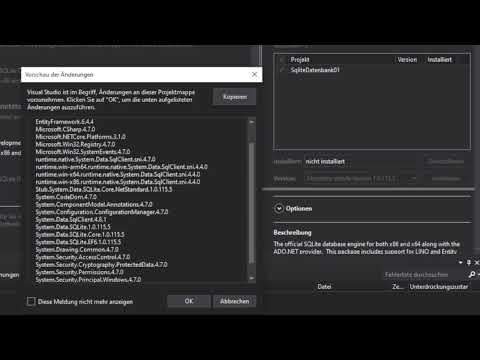
During installation, Visual Studio may ask you whether additional dependent components should be installed. Confirm this prompt with OK so that all required parts are present. You also have to accept the license terms. You can read them through beforehand at your leisure. The actual installation begins only once you agree.

Verifying the installation
In the lower area of Visual Studio, in the Output window, you can see the progress. It shows that the package was installed successfully. Watch for this message, because it's the only way to be sure that the library is available in the project.

Then close the Package Manager again.
Adding the using directive
So that you can use the SQLite functions in your code, you need to add the appropriate using directive. It reads:
using System.Data.SQLite;
Write this line at the top of your code file, above the class definition. Visual Studio also displays the package in the lower area as soon as it is recognized. The directive is the link between your code and the library you just installed.

Download the DB Browser for SQLite
The DB Browser for SQLite is not part of your project, but a separate program. You can find it on the website sqlitebrowser.org. There, click on the download section. Choose the version that suits your system. The example in the video uses Windows 64 Bit, so you should choose the variant for your own operating system. Download the standard installer.

Install the DB Browser
Start the downloaded installer. Confirm the prompt asking whether the program should be installed, and accept the license terms. The installer also asks you whether a shortcut should be created on the desktop. This is optional, but handy. Then click Next and then Install. Windows may ask once more whether you want to allow changes to the device. Confirm that with Yes as well.

Once finished, the DB Browser is ready to use. You will use it in the following lessons to check the databases that you create with C#.
Completing the Preparation
With that, you have installed all the components for this chapter. Your project contains the SQLite library, you have prepared the appropriate using directive, and the DB Browser is available to you. Close the installer and quickly check whether the program can be started.

In the next step, you will create your first SQLite database. The careful preparation you have now completed is the foundation for that.
Summary – Using SQLite in C#: Installing NuGet Packages Correctly
In this guide, you have learned how to search for SQLite via the NuGet package manager in Visual Studio and add the System.Data.SQLite package to your project. You now know how to verify the installation and add the using directive. In addition, you have downloaded and installed the DB Browser for SQLite. This fulfills all the prerequisites for starting work on your own database in the next step.
FAQ
What is the NuGet package manager?The NuGet package manager is a tool in Visual Studio with which you search for, install, and manage ready-made libraries.
Do I need to install anything additional for SQLite in C#?Yes, you need the System.Data.SQLite package so that you can use SQLite databases in your C# project.
Why do I have to write the using directive?The using directive tells your code which library it should use. Without it, Visual Studio cannot find the SQLite classes.
Is the DB Browser for SQLite part of my project?No, the DB Browser is a standalone program. You use it to open and check database files.
Which version of the DB Browser do I need to download?Choose the version that suits your operating system, for example Windows 64 Bit.

